Artificial Intelligence
Accelerating custom entity recognition with Claude tool use in Amazon Bedrock
Businesses across industries face a common challenge: how to efficiently extract valuable information from vast amounts of unstructured data. Traditional approaches often involve resource-intensive processes and inflexible models. This post introduces a game-changing solution: Claude Tool use in Amazon Bedrock which uses the power of large language models (LLMs) to perform dynamic, adaptable entity recognition without extensive setup or training.
In this post, we walk through:
- What Claude Tool use (function calling) is and how it works
- How to use Claude Tool use to extract structured data using natural language prompts
- Set up a serverless pipeline with Amazon Bedrock, AWS Lambda, and Amazon Simple Storage Service (S3)
- Implement dynamic entity extraction for various document types
- Deploy a production-ready solution following AWS best practices
What is Claude Tool use (function calling)?
Claude Tool use, also known as function calling, is a powerful capability that allows us to augment Claude’s abilities by establishing and invoking external functions or tools. This feature enables us to provide Claude with a collection of pre-established tools that it can access and employ as needed, enhancing its functionality.
How Claude Tool use works with Amazon Bedrock
Amazon Bedrock is a fully managed generative artificial intelligence (AI) service that offers a range of high-performing foundation models (FMs) from industry leaders like Anthropic. Amazon Bedrock makes implementing Claude’s Tool use remarkably straightforward:
- Users define a set of tools, including their names, input schemas, and descriptions.
- A user prompt is provided that may require the use of one or more tools.
- Claude evaluates the prompt and determines if any tools could be helpful in addressing the user’s question or task.
- If applicable, Claude selects which tools to utilize and with what input.
Solution overview
In this post, we demonstrate how to extract custom fields from driver’s licenses using Claude Tool use in Amazon Bedrock. This serverless solution processes documents in real-time, extracting information like names, dates, and addresses without traditional model training.
Architecture
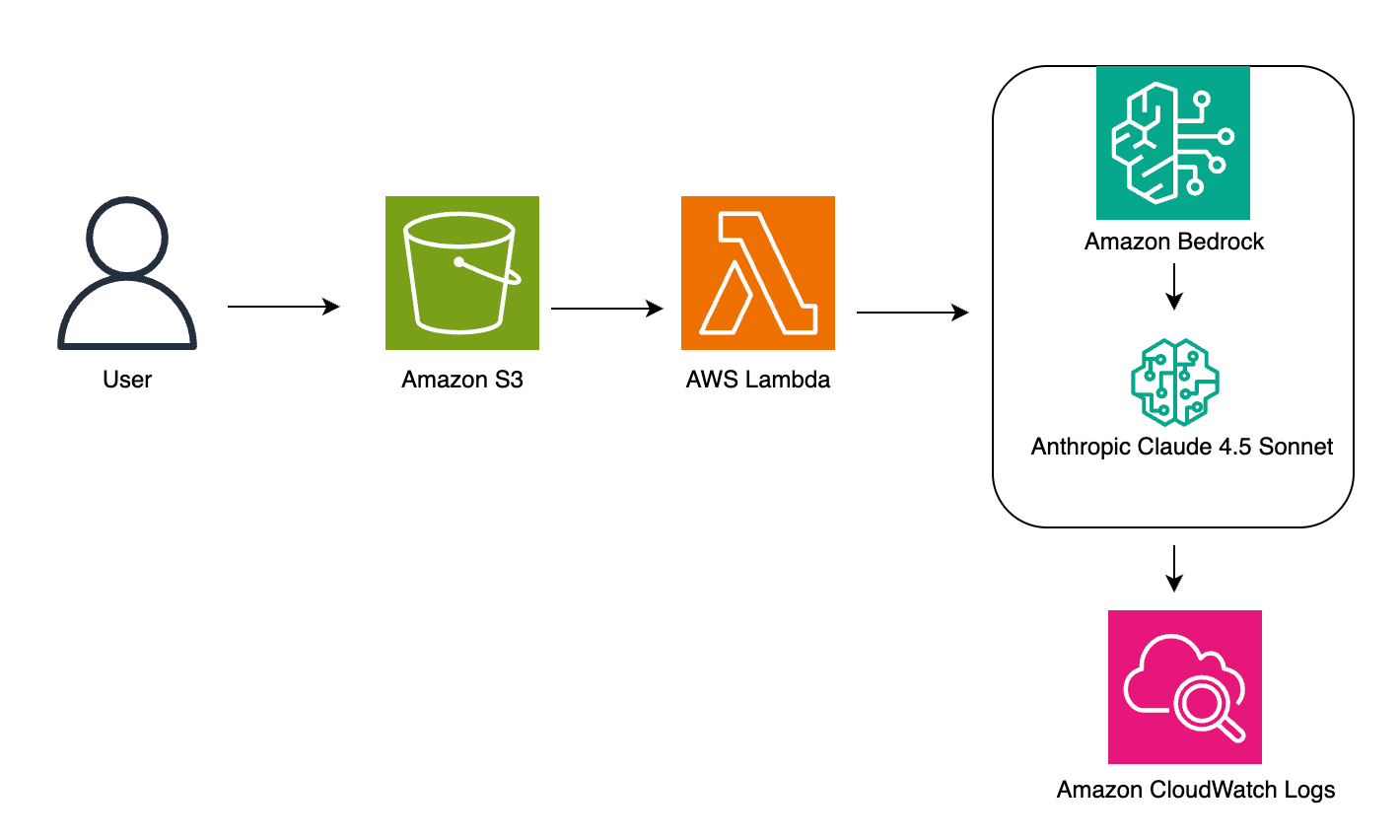
Our custom entity recognition solution uses a serverless architecture to process documents efficiently and extract relevant information using Amazon Bedrock’s Claude model. This approach minimizes the need for complex infrastructure management while providing scalable, on-demand processing capabilities.
The solution architecture uses several AWS services to create a seamless pipeline. Here’s how the process works:
- Users upload documents into Amazon S3 for processing
- An S3 PUT event notification triggers an AWS Lambda function
- Lambda processes the document and sends it to Amazon Bedrock
- Amazon Bedrock invokes Anthropic Claude for entity extraction
- Results are logged in Amazon CloudWatch for monitoring
The following diagram shows how these services work together:
Architecture components
- Amazon S3: Stores input documents
- AWS Lambda: Triggers on file upload, sends prompts and data to Claude, stores results
- Amazon Bedrock (Claude): Processes input and extracts entities
- Amazon CloudWatch: Monitors and logs workflow performance
Prerequisites
- AWS account with Amazon Bedrock access
- Identity and Access Management (IAM) permissions to access Amazon Bedrock, AWS Lambda, and Amazon S3
- Basic familiarity with Python and JSON
- Access to the Claude model in Amazon Bedrock
- Set up a cross-region inference profile for Claude models
Step-by-step implementation guide:
This implementation guide demonstrates how to build a serverless document processing solution using Amazon Bedrock and related AWS services. By following these steps, you can create a system that automatically extracts information from documents like driver’s licenses, avoiding manual data entry and reducing processing time. Whether you’re handling a few documents or thousands, this solution can scale automatically to meet your needs while maintaining consistent accuracy in data extraction.
- Setting Up Your Environment (10 minutes)
- Create source S3 bucket for the input (for example, driver-license-input).
- Configure IAM roles and permissions:
{
     "Version": "2012-10-17",
     "Statement": [
       {
         "Effect": "Allow",
         "Action": "bedrock:InvokeModel",
         "Resource": "arn:aws:bedrock:*::foundation-model/*", "arn:aws:bedrock:*:111122223333:inference-profile/*”
       },
       {
         "Effect": "Allow",
         "Action": "s3:GetObject",
         "Resource": "arn:aws:s3:::amzn-s3-demo-bucket/*"
       }
     ]
}- Creating the Lambda function (30 minutes)
This Lambda function is triggered automatically when a new image is uploaded to your S3 bucket. It reads the image, encodes it in base64, and sends it to Claude 4.5 Sonnet via Amazon Bedrock using the Tool use API.The function defines a single tool called extract_license_fields for demonstration purposes. However, you can define tool names and schemas based on your use case — for example, extracting insurance card data, ID badges, or business forms. Claude dynamically selects whether to call your tool based on prompt relevance and input structure.
We’re using “tool_choice”: “auto” to let Claude decide when to invoke the function. In production use cases, you may want to hardcode “tool_choice”: { “type”: “tool”, “name”: “your_tool_name” } for deterministic behavior.- Go to AWS Lambda console
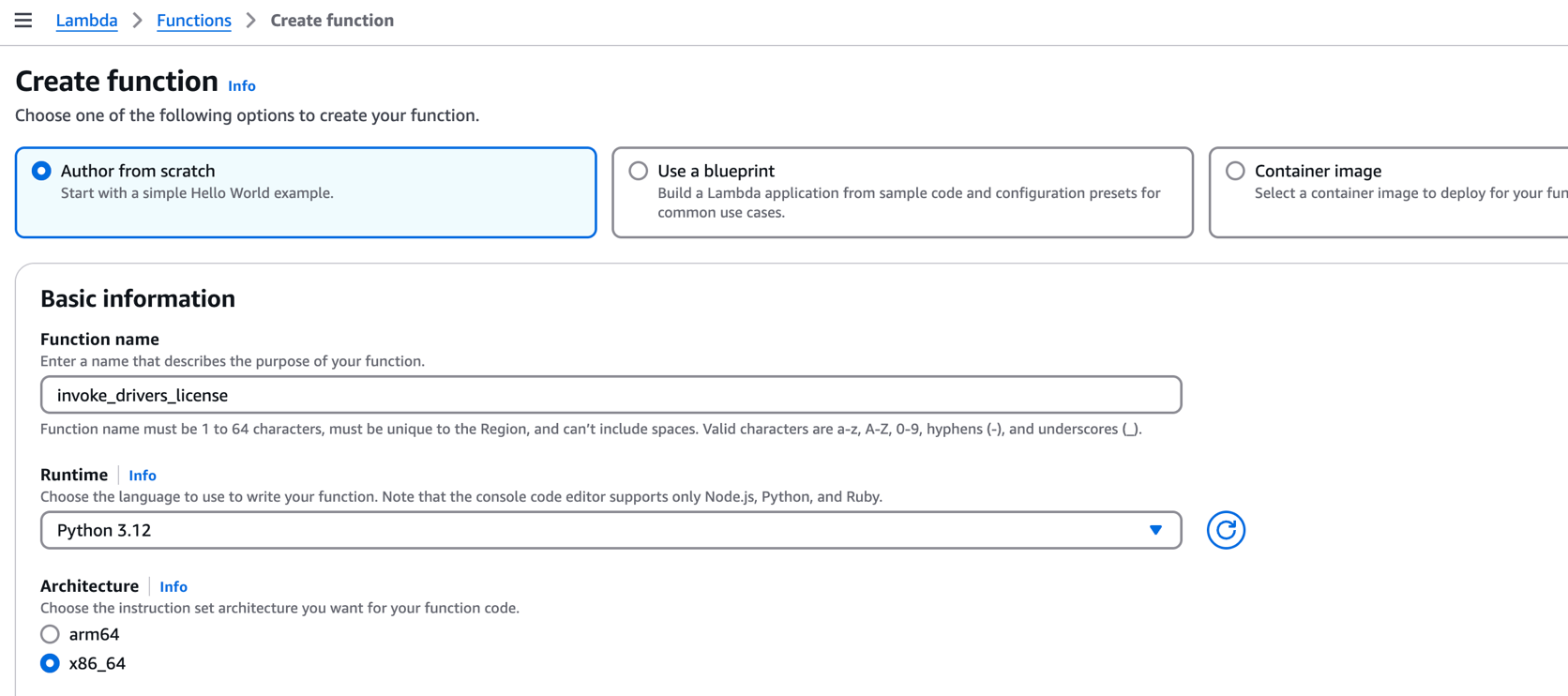
- Choose Create function.
- Select Author from scratch.
- Set runtime to Python 3.12.
- Choose Create Function.
- Configure Lambda Timeout
- In your Lambda function configuration, click General Configuration tab.
- Under General Configuration, click Edit
- For Timeout, increase from default 3 seconds to at least 30 seconds. We recommend setting it to 1-2 minutes for larger images.
- Choose Save.
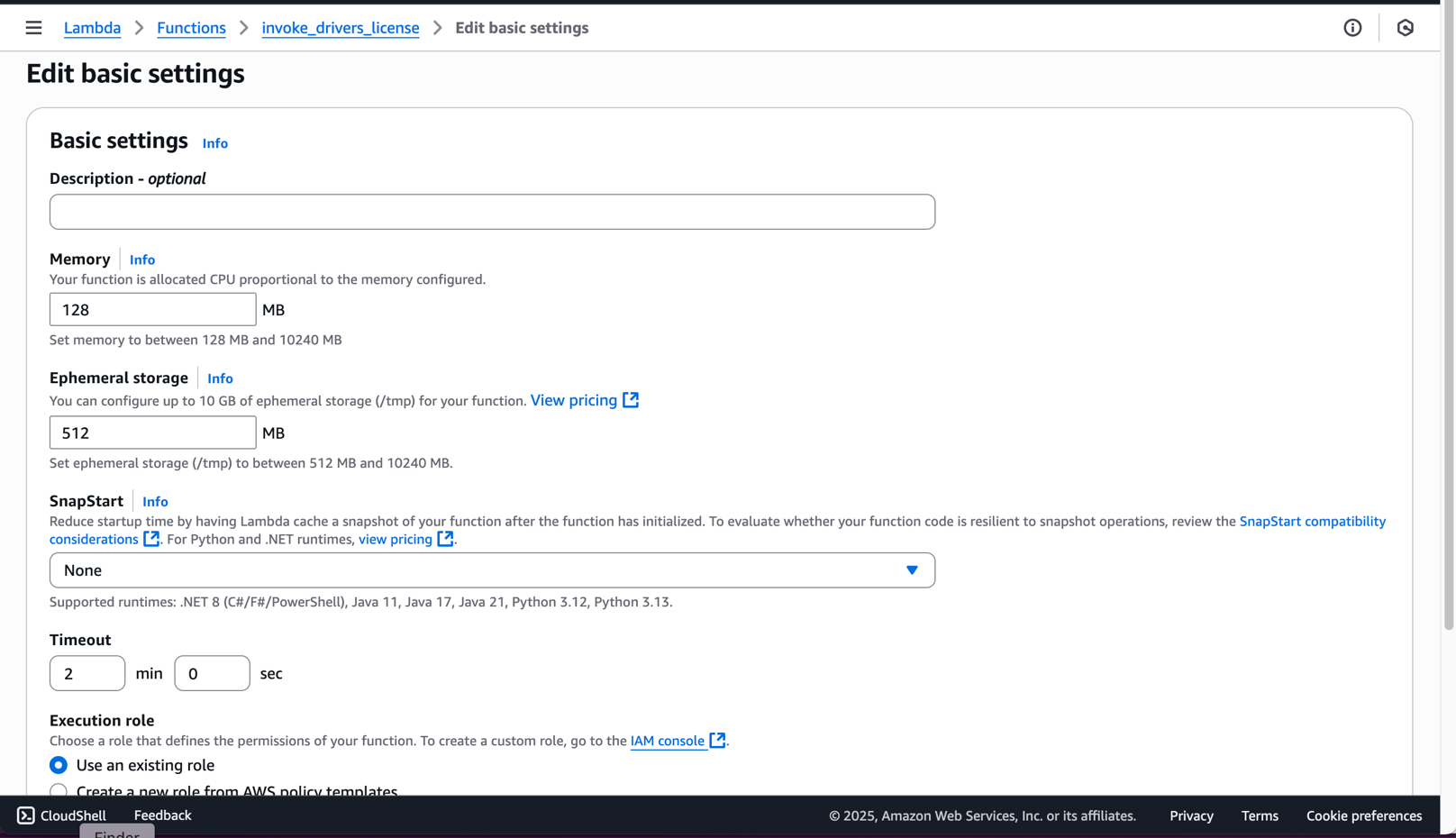
Note: This adjustment is crucial because processing images through Claude may take longer than Lambda’s default timeout, especially for high-resolution images or when processing multiple fields. Monitor your function’s execution time in CloudWatch Logs to fine-tune this setting for your specific use case.
- Paste this code in the lambda_function.py code file:
- Deploy the Lambda Function: After pasting the code, choose the Deploy button on the left side of the code editor and wait for the deployment confirmation message.
Important: Always remember to deploy your code after making changes. This ensures that your latest code is saved and will be executed when the Lambda function is triggered.
- Go to AWS Lambda console
- Working with Claude Tool use schemas
- Amazon Bedrock with Claude 4.5 Sonnet supports function calling using Tool use — where you define callable tools with clear JSON schemas. A valid tool entry must include:
- name: Identifier for your tool (e.g.
extract_license_fields) - input_schema: JSON schema that defines required fields, types, and structure
- name: Identifier for your tool (e.g.
- Example Tool use definition:
- You can define multiple tools in the tools array. Claude selects one (or none) depending on the tool_choice value and how well the prompt matches a given schema.
- Use “tool_choice” : “auto” to let Claude decide.
- Use an explicit tool name to force invocation.
Note: The tool_choice field is optional. If omitted, Claude defaults to “auto.”
- Amazon Bedrock with Claude 4.5 Sonnet supports function calling using Tool use — where you define callable tools with clear JSON schemas. A valid tool entry must include:
- Configure S3 Event Notification (5 minutes)
- Open the Amazon S3 console.
- Select your S3 bucket.
- Click the Properties tab.
- Scroll down to Event notifications.
- Click Create event notification.
- Enter a name for the notification (e.g., “LambdaTrigger”).
- Under Event types, select PUT.
- Under Destination, select Lambda function.
- Choose your Lambda function from the dropdown.
- Click Save changes.
- Open the Amazon S3 console.
- Testing and Validation (15 minutes)
- Supported Formats: Claude 4.5 supports image inputs in JPEG, PNG, WebP, and single-frame GIF formats. Note: While this implementation currently supports only .jpeg images, you can extend support for other formats by modifying the media_type field in the Lambda function to match the uploaded file’s MIME type.
- Size and Resolution Limits:
- Max image size: 20 MB
- Recommended resolution: 300 DPI or higher
- Max dimensions: 4096 x 4096 pixels
- Images larger than this may fail to process or produce inaccurate results.
- Preprocessing Tips for Better Accuracy:
- Crop the image tightly to remove noise and irrelevant sections.
- Adjust contrast and brightness to ensure text is clearly legible.
- De-skew scans and ensure text is horizontally aligned.
- Avoid low-resolution screenshots or images with heavy compression artifacts.
- Prefer white backgrounds and dark text for maximum OCR clarity.
- Upload Test Image:
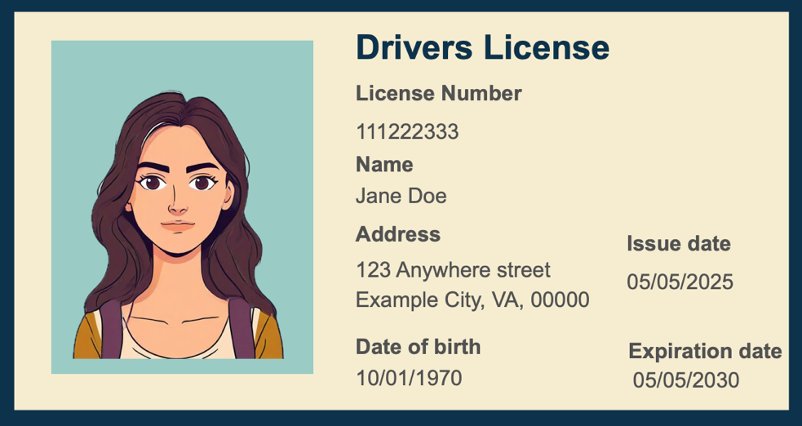
- Open your S3 bucket
- Upload a driver’s license image (supported formats: .jpeg, .jpg).
- Note: Ensure image is clear and readable for best results.
- Monitor CloudWatch Logs
- Go to the Amazon CloudWatch console.
- Click on Log groups in the left navigation.
- Search for your Lambda function name
invoke_drivers_license. - Click on the latest log stream (sorted by timestamp).
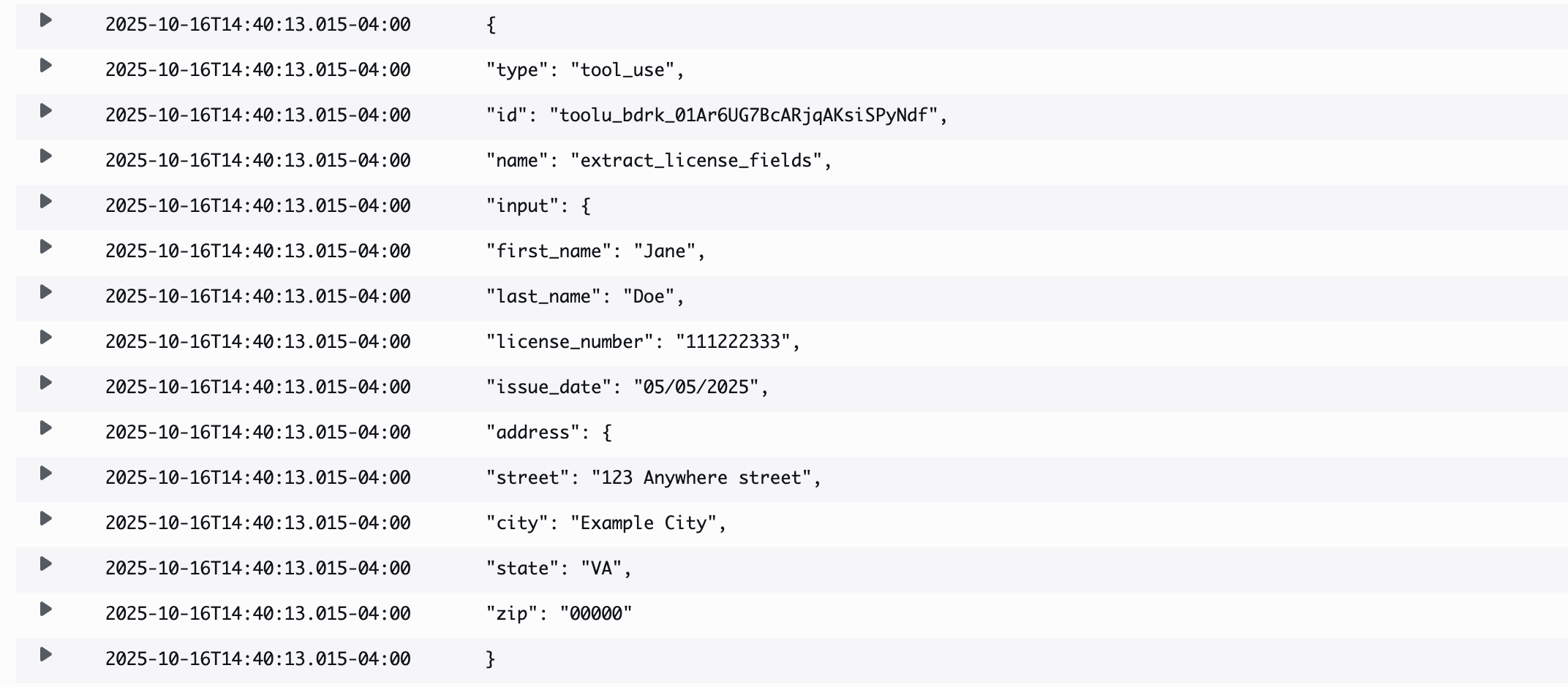
- View the execution results, which shows this sample output:
Performance optimization
- Configure Lambda memory and timeout settings
- Implement batch processing for multiple documents
- Use S3 event notifications for automatic processing
- Add CloudWatch metrics for monitoring
Security best practices
- Implement encryption at rest for S3 buckets
- Use AWS Key Management Service (KMS) keys for sensitive data
- Apply least privilege IAM policies
- Enable virtual private cloud (VPC) endpoints for private network access
Error handling and monitoring
- Claude’s output is structured as a list of content blocks, which may include text responses, tool_calls, or other data types. To debug:
- Always log the raw response from Claude.
- Check if
tool_callsis present in the response. - Use a try-except block around the function call to catch errors like malformed payloads or model timeouts.
- Here’s a minimal error handling pattern:
Clean Up
- Delete S3 bucket and contents.
- Remove Lambda functions.
- Delete IAM roles and policies.
- Disable Bedrock access if no longer needed.
Conclusion
Claude Tool use in Amazon Bedrock provides a powerful solution for custom entity extraction, minimizing the need for complex machine learning (ML) models. This serverless architecture enables scalable, cost-effective processing of documents with minimal setup and maintenance. By leveraging the power of large language models through Amazon Bedrock, organizations can unlock new levels of efficiency, insight, and innovation in handling unstructured data.
Next steps
We encourage you to explore this solution further by implementing the sample code in your environment and customizing it for your specific use cases. Join the discussion about entity extraction solutions in the AWS re:Post community, where you can share your experiences and learn from other developers.
For deeper technical insights, explore our comprehensive documentation on Amazon Bedrock, AWS Lambda, and Amazon S3. Consider enhancing your implementation by integrating with Amazon Textract for additional document processing features or Amazon Comprehend for advanced text analysis. To stay updated on similar solutions, subscribe to our AWS Machine Learning Blog and explore more examples in the AWS Samples GitHub repository. If you’re new to AWS machine learning services, check out our AWS Machine Learning University or explore our AWS Solutions Library. For enterprise solutions and support, reach out through your AWS account team.