AWS Storage Blog
Unlocking data residency use cases with Amazon S3 in AWS Local Zones
Organizations running workloads in metros and geographies far from major cloud infrastructure need scalable, fully managed object storage, but regulations or business requirements mandate that data stays within specific national or metropolitan boundaries. This is particularly true for financial services, healthcare, and public sector, where compliance frameworks not only dictate where primary data resides but also require a secondary copy in a geographically distinct location for resilience. Meeting both local data residency and geographic redundancy requirements has traditionally required organizations to build and maintain their own infrastructure, adding cost and operational complexity.
With Amazon S3 in AWS Local Zones, you can meet data residency mandates using the same APIs and tools you already use, without building or managing local infrastructure. S3 directory buckets in Local Zones provide fully managed object storage within a defined geographic boundary using the S3 One Zone-Infrequent Access (S3 One Zone-IA) storage class. Directory buckets are available in select Local Zones, including Istanbul, Türkiye; Hanoi, Vietnam; and Athens, Greece, with plans to expand to additional locations. You can store and retrieve data using the same S3 APIs, AWS Software Development Kit (AWS SDK), and AWS Command Line Interface (AWS CLI).
In this post, we explore how S3 directory buckets work in Local Zones, including how they compare to general purpose buckets, how endpoint routing works, and bucket naming conventions. We then walk through data residency use cases, data migration options, and a step-by-step guide to creating your first directory bucket in a Local Zone. By the end, you will be able to store object data within a specific Local Zone to meet residency requirements while using familiar Amazon S3 tools and workflows.
How Amazon S3 extends to Local Zones
Local Zones extend select AWS services such as compute, storage, networking, and databases to metros and geographies worldwide, helping you meet data residency requirements and achieve lower latency while maintaining operational consistency with AWS Regions.
S3 supports four types of buckets: general purpose buckets, directory buckets, table buckets, and vector buckets. Local Zones are zonal by design, and directory buckets are the bucket type designed for single-zone data placement. When you create a directory bucket, you select the specific Local Zone where your object data is stored, giving you precise control over data placement. This makes directory buckets a natural fit for workloads that require data to remain within a defined geographic boundary.
Workloads running in the Local Zone can also access general purpose buckets in the parent Region for data that doesn’t have local residency requirements. The following table summarizes the storage classes and key differences between general purpose buckets and directory buckets across Regions and Local Zones.
| AWS Regions | AWS Local Zones | AWS Dedicated Local Zones | ||||
| Replication model | Multi-AZ | Single-AZ | Single zone | Single zone | ||
| Data residency | Data stays within the Region (stored across 3 or more Availability Zones) | Data is stored in a single AZ | Data stays within the Local Zone | Data stays within the Dedicated Local Zone | ||
| Bucket type | General purpose buckets | Directory buckets | ||||
| Storage classes | All S3 storage classes | · S3 One Zone-Infrequent Access (S3 One Zone-IA) | · S3 Express One Zone | · S3 One Zone-IA | · S3 One Zone-IA · S3 Express One Zone |
|
| BUCKET PROPERTIES | ||||||
| Storage class assignment | Per object | Per bucket | ||||
| Object storage structure | Flat namespace: objects stored with key prefixes that simulate folder paths | Hierarchical: objects stored in directories, enabling efficient prefix-based access | ||||
| Namespace | s3 | s3express | ||||
| NETWORKING | ||||||
| Endpoint | Single regional endpoint | Regional endpoint (control plane) + Zonal endpoint (data plane) | ||||
| Bucket access | · Gateway VPC endpoint · Interface VPC endpoint (+ on-premises using AWS Direct Connect private/transit VIF or AWS Site-to-Site VPN) · S3 public endpoint |
· Gateway VPC endpoint · S3 public endpoint (+ on-premises using AWS Direct Connect Public VIF or AWS Site-to-Site VPN) |
||||
| SECURITY | ||||||
| Block Public Access | Configurable. Can be enabled or disabled per bucket or account. | Always enforced. Public access is permanently blocked. | ||||
Figure 1: Comparing general purpose and directory buckets across AWS Global Infrastructure (for a full list of differences, refer to Differences for directory buckets)
S3 directory buckets in Local Zones: Regional and Zonal endpoints
When you create a directory bucket in a Local Zone, your object data is stored in that Local Zone. Bucket management resources, including the bucket name, AWS Identity and Access Management (IAM) policies, and lifecycle configuration, reside in the parent Region. You interact with your data using the same S3 APIs you use in the Region. Each operation type runs in a specific location:
- Object operations (Local Zone) – PutObject, GetObject, CopyObject, CreateSession
- Bucket management (Parent Region) – CreateBucket, DeleteBucket, PutBucketPolicy
The SDK, AWS CLI, and console route each request to the correct location automatically. You don’t need to configure or manage separate endpoints.
The following diagram illustrates how bucket management operations route to the Regional endpoint in the parent Region, and object operations route to the Zonal endpoint in the Local Zone. To access directory buckets from your virtual private cloud (VPC), you can use gateway VPC endpoints at no additional charge.
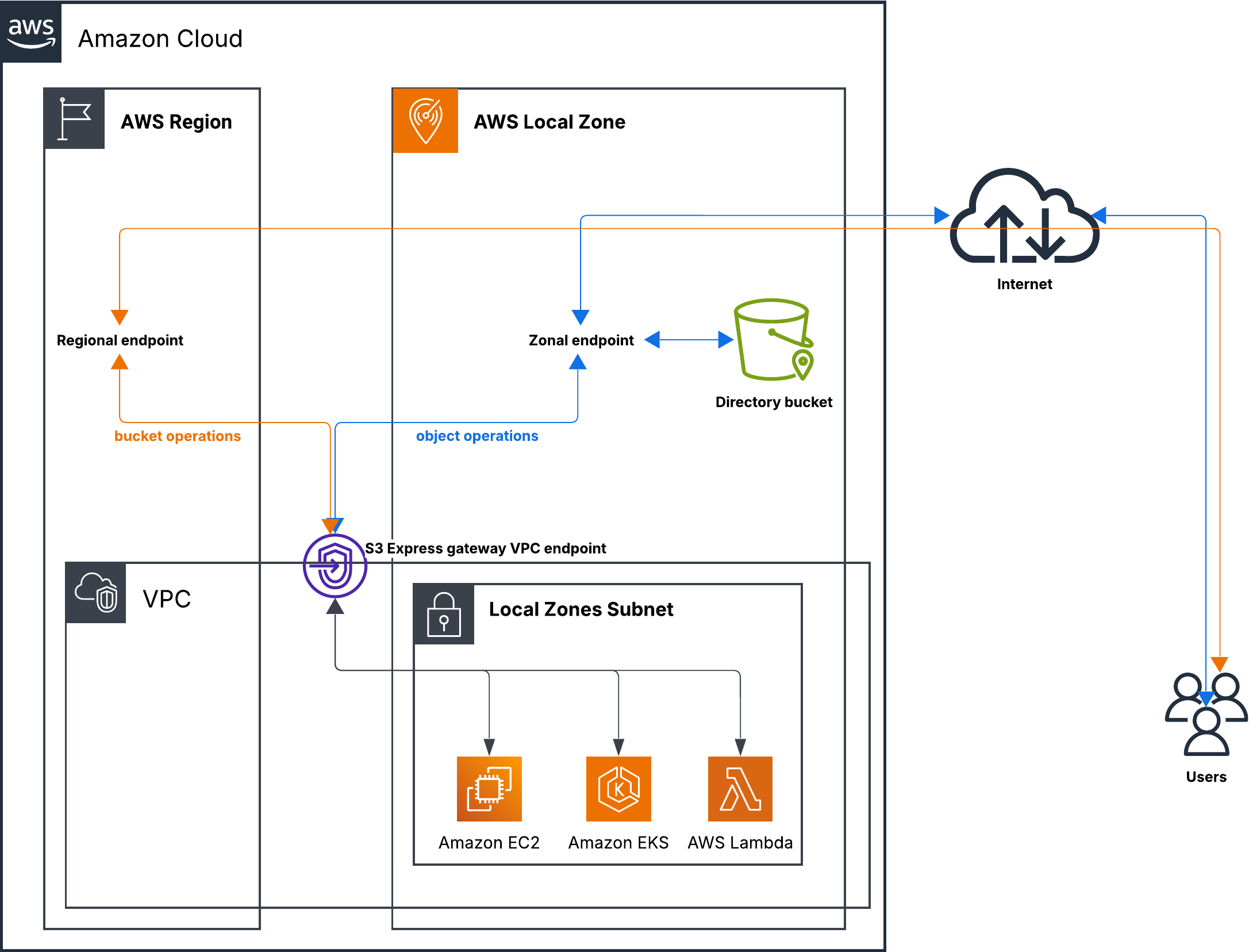
Figure 2: Directory bucket endpoint routing: Regional vs. Zonal endpoints
Primary use cases
S3 directory buckets in Local Zones support two categories of data residency workloads:
- Object storage within a geographic boundary – Store and manage your objects directly in a Local Zone to help meet data residency requirements. You control what you store, how you access it, and how you migrate data in and out using the AWS CLI or SDK, as covered in the subsequent data migration section.
- Managed services that depend on local storage – With Amazon S3 available in the Local Zone, AWS services that rely on Amazon S3 as a storage backend can now operate locally. You don’t interact with the objects directly. Instead, the service manages the data on your behalf while keeping it within the same geographic boundary.
Data migration to S3 directory buckets in Local Zones
If you have existing data in Regions or on-premises systems, you can use one of two approaches to bring that data into an S3 directory bucket in a Local Zone.
Migrate or copy from parent Region
You can copy data from S3 general purpose buckets in the parent Region to directory buckets in a Local Zone using the following methods:
- S3 Batch Operations – Use for large-scale migrations of millions of objects. S3 Batch Operations is manifest-driven, provides per-object tracking, and generates completion reports. This is the preferred method when you need to migrate an entire dataset with auditability.
- aws s3 cp –recursive – Use when you need to copy an entire prefix or directory in a single command. Suitable for bulk transfers where you don’t need per-object tracking or completion reports.
- CopyObject API – Use when you need to copy individual objects programmatically, for example as part of an application workflow or event-driven pipeline.
All three methods perform server-side copies entirely within the AWS network. The source and destination buckets must share the same parent Region.
Migrate or copy from on-premises
You can upload data from on-premises storage to S3 directory buckets in a Local Zone using the following methods:
- aws s3 cp –recursive – Use for bulk uploads of directories or large file sets from a local file system. This is the preferred method for migrating on-premises data at scale.
- PutObject API – Use for uploading individual objects programmatically as part of an application workflow (for example, ingesting data from an Internet of Things device or edge sensor).
The AWS CLI uses the PutObject API. Use the AWS CLI for bulk transfers of files and directories; use the API directly when integrating object uploads into application workflows. Data in transit is encrypted using Transport Layer Security (TLS), and the SDK handles endpoint routing automatically, directing object uploads to the Local Zone. For connectivity from on-premises, you can use AWS Direct Connect with a public virtual interface to reach the S3 public endpoint.
The aws s3 sync command is not supported with directory buckets. Use the following alternative:
aws s3 cp –recursive
The following table summarizes the supported migration methods.
| Method | Transfer type | Access | S3 general purpose bucket to S3 directory bucket in Local Zone | On-premises to S3 directory bucket in Local Zone |
| PutObject API | Single object | AWS SDK, AWS CLI, REST API | – | ✓ |
| CopyObject API | Single object | AWS SDK, AWS CLI, REST API | ✓ | – |
| AWS CLI s3 cp –recursive | Entire directory/prefix | AWS CLI | ✓ | ✓ |
| S3 Batch Operations | Manifest-driven, (up to millions) | AWS SDK, AWS CLI, REST API, Console | ✓ | – |
Figure 3: Supported methods for copying data into an S3 directory bucket
Working with S3 directory buckets in Local Zones
When you create an S3 directory bucket in a Local Zone, the bucket name consists of a base name and a suffix that contains the zone ID of the Local Zone, followed by --x-s3. On the Amazon S3 console, you provide the base name and AWS appends the suffix automatically. In the SDK and AWS CLI, you supply the full bucket name including the suffix.
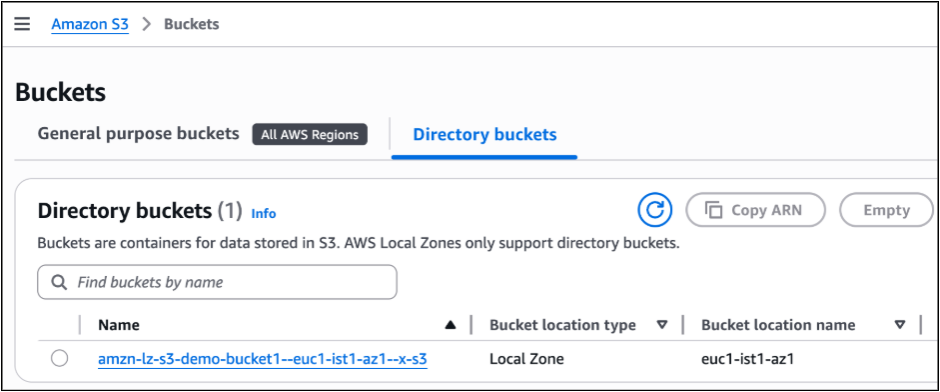
Figure 4: S3 directory bucket in Istanbul Local Zone
The following screenshot shows an example of an S3 directory bucket in Istanbul Local Zone.
A directory bucket name consists of the base name you provide, and a suffix that includes the Local Zone where your objects are stored, followed by --x-s3. The format is <base-name>--<zone-id>--x-s3. The following table shows bucket names for a few international Local Zones.
| AWS Local Zone | Local Zone | Zone ID | Example bucket name |
| Parent Region: eu-central-1 (Europe, Frankfurt) | |||
| Istanbul, Türkiye | eu-central-1-ist-1a | euc1-ist1-az1 | my-bucket–euc1-ist1-az1–x-s3 |
| Athens, Greece | eu-central-1-ath-1a | euc1-ath1-az1 | my-bucket–euc1-ath1-az1–x-s3 |
| Parent Region: ap-southeast-1 (Asia Pacific, Singapore) | |||
| Hanoi, Vietnam | ap-southeast-1-han-1a | apse1-han1-az1 | my-bucket–apse1-han1-az1–x-s3 |
Figure 5: S3 directory bucket naming convention across Local Zones
Prerequisites
Before you begin, you need the following prerequisites:
- An AWS account with the Local Zone enabled. (Opt into the Local Zone from the Amazon EC2 console)
- An IAM user or role with
s3:*ands3express:*permissions. - The AWS CLI v2 installed and configured.
- Find the zone ID for your Local Zone by running the following command:
aws ec2 describe-availability-zones --filters Name=zone-name,Values=eu-central-1-ist-1a
Create directory bucket in Local Zone
Create a directory in the Local Zone with the following code:
aws s3api create-bucket \
--bucket residency-data--euc1-ist1-az1--x-s3 \
--create-bucket-configuration '{"Location":{"Type":"AvailabilityZone",
"Name":"euc1-ist1-az1"},"Bucket":{"Type":"Directory",
"DataRedundancy":"SingleAvailabilityZone"}}' \
--region eu-central-1
The Location Type value is AvailabilityZone for both Availability Zones and Local Zones in the API.
Load files to directory bucket
You can upload an individual object from your local file system or copy multiple objects from a general purpose bucket.
Upload files from local file system
To upload an object from your local file system, use the following command:
aws s3 cp ./local-data/ \
s3://residency-data--euc1-ist1-az1--x-s3/local-data/ \
--recursive
Copy files from general purpose bucket in parent Region
To copy files from a general purpose bucket in the parent Region, use the following command:
aws s3 cp s3://my-region-bucket/datasets/ \
s3://residency-data--euc1-ist1-az1--x-s3/datasets/ \
--recursive
Verify objects in bucket
Use the following command to verify the objects are in the bucket:
aws s3api list-objects-v2 \
--bucket residency-data--euc1-ist1-az1--x-s3
Cleaning up
If you created test resources while following this walkthrough and no longer need them, delete the objects and bucket to avoid unnecessary charges.
Delete all objects in the bucket:
aws s3 rm s3://residency-data--euc1-ist1-az1--x-s3/ --recursive
Delete the bucket:
aws s3api delete-bucket \
--bucket residency-data--euc1-ist1-az1--x-s3
If you created a VPC gateway endpoint for this walkthrough, remove it from your VPC to avoid unnecessary configuration.
Additional services supported by Amazon S3 in Local Zones
Amazon S3 availability in Local Zones unlocks the following additional services that depend on local object storage.
Amazon EBS local snapshots in Local Zones
Amazon S3 availability in Local Zones also unlocks Amazon Elastic Block Store (Amazon EBS) local snapshots. Amazon Elastic Compute Cloud (Amazon EC2) instances running in a Local Zone can now store their EBS snapshots locally, keeping the snapshot data within the same Local Zone rather than sending it to the parent Region. For workloads with data residency requirements or those where recovery speed is critical, this removes a key dependency on copying snapshot data to the parent Region.
EBS snapshots are fully managed by AWS and accessible only through the Amazon EC2 console and APIs. In Local Zones without Amazon S3, snapshots are stored in the parent Region. In Local Zones where Amazon S3 is available, you have the option to store snapshots locally in Amazon S3 within the Local Zone or in the parent Region. You create and manage snapshots using the Amazon EC2 console and can either take snapshots manually or automate the process using Amazon Data Lifecycle Manager.
For workloads that require data to remain within a specific Local Zone, apply Service Control Policies (SCPs) at the AWS Organizations level to help keep snapshot data local. Use IAM policies for granular access control over who can copy or move snapshots. Together, SCPs and IAM policies provide a defense-in-depth approach to data residency enforcement.
Amazon EMR local processing in Local Zones
Amazon EMR in a Local Zone can read from and write to S3 directory buckets in the same Local Zone. This makes it possible to run Apache Spark, Hive, and Presto/Trino workloads against locally stored data without transferring it to the parent Region for processing. You create and manage EMR clusters using the Amazon EMR console or the AWS CLI and point your jobs at the directory bucket as both the input source and the output destination. Processing and storage remain within the same geographic boundary, helping you address data residency requirements while benefiting from managed analytics infrastructure.
Conclusion
Amazon S3 in Local Zones brings familiar S3 APIs and workflows to environments where data must remain within a defined geographic boundary. By storing data directly within the Local Zone, you can store and process data locally without routing it to a parent Region, helping you address data residency requirements while maintaining the same operational experience you use in AWS Regions.
As AWS continues to expand Local Zone availability, S3 directory buckets provide a single-zone storage option for architectures that require precise control over where data is stored.
To get started, opt in to a supported Local Zone from the Amazon EC2 console, then create your first S3 directory bucket from the Amazon S3 console. For a list of Local Zones that support Amazon S3, refer to the AWS Local Zones features page. For implementation details, refer to Working with directory buckets in the Amazon S3 User Guide.