AWS Database Blog
Options for changing AWS KMS encryption key for Amazon RDS databases
Many AWS customers use Amazon Relational Database Service (Amazon RDS) to run their relational databases in the cloud. Customers can start fast and grow quickly with Amazon RDS. Occasionally, customers start out using the AWS Key Management Service (AWS KMS) default aws/rds key and later discover using this key limits the ability to share snapshots across accounts. This and other situations lead to the need of changing the KMS encryption key for RDS instances. If you find yourself in this situation, this post gives you options you can use to help resolve this issue.
Amazon RDS supports encryption at rest by using the AES-256 encryption algorithm in AWS KMS for RDS database engines including Amazon Aurora. RDS uses this encryption algorithm on the underlying storage, backups, read replicas, and snapshots of databases.
There are two types of AWS KMS keys you can use to encrypt database instances:
- Customer managed key – These keys provide full control over your encryption key and allow for managing, rotating, or deleting your encryption key.
- AWS managed service key – By default, the AWS KMS default
aws/rdskey is used for encryption. Because this key is managed by AWS, it handles manage, rotate, or deletion of the key for you, and therefore you don’t have the capability to make those changes.
Amazon RDS supports automatic annual rotation of AWS managed key (the default Amazon RDS key), but customer managed keys can be rotated on demand.
Other situations, where you might need to change your AWS KMS key, include a corporate merger, acquisition, or divestiture, or if there is a change in your multi-tenant strategies. At scale, making these AWS KMS key changes can be challenging in terms of number of instances or clusters you need to change as well as scheduling production outages to make such changes.
In this post, we review the options for changing the AWS KMS key on your Amazon RDS database instances and on your Amazon RDS and Aurora clusters. We start with the most common approach, which is the snapshot method, and then we include additional options to consider when performing this change on production instances and clusters that can mitigate downtime. Each of the approaches mentioned in this post can be used for cross-account or cross-Region sharing of the instance’s data while migrating it to a new AWS KMS key. Note that point-in-time recovery and snapshots that have already been taken will stay with the original instance’s AWS KMS key. Before deleting the original instance or cluster and its AWS KMS key, you must consider point-in-time recovery snapshot retention periods that align with your corporate policy without keeping data beyond its useful life.
Summary table: Options for changing AWS KMS encryption key for Amazon RDS databases
The following table shows five options for changing the AWS KMS encryption key for Amazon RDS databases, with three considerations for each option.
| Option | Level of effort | Approximate downtime | Database engines supported |
|
Low | Minutes to hours, depending on data size | All Amazon RDS engines |
|
Medium | Seconds to minutes | All Amazon RDS engines |
|
Medium to high | Seconds to minutes | MySQL, MariaDB, and PostgreSQL |
|
Medium to high (if replicating) | Minutes with clone only; seconds to minutes with clone and replication | Aurora MySQL and PostgreSQL |
|
Low to medium | Seconds to minutes | Aurora MySQL and PostgreSQL |
Option 1: Create a snapshot and copy it to a new instance with a new AWS KMS key
For workloads that can tolerate a long outage period, one proven approach is to create a snapshot and restore it to a new instance with a new AWS KMS key. For more details about this option, refer to Encrypting Amazon RDS resources and How do I change the encryption key that my Amazon RDS DB instances and DB snapshots use? The general process for this option is to take a snapshot, copy it, enable or change the AWS KMS key, restore the snapshot, and point the application to the new instance or cluster. You can also use a DNS Canonical Name Record (CNAME) in Amazon Route 53 or rename the Amazon RDS DB instance. You can automate or scale this approach by using the AWS Command Line Interface (AWS CLI) or a AWS SDK for Python (Boto3) script.
Be sure IAM permissions are configured for AWS KMS key operations—including kms:Decrypt, kms:GenerateDataKey, and kms:ReEncrypt actions—by following the principle of least privilege.
For cross-account sharing scenarios, implement trust policies and resource-based permissions as detailed in Key policies in AWS KMS. The benefit of option 1, the most common approach for nonproduction environments, is that it’s relatively straightforward to implement and repeat. A downside is that it requires a downtime period of at least 30 minutes, depending on the size of your database. Options 2–5 are common approaches for production environments when reducing downtime is critical.
You can encrypt an unencrypted RDS instance by restoring an unencrypted snapshot to a new encrypted instance using the AWS KMS key of your choice. Amazon RDS doesn’t currently support in-place conversion of unencrypted instances to encrypted instances, even with a managed blue/green deployment approach.
Option 2: Use AWS DMS
AWS DMS provides full and ongoing replication data movement capabilities, which can be for different source and target databases, persistence layers, or homogeneous migrations, such as an AWS KMS key change scenario that this post covers. Because our source and target databases are the same, we can use a few different approaches. We can create a snapshot of the current environment and use AWS DMS to replicate ongoing changes from the point of the snapshot until we’re ready to switch the application over to the target database of the new AWS KMS key.
We can also use AWS DMS for both the full load and ongoing changes. This option provides near-zero downtime migration by using full load and ongoing replication, and it supports the various Amazon RDS database engines. However, setting up this option requires more work. Additionally, AWS DMS doesn’t support every data type and data definition language (DDL) change during the ongoing replication, and there are additional costs of running the AWS DMS instance in two database environments.
Ensure SSL/TLS encryption is enabled for AWS DMS connections to protect data in transit and implement proper AWS KMS key rotation policies for a customer managed key.
For comprehensive guidance about securing data migration connections, refer to Security in AWS Database Migration Service.
To use AWS DMS to change to a new instance or cluster with a new AWS KMS key, follow these steps:
- Create the target Amazon RDS DB instance or cluster with the new AWS KMS key from a snapshot of your current database. For detailed steps, refer to How do I change the encryption key that my Amazon RDS DB instances and DB snapshots use?
- Identify the last log sequence number (LSN) captured in the snapshot. For more information, refer to finding LSN for Aurora PostgreSQL and finding LSN for Aurora MySQL.
- Create an AWS DMS replication instance and endpoints for the source and target databases. Configure appropriate security group rules for AWS DMS replication instances and implement Amazon Virtual Private Cloud (Amazon VPC) endpoints for AWS KMS and other AWS services to avoid internet traffic during migration. For network security best practices during database migrations, refer to Setting up a network for a replication instance.
- Create an AWS DMS task for ongoing replication using a custom start time with the LSN identified in step 2 (select Replicate only in task type and Do nothing for the target table preparation mode task options).
- Monitor the AWS DMS task replication latency in CloudWatch until the source and target latency is near zero.
- Run validation processes to confirm data is available and accurate. For more details about validation-only AWS DMS tasks, refer to How do I create a validation only AWS DMS task?. Note that AWS DMS doesn’t automatically transfer database sequences, so you’ll want to make sure those are updated correctly so your identity columns pick up the next sequence you’ve defined in your source database. Refer to AWS DMS encryption prerequisites and limitations and work with your database administrator (DBA) team to confirm that sequences on the target database are verified and updated.
After the data is validated and the source and target latency are near zero, pause writes to the current primary database by pausing your applications and users from the source database. When the AWS DMS replication is complete, change the application and user endpoints to the new database either by changing the DNS entry, application configuration / property file(s), or Java Database Connectivity (JDBC) endpoint being used and cut over to your new database.
You can move the application or users to the new instance or cluster without changing the endpoint by using a Route 53 DNS CNAME record change (refer to Choosing between alias and non-alias records) or by using the Amazon RDS Renaming a DB instance API. For a step-by-step guide to the rename approach, refer to How to rename and retain the endpoint name for Amazon RDS in the AWS Database Blog.
For updating the AWS KMS key of your RDS or Aurora instance, AWS DMS is designed to make migrating databases easy for customers and is a good option to consider for updating the AWS KMS key being used.
Option 3: Set up built-in database replication
Amazon RDS for MySQL, PostgreSQL, and Oracle offer built-in replication approaches to external databases running the same engine. However, Amazon RDS replicas and Amazon Aurora replicas don’t support changing the AWS KMS key on a replica in the same AWS Region. Therefore, you must set up built-in database replication on your own to replicate to another RDS or Aurora instance or cluster that has the new AWS KMS key.
The database engines that offer built-in replication include Amazon RDS for MySQL, Amazon RDS for MariaDB, Amazon RDS for PostgreSQL, Amazon Aurora MySQL-Compatible Edition, and Amazon Aurora PostgreSQL-Compatible Edition. Because each engine has different steps and commands, we don’t cover ever engines specifics in this post. For information about how to set up built-in replication for each engine, refer to the following resources:
- MySQL: Replication between Aurora and MySQL or between Aurora and another Aurora DB cluster (binary log replication)
- MariaDB: Configuring binary log file position replication with an external source instance
- PostgreSQL: Using logical replication to replicate managed Amazon RDS for PostgreSQL and Amazon Aurora to self-managed PostgreSQL
For updating your AWS KMS key used by your RDS or Aurora instance, using built-in database replication has the benefit of providing flexibility of options and data movement. However, built-in database replication is self-managed, which might require more work for the database administration team who is familiar with them.
Option 4: Use Aurora cluster clones
Aurora provides additional options for changing the AWS KMS key. In this section, we discuss a solution using Aurora cluster clones.
Prerequisites for using Aurora cluster clones
Complete the following prerequisite steps:
- Create and activate an AWS account if you don’t already have one.
- Create an Aurora DB cluster with a default AWS KMS key.
- Create a customer managed AWS KMS key.
Clone an Aurora cluster
For this post, we perform this operation on a cluster with no active transactions. In a production or dev environment with live traffic, you will want to temporarily shut down or stop the application from making database changes.Complete the following steps to clone your Aurora cluster:
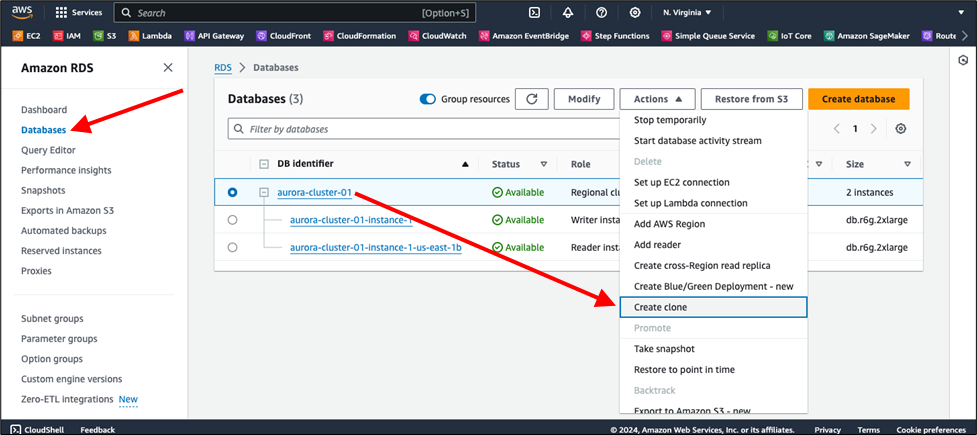
- On the Amazon RDS console in the navigation pane, choose Databases.
- Select your Aurora DB cluster and on the Actions menu, choose Create clone.
The following screenshot is shown for reference.
- Enter a unique DB instance identifier (for example,
aurora-cluster-02). - In the Encryption section, select Enable encryption.
- For AWS KMS key, choose the customer managed key you created as a prerequisite.
- Choose Create clone.
The following screenshot is shown for reference.
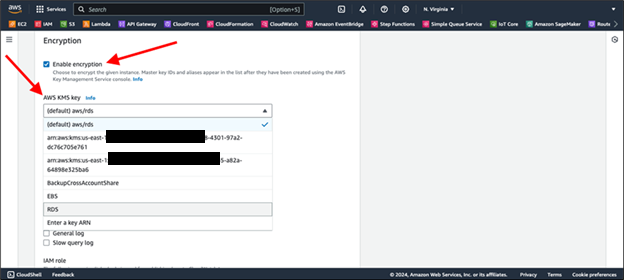
It will take a few minutes to create your clone. On average, this option can be faster than restoring from a snapshot, thus requiring less downtime. After your clone is in the Available state, you can point your application to your new Aurora cluster endpoint or swap your Route 53 CNAME record to the new Aurora cluster endpoint.
For updating the AWS KMS key of your RDS or Aurora instance, Aurora cloning can be a useful approach for changing your AWS KMS Key. For more information about Aurora cloning and the copy-on-write protocol that Aurora uses to create a clone, refer to Cloning a volume for an Amazon Aurora DB cluster.
Option 5: Use an Aurora read replica
You can use an Aurora read replica if you want to switch to Aurora from Amazon RDS when you change the AWS KMS key. Customers typically use this process to migrate from an Amazon RDS for MySQL DB instance to an Aurora cluster or to migrate from an Amazon RDS for PostgreSQL DB instance to an Aurora cluster. Taking one of these approaches can save time in place of a snapshot restore.
Prerequisites for using an Aurora read replica
Complete the following prerequisites to use an Aurora read replica:
- Create and activate an AWS account if you don’t already have one
- Create an Aurora DB cluster with a default AWS KMS key.
- Create a customer managed AWS KMS key.
Create an Aurora read replica
Complete the following steps to create your Aurora read replica:
- On the Amazon RDS console in the navigation pane, choose Databases.
- Select your Amazon RDS instance and in the Actions menu, choose Create Aurora read replica.
The following screenshot is shown for reference.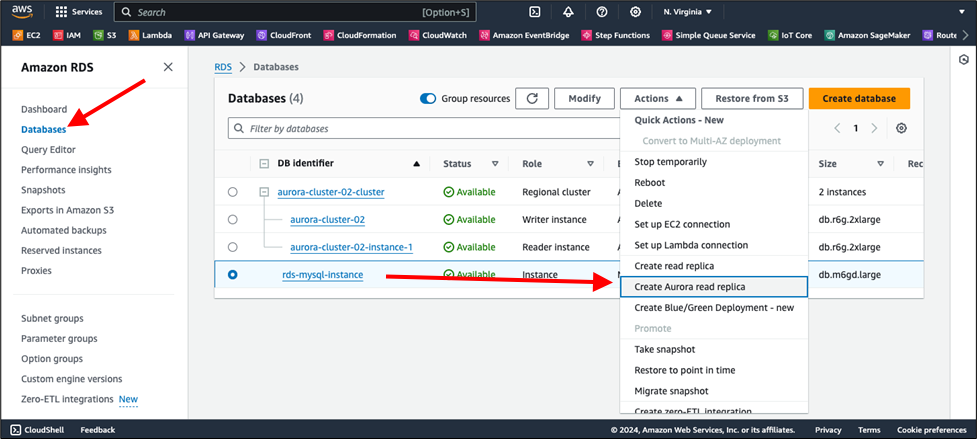
- Provide a unique identifier for your read replica.
- In the Encryption section, select Enable encryption.
- For Master key, select your customer managed AWS KMS key.
The following screenshot is shown for reference.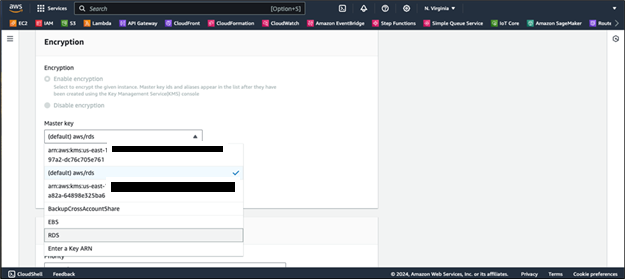
- After your replica has spun up and replication is ongoing, you’re ready to migrate the application over to the replica.
- In a production or development environment with live traffic, temporarily shut down or stop your applications that write to the database before you promote your Aurora read replica. This might take a few minutes and can cause downtime. Promoting a read replica turns the replica into a fully independent database instance that can handle both read and write operations.
- After your replica has been successfully promoted and is in the Available state, you can point your application to your new Aurora cluster endpoint or swap your Route 53 CNAME record to the new cluster endpoint.
For updating the AWS KMS key of your RDS or Aurora instance, Aurora read replica can be a useful approach for changing your AWS KMS Key. For more information about Aurora read replica, refer to promote your Aurora read replica documentation.
Additional considerations
The following are some important points to consider:
- Implement comprehensive monitoring by using Amazon CloudWatch and AWS CloudTrail to track AWS KMS key usage, Amazon RDS operations, and AWS DMS activities throughout the migration process.
- Configure AWS Config rules to provide continuous compliance monitoring of encryption settings, as outlined in the AWS Config documentation.
- Develop a comprehensive incident response plan that includes rollback procedures in case the AWS KMS key becomes unavailable during migration. Also, establish clear communication protocols for migration windows.
- Refer to the Incident response section in the Security Pillar of the AWS Well-Architected Framework for detailed incident response planning guidance.
Clean up
After successfully implementing your AWS KMS encryption key change, you should clean up your resources. We recommend that you retain your original database instance until you’re confident in the migration’s success. Also consider archival, data retention, and resiliency requirements and policies before deleting the original AWS KMS key or instance because existing snapshots or point-in-time recovery capabilities are linked to those resources. Also remove AWS DMS resources or temporary instances created during the process to avoid ongoing costs.
Conclusion
In this post, we discussed the two types of AWS KMS encryption key—the default AWS KMS key for Amazon RDS and the AWS KMS customer managed key—in Amazon RDS and Aurora for encryption at rest, and we explained their limitations. Changing the AWS KMS key for Amazon RDS and Aurora databases requires careful planning and execution. The approach you choose should align with your downtime tolerance, database size, technical expertise, and database engine capabilities. Whether you choose the snapshot option, the minimal downtime AWS DMS option, or engine-specific solutions, make sure you thoroughly test the process in a nonproduction environment first. You should then repeat those tested processes in production while considering data retention and archival policies before deleting resources related to the original AWS KMS key, such as point-in-time recovery, snapshots, and instances.
Also ensure your migration procedures align with relevant compliance requirements such as AWS System and Organization Controls (SOC), Payment Card Industry Data Security Standard (PCI DSS), and Health Insurance Portability and Accountability Act (HIPAA) by maintaining comprehensive audit logs and keeping data within appropriate AWS Regions throughout the process.