AWS Big Data Blog
Detect and resolve HBase inconsistencies faster with AI on Amazon EMR
HBase operations teams spend hours manually correlating logs, metadata, and consistency reports to identify root causes. Traditional approaches require deep expertise and extensive investigation across scattered data sources, directly impacting MTTR and operational efficiency. As HBase deployments scale and expertise becomes increasingly scarce, organizations face mounting pressure to maintain service reliability while managing growing operational complexity. The manual nature of troubleshooting creates bottlenecks that delay incident resolution, increase operational costs, and risk service degradation during critical business periods.
In this post, we show you how to build an AI-powered troubleshooting solution using Amazon OpenSearch Service vector search and intelligent analysis. This solution reduces HBase inconsistency resolution from hours to minutes and root cause identification from days to hours through natural language queries over operational data. This democratizes HBase troubleshooting capabilities across teams and reducing dependency on specialized expertise.
Solution overview
The solution addresses HBase troubleshooting challenges through data processing, vector search, and AI-powered analysis. It processes operational data from Amazon EMR clusters, generates semantic vector embeddings, and enables natural language queries for intelligent troubleshooting.
Key components include:
- Amazon EMR HBase: Runs HBase workloads with Amazon S3 as the HBase rootdir for durable, scalable storage
- Data Processing: Extracts and processes HBase logs, HBCK reports, and metadata with vector embeddings
- Amazon OpenSearch Service: Provides vector search capabilities with k-NN algorithms for semantic analysis
- AI Analysis Interface: Enables natural language queries with context-aware recommendations
- Custom Knowledge Base: Supports organization-specific runbooks and troubleshooting procedures by ingesting Git repositories via Kiro CLI‘s
/knowledge addcommand, enabling the AI assistant to reference custom operational guides alongside HBase source code and operational tools
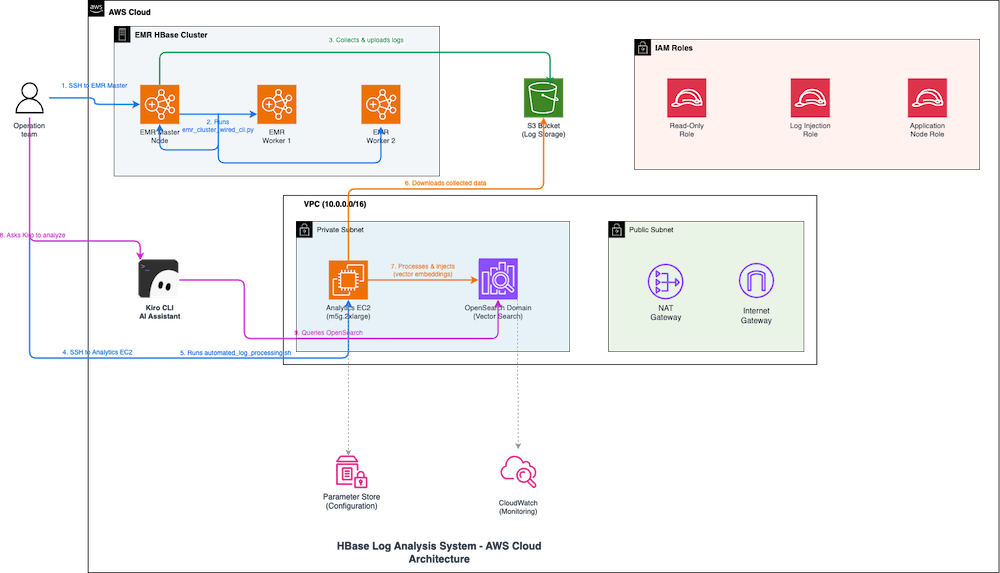
The preceding diagram illustrates how the HBase log analysis system troubleshoots inconsistencies through automated workflows across AWS services.
When an operations team needs to investigate HBase issues, the engineer connects over SSH to the Amazon EMR primary node and runs the error collection script, which gathers logs from HBase master and RegionServer nodes and uploads them to Amazon S3. Next, the engineer connects to the Analytics Amazon Elastic Compute Cloud (Amazon EC2) instance and executes the automated processing script, which downloads logs from Amazon S3, generates semantic vector embeddings, and injects them into Amazon OpenSearch Service for k-NN-based semantic search. The engineer then queries the Kiro CLI AI Assistant using natural language to investigate. Kiro searches Amazon OpenSearch Service for relevant log entries and uses Amazon Bedrock to analyze patterns, correlate errors across components, and provide actionable recommendations. This reduces troubleshooting time from hours to minutes. The system operates within an Amazon Virtual Private Cloud (Amazon VPC) with private subnets for Amazon EMR and Analytics Amazon EC2, AWS Identity and Access Management (AWS IAM) roles for access control, Parameter Store for configuration, and Amazon CloudWatch for monitoring.
Prerequisites
For this walkthrough, you need the following prerequisites:
AWS account setup
- An AWS account with administrative access for initial deployment
- AWS Command Line Interface (AWS CLI) configured with administrative credentials
Required AWS IAM permissions
For infrastructure deployment
Your deployment user or role needs the following permissions:
- Your deployment user or role requires sufficient access to AWS CloudFormation, Amazon S3, AWS IAM, and AWS System Manager.
- The user or role must have the ability to create AWS CloudFormation stacks.
Infrastructure deployment:
- For infrastructure deployment, you need AWS CloudFormation stack management permissions.
- You also require sufficient access to create and manage the following resources:
- Amazon OpenSearch Service domains
- Amazon EC2 instances, Amazon VPCs, security groups, and networking components
- AWS IAM roles and policies
- AWS Systems Manager Parameter Store entries
- Amazon CloudWatch Logs groups
- Amazon S3 bucket for access logs and session logs
Runtime service roles
The AWS CloudFormation stack automatically creates two specialized AWS IAM roles designed with least-privilege access principles.
The first role is the Amazon OpenSearch Service Role, which manages Amazon VPC networking and Amazon CloudWatch logging for the Amazon OpenSearch Service domain.
The second role is the Application Role, which provides minimal Amazon OpenSearch Service and Amazon S3 access specifically for log processing applications and secure log ingestion operations.
Network requirements
- Amazon VPC with private subnets for secure Amazon OpenSearch Service deployment
- NAT Gateway for outbound internet access from private subnets
- Security groups configured for HTTPS-only communication
Running Kiro CLI on Amazon EC2
Kiro platform requirements:
Kiro subscription
- Active Kiro License: Valid subscription to Kiro platform
- User Account: Registered Kiro user account with appropriate permissions
- API Access: Kiro API keys or authentication tokens for CLI access
AWS Identity Center integration
- AWS IAM Identity Center Setup: AWS IAM Identity Center enabled in your AWS organization
- Permission Sets: Configured permission sets for Kiro users with appropriate AWS access
- User Assignment: Users assigned to relevant AWS accounts and permission sets
- SAML/OIDC Configuration: Identity provider integration if using external identity systems
Additional prerequisites
- Python 3.7+ and Node.js installed locally
- Python 3.11+ for AWS Lambda runtime environment (required for OpenSearch MCP server compatibility)
- Sufficient service quotas for Amazon OpenSearch Service instances and Amazon EC2 resources
- Recommended access to the analysis instance via AWS Systems Manager Session Manager (recommended). Amazon EMR clusters running HBase workloads
- EMR_EC2_Default_Role of Amazon EMR EC2 instance profile can execute describe-stacks on AWS CloudFormation stacks in us-east-1
- Basic familiarity with HBase operations
The deployment follows AWS security best practices with resource-specific permissions, regional restrictions, and encrypted data storage. All AWS IAM policies implement least-privilege access patterns to help secure operation of the log analysis pipeline.
Walkthrough
This walkthrough demonstrates deploying and configuring the AI-powered HBase troubleshooting solution in five key steps:
- Deploy AWS infrastructure using AWS CloudFormation
- Configure Amazon EMR analysis log collection
- Process and index HBase data
- Enable AI-powered analysis
- Add custom knowledge base (optional)
The complete solution is available in our GitHub repository.
Step 1: Deploy the infrastructure
Deploy the required AWS infrastructure including Amazon OpenSearch Service domain, Amazon EC2 instances, and AWS IAM roles.
To deploy the infrastructure
- Deploy AWS CloudFormation stack. Please update your-email@example.com to an email address for security alerts and Advanced Intrusion Detection Environment (AIDE) reports:
- Note the deployment outputs including Amazon OpenSearch Service endpoint and Amazon EC2 instance details in the AWS CloudFormation console.
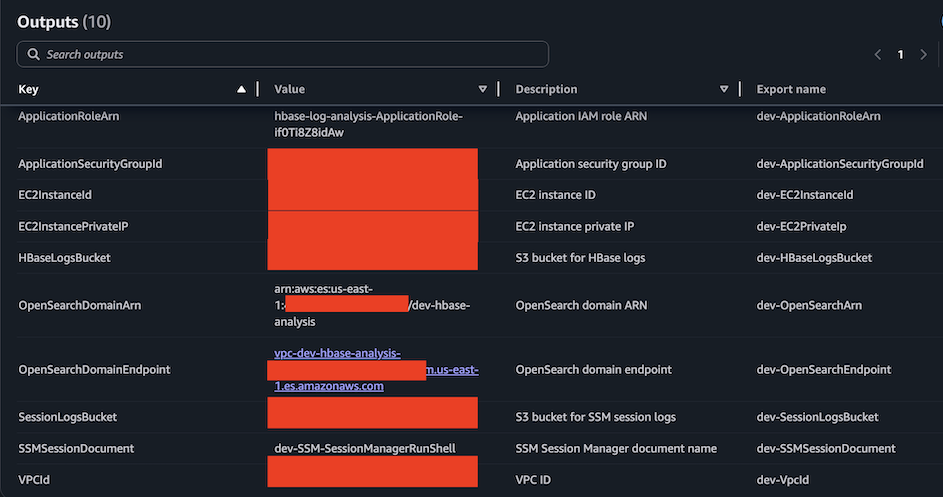
The deployment creates:
- Amazon OpenSearch Service domain with vector search capabilities
- Amazon EC2 instance for data processing and AI analysis
- AWS IAM roles with appropriate permissions
- Security groups and Amazon VPC configuration
Step 2: Connect to Amazon EC2 instance and set up system
Connect to the Amazon EC2 instance using AWS Systems Manager (SSM) and set up the required components.
To connect and set up the system
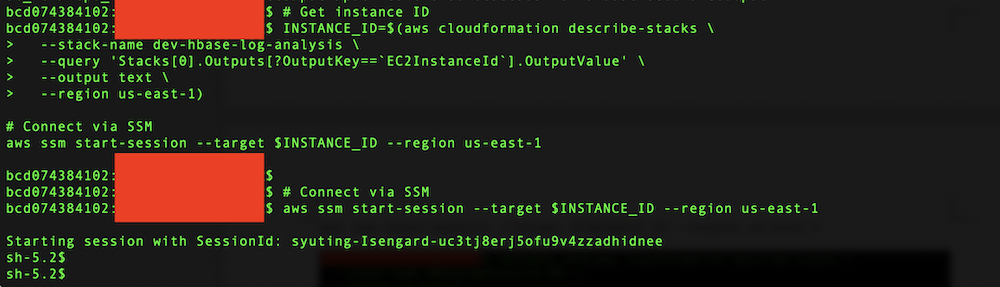
- Run the following commands to get the instance ID from AWS CloudFormation outputs and connect via AWS Systems Manager (SSM):
- Clone the repository and run automated setup:
The automated setup script installs:
- System dependencies (awscli, git, unzip)
- uv package manager and OpenSearch MCP Server
- Kiro CLI and configuration with AWS IAM Identity Center authentication. The script will automatically add Apache HBase open source repo and Apache HBase open source operational tools to knowledge bases
- HBase source repositories for your Amazon EMR version
- Python dependencies and MCP server configuration
- Add your own knowledge base to Kiro CLI
To enhance Kiro CLI’s analysis capabilities with Apache HBase open-source repositories, your organization’s HBase runbooks and troubleshooting guides, you can add your own knowledge base repositories. Here are the commands. Please periodically validate and maintain your runbook contents so that they remain accurate and up-to-date, reflecting any changes in your HBase environment, configurations, or operational procedures.:
Step 3: Configure Amazon EMR log analysis collection
Set up data collection from your Amazon EMR clusters to gather HBase logs, metadata, and consistency reports using the recommended direct collection method.
To configure Amazon EMR log analysis collection
- On your Amazon EMR cluster primary node, run the following commands to download the collection scripts:
- Run the interactive collection wizard:
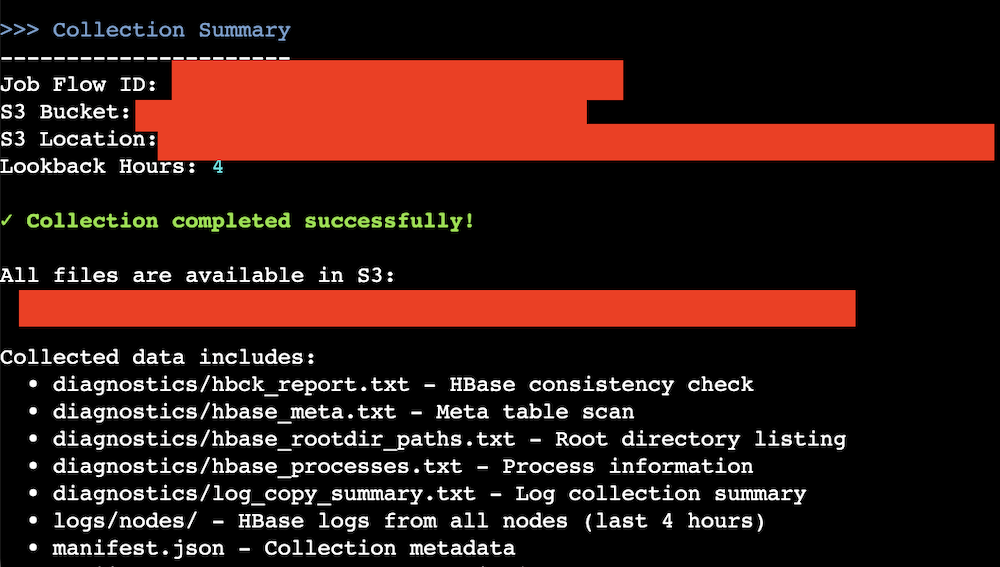
Input the parameters like the EMR cluster’s jobflow ID, the log analysis Amazon S3 bucket name, and the lookback hours. The default value of the lookback hours is 4 hours.
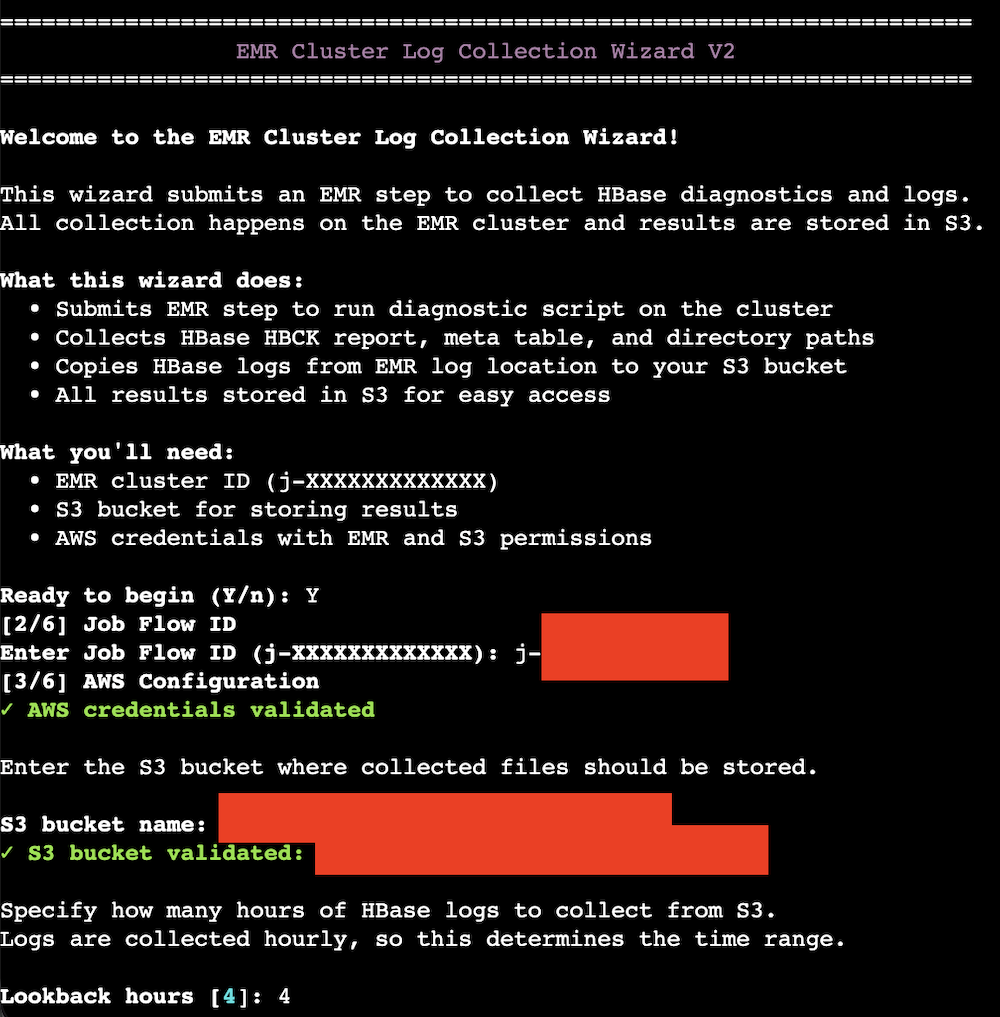
- The collection wizard performs these actions:
- Collects HBase logs from local filesystem. Please reference to prerequisites for the access permission.
- Runs
sudo -u hbase hbase hbck -details(or hbck2 for HBase 2.x) - Runs
hdfs dfs -ls -R /hbaseoraws s3 ls <hbase-root-dir>–recursive - Runs
hbase shell <<< 'scan "hbase:meta"' - Creates properly named files matching analysis system requirements
- Uploads to Amazon S3 with correct naming conventions
Here’s the data collection summary:
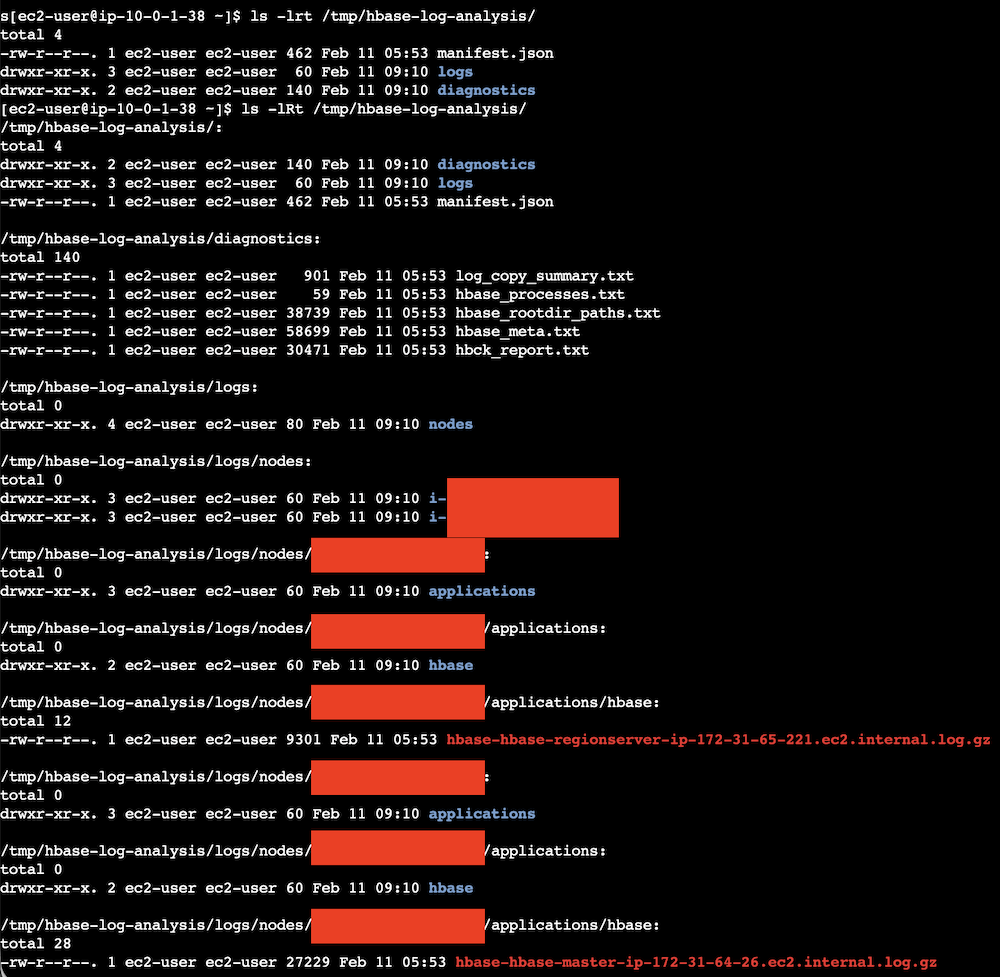
You can check the uploaded contents through AWS CLI.
Here’s a screenshot of the outputs.

- On the Analysis Amazon EC2 instance, download collected files to the Analysis Amazon EC2 instance.
You can get your jobflow ID from Amazon EMR console:

The generated files (hbase-hbase-master-ip-xxx-xxx-xxx-xxx.ec2.internal.log.gz, hbase-hbase-regionserver-ip-xxx-xxx-xxx-xxx.ec2.internal.log.gz, hbck_report.txt, hbase_rootdir_paths.txt, hbase_meta.txt, hbase_processes.txt, log_copy_summary.txt) should be aligned with the automated processing script requirements as following.
Step 4: Process and index data
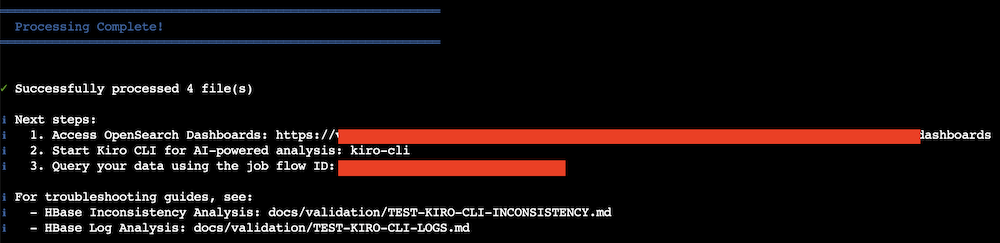
Process the collected HBase data and create vector embeddings for intelligent search capabilities.To process and index the data, please navigate to the project directory on the Analysis EC2 instance, and run automated-log-processing.sh:
The processing scripts extract and parse HBase logs and generate dimensional vector embeddings from HBase log messages using sentence transformer models to enable semantic search beyond keyword matching. The system uses the all-MiniLM-L6-v2 model by default (producing 384-dimensional embeddings), but supports configurable models with different embedding dimensions, automatically adapting the OpenSearch vector index to match the chosen model’s output. The system processes comprehensive HBase operational data including region operations, compaction activities, Write-Ahead Log events, memstore operations, and cluster management information from HMaster and RegionServer logs. Vector embeddings capture error messages, exception stack traces, performance warnings, and multi-line log entries through intelligent text preprocessing. This semantic representation enables advanced troubleshooting where users can query conceptually for “region server performance issues” or “memory pressure” and receive contextually relevant results across different log files and time periods. The vector search capabilities support error correlation by grouping similar exceptions, performance analysis by identifying related bottlenecks, and operational pattern recognition. Each log entry is stored in Amazon OpenSearch Service with original metadata (timestamp, log level, source file, job flow ID) alongside the embedding vector, enabling both structured queries and AI-powered semantic analysis. This approach transforms raw HBase logs into a searchable knowledge base supporting anomaly detection, trend analysis, and predictive insights for proactive cluster management and troubleshooting.
All scripts use AWS IAM authentication automatically. Here’s a screenshot of the data processing outputs.
Step 5: Enable AI-powered analysis
Configure the AI analysis interface to enable natural language queries against your HBase operational data.
To set up AI-powered analysis
- Launch Kiro CLI (already configured by automated setup):
kiro-cliCheck mcp and knowledge bases. /mcp list

/knowledge show

If you cannot see these 2 knowledge bases, you can manually add them through the following commands:
- Use natural language queries to analyze your HBase data. The AI analysis uses both the OpenSearch MCP Server for querying indexed data and the Filesystem knowledge bases for accessing HBase source code. You can add your custom runbooks for Kiro’s reference as well.
For HBase inconsistency analysis:
You can trust or input “y” or “t” to grant Kiro to search through mcp and knowledge bases.

You may get some outputs like this: Kiro checked for any HBase issue.

Kiro summarized the examination results.
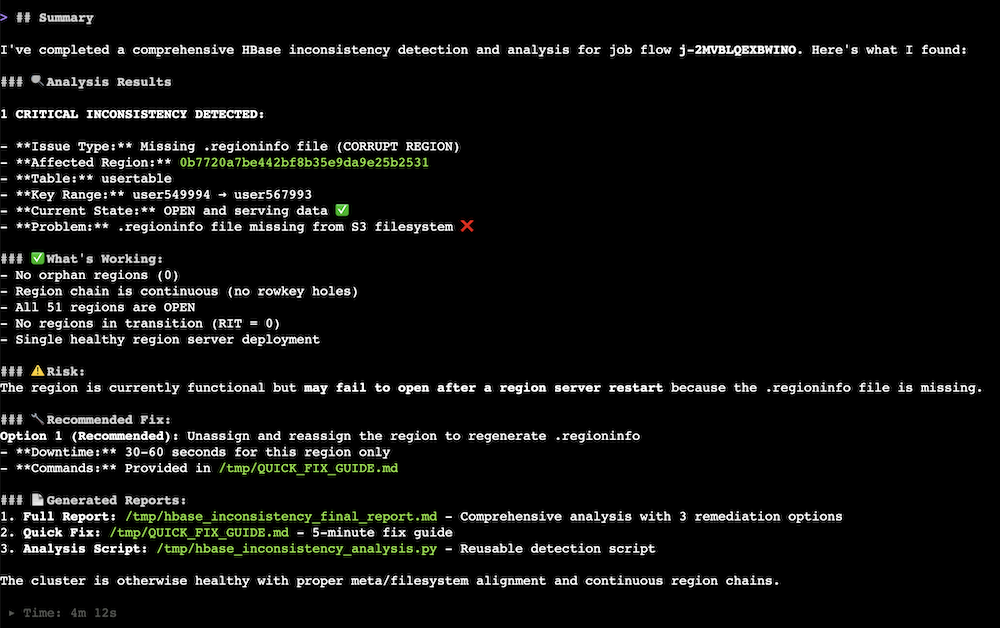
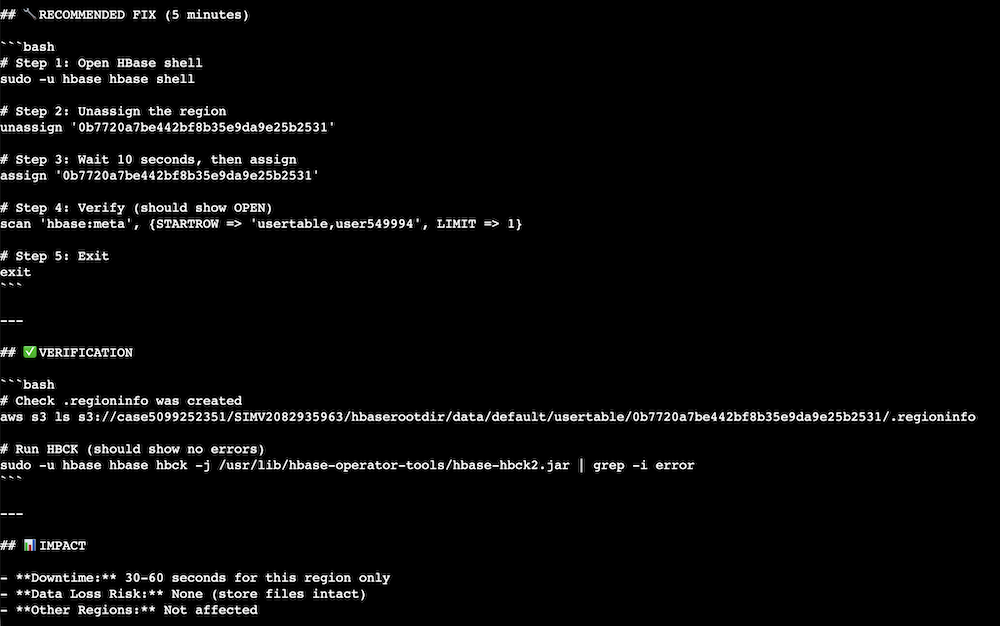
Kiro provided mitigation commands after Kiro summarized the issue.
Cleaning up
To avoid incurring future charges, delete the resources created during this walkthrough.
To clean up the resources
- Delete the AWS CloudFormation stack from AWS Management Console:

- Clean up Amazon EMR cluster resources (if created only for this walkthrough):

- Verify resource cleanup in the AWS Console to verify that all resources are deleted and review your AWS bill to confirm no unexpected charges.
Important considerations:
- Amazon OpenSearch Service domains take several minutes to fully delete
- Amazon S3 buckets with versioning retain object versions
- Use smaller instance types for development to optimize costs
- Monitor usage with AWS Cost Explorer
Conclusion
In this post, we showed you how to build an AI-powered HBase troubleshooting solution that transforms manual log analysis into an automated workflow. By combining Amazon OpenSearch Service vector search with Amazon Bedrock-powered analysis through the Kiro CLI, operations teams can resolve complex HBase inconsistencies faster and gain deeper operational insights. The solution demonstrates how AI augments human expertise to improve operational efficiency, reducing HBase inconsistency resolution from hours to minutes and root cause identification from days to hours. Ready to transform your HBase operations? Get started with the GitHub repository and explore the Amazon OpenSearch Service documentation for additional guidance on vector search capabilities.
Acknowledgments
The author would like to thank Xi Yang, Anirudh Chawla, and Sasidhar Puthambakkam for their contributions to developing the technical solution. Xi Yang is a Senior Hadoop System Engineer and Amazon EMR subject matter expert at AWS. Anirudh Chawla is an AWS Analytics Specialist Solution Architect who helps organizations empower businesses to harness their data effectively through AWS’s analytics platform. Sasidhar Puthambakkam is a Senior Hadoop Systems Engineer and Amazon EMR Subject Matter Expert who provides architectural guidance for complex BigData workloads.