AWS Architecture Blog
Prioritize your AWS Health alerts using AWS User Notifications
If you run critical workloads on AWS, such as a contact center on Amazon Connect Customer, database workloads on Amazon Relational Database Service (Amazon RDS), or hybrid connectivity through AWS Direct Connect, service health events demand your attention. But not all events are equal. An operational issue, a scheduled maintenance window, and a deprecation notice buried in your inbox have very different consequences. The problem is that they all arrive through the same channel, making their urgency difficult to determine.
AWS Health generates events for every service, every account, every Region. The service delivers ongoing issues, scheduled changes, account notifications, and deprecation notices in one undifferentiated stream. For operations teams, this creates a familiar problem: either you treat every notification as urgent with unwanted triage noise, or you start ignoring them and risk missing something that matters. Both paths lead to slower response times and unwanted escalations.
This post walks you through a lightweight approach to solving this problem using AWS User Notifications, a fully managed service for routing AWS events to your preferred delivery channels. This solution filters health events to only the services you want to be notified about, then separates what remains into two priority tiers. Critical events arrive immediately. Informational events arrive as batched summaries. In this post, we address this problem with a single AWS CloudFormation template with four deployment approaches that you can deploy in your AWS environment.
Solution overview
The design follows a simple principle: filter first, then separate by priority.
The first layer filters out noise. Event rules match health events only for the services your organization depends on, such as AWS Direct Connect, Amazon Connect Customer, and Amazon RDS. Everything else is silenced before it reaches your inbox.
The second layer separates what remains by urgency. Two notification configurations handle different priority tiers:
- CRITICAL — Matches events where eventTypeCategory is issue or scheduledChange. These arrive immediately as individual notifications with no batching.
- INFORMATIONAL — Matches everything else using an anything-but filter such as accountNotification. AWS User Notifications batches these within a five-minute window and delivers them as grouped summaries.
In this solution, a CloudFormation template supports four deployment modes through a DeploymentMode parameter:
| Mode | Scope | What you get |
| Linked (default) | Single account | Email contacts + User Notifications event rules + channel associations |
| Payer | Entire organization or OU | Everything in Linked, plus organizational unit associations scoped to a root or OU |
| Combined | Single account | Everything in Linked, plus Amazon EventBridge rules and an Amazon Simple Notification Service (Amazon SNS) topic with [CRITICAL]/[INFORMATIONAL] prefixed custom email |
| PayerCombined | Entire organization or OU | Everything in Linked, plus org associations AND Amazon EventBridge rules with SNS custom email messages |
The following diagram shows how health events flow through the solution:
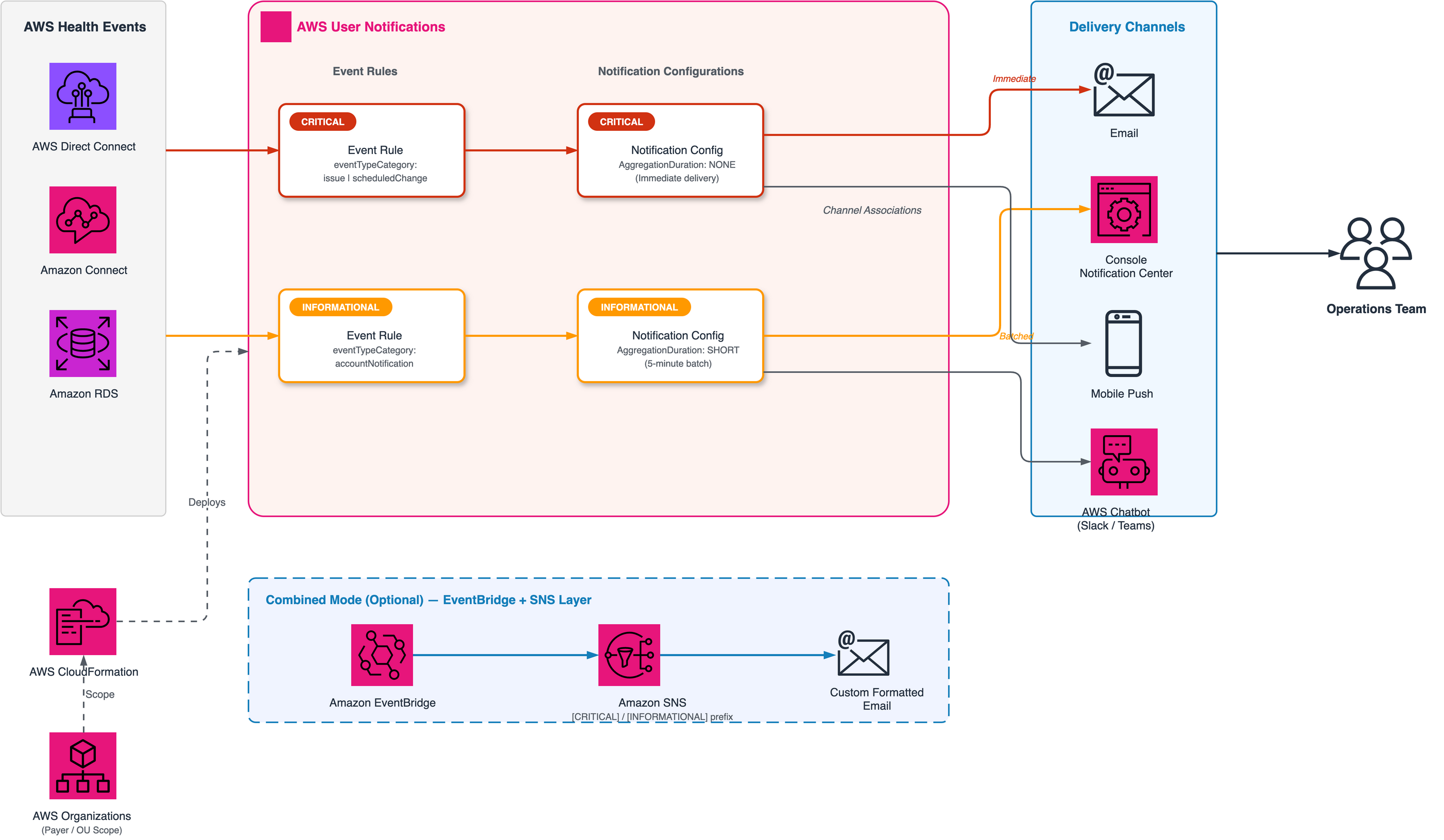
Figure 1: Architecture diagram showing priority-based AWS Health alerting using AWS User Notifications
What gets deployed
Once you deploy the CloudFormation stack, AWS provisions the following resources:
- Prioritized AWS services — AWS Direct Connect, Amazon Connect Customer, and Amazon RDS are pre-configured as the monitored services. You can customize this list directly in the CloudFormation template parameters.
- Two notification configurations on AWS User Notifications — one scoped for CRITICAL events (service issues and scheduled changes) and one for INFORMATIONAL events (account notifications), ensuring targeted alerting.
- Email delivery channel — AWS automatically links both notification configurations to the email address you provide during stack deployment, so alerts reach the right contacts from day one.
How the notification flow works
User Notifications path (all deployment modes)
- AWS Health emits an event and lands on the default Amazon EventBridge event bus.
- User Notifications event rule filters by service + category → two priority tiers.
- Notification configuration routes: Critical = immediate, Informational = 5-min batch.
- Email contact receives AWS-standard formatted notification.
Amazon EventBridge + SNS path (Combined and PayerCombined modes only)
In parallel with the above, a second delivery path activates:
- Same AWS Health events land on the default Amazon EventBridge event bus.
- Custom Amazon EventBridge rules (deployed by the template) evaluate the events on the default event bus and filter by the same service and category criteria as the AWS User Notifications event rules.
InputTransformerreformats the event into a human-readable message with [CRITICAL] and [INFORMATIONAL] prefix.- Amazon SNS delivers the custom formatted email to all subscribers via the Amazon SNS topic.
- Failed deliveries route to an Amazon Simple Queue Service dead letter queue and an Amazon CloudWatch alarm triggers if an Amazon SNS delivery fails.
Prerequisites
To follow along, you need:
- An active AWS account.
- Permissions to deploy AWS CloudFormation stacks and create AWS User Notifications resources.
- For organization-wide deployment: access to the management (payer) account and the organization root ID or organizational unit (OU) ID.
- (Optional) The AWS Command Line Interface (AWS CLI), installed and configured, for CLI-based deployment.
Deployment walkthrough
This section walks you through deploying, verifying, and testing the solution. Choose one of the four deployment modes based on your scope, then follow the remaining steps to confirm everything works.
Step 1: Deploy the AWS CloudFormation stack
Download and deploy the complete solution through this sample CloudFormation template
Select the deployment option that matches your requirements:
Option A: Single account (Linked mode)
Deploy using the AWS CLI:
Note : Set NotificationHubAlreadyEnabled=Yes if your AWS account already has a notification hub enabled in AWS User Notifications.
Or deploy through the AWS CloudFormation console:
- Open the CloudFormation console and choose Create stack.
- Upload the prioritize-aws-health-notifications.yaml template file.
- For Stack name, enter health-notifications.
- For DeploymentMode, select Linked.
- For NotificationEmail, enter the email address for notifications.
- For NotificationRegions, enter the Regions to monitor (comma-separated)
- For NotificationHubAlreadyEnabled, select Yes/No
- Choose Submit.
Option B: Organization-wide (Payer mode)
Before deploying, run the following command from the payer account to grant the AWS Health service access to your organization:
Then deploy:
Replace r-xxxx with your organization root ID to cover all accounts, or use an OU ID (for example, ou-xxxx-xxxxxxxx) to scope coverage to a specific unit.
Option C: Single account with custom SNS email (Combined mode)
Option D: Organization-wide with custom SNS email (PayerCombined mode)
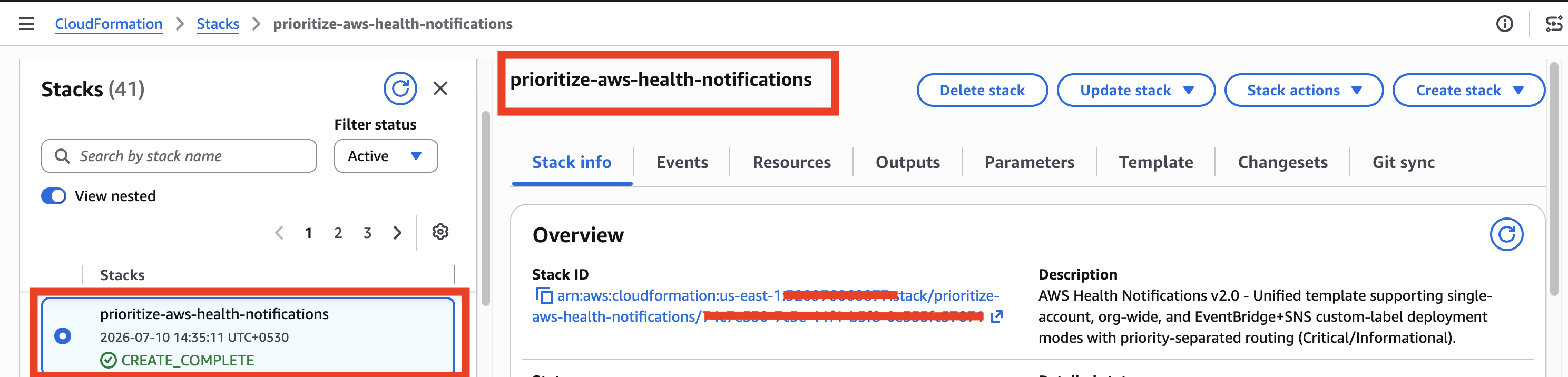
Figure 2: CloudFormation console showing CREATE_COMPLETE status.
Step 2: Confirm the email subscription
After the stack deploys, check the email inbox you specified during deployment. You will receive a subscription confirmation from AWS User Notifications.
- Open the confirmation email.
- Choose Confirm subscription.
Important: Notifications will not be delivered until you confirm the email contact.
Expected result: The email contact shows Verified in the AWS User Notifications console
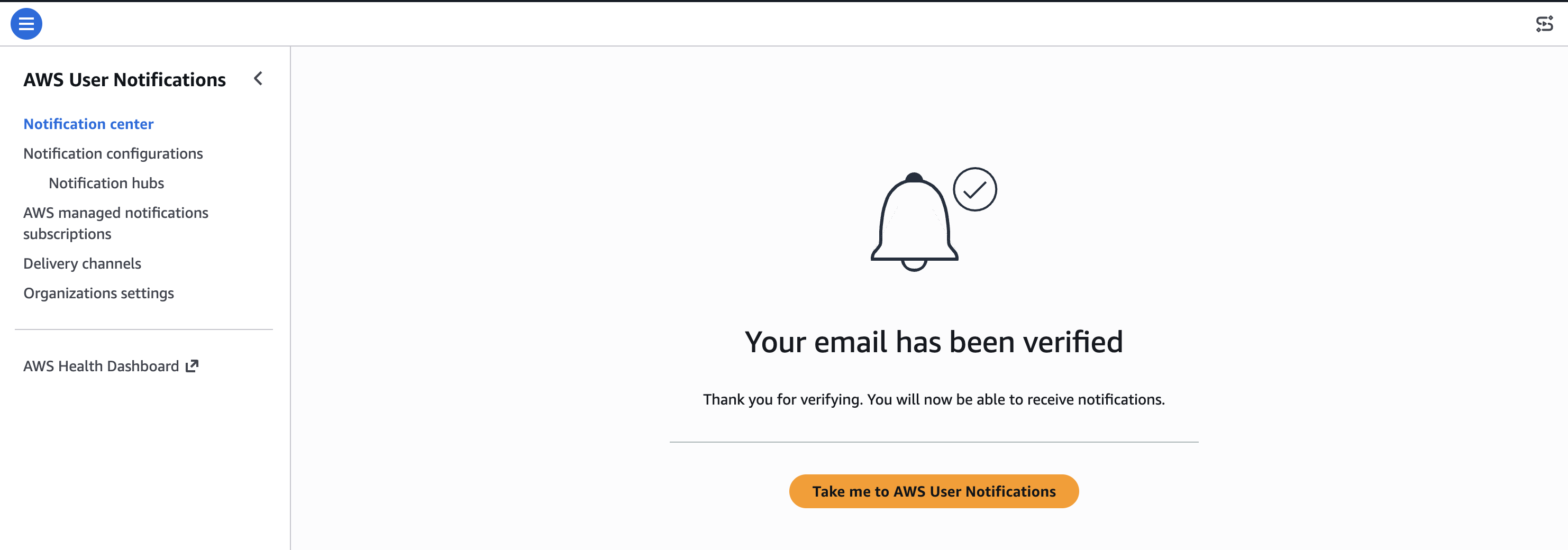
Figure 3: AWS User Notifications console showing verified email contact.
Step 3: Verify the notification configurations
Open the AWS User Notifications console and confirm the following resources were created:
- Navigate to Notification configurations — you should see two entries:.
- Health-Critical-Notifications — scoped to issue and scheduledChange event types.
- Health-Informational-Notifications — matches all event categories except issue and scheduledChange using an anything-but filter.
- Choose each configuration and verify:.
- Event rules list your selected services (AWS Direct Connect, Amazon Connect Customer, Amazon RDS).
- Delivery channels show your confirmed email contact.
Expected result: Two notification configurations visible, each with event rules matching your monitored services and the email channel associated.
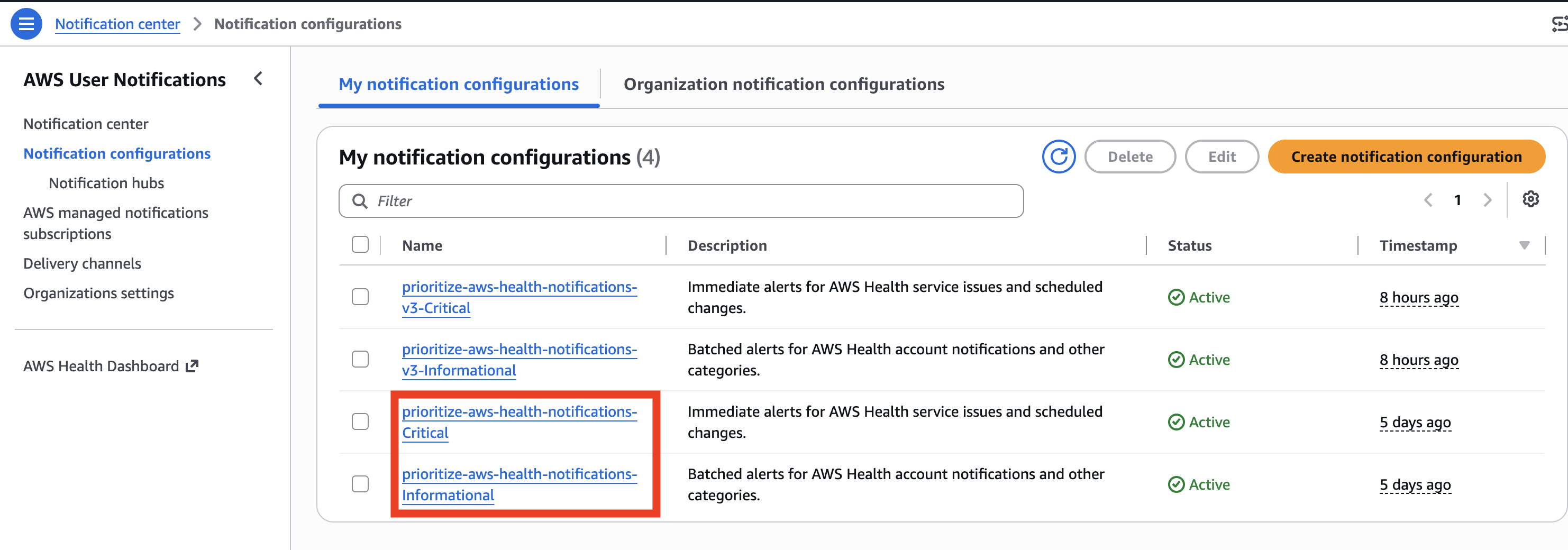
Figure 4: AWS User Notifications console showing two notification configurations.
Step 4: Test the solution
Validate the deployed resources via the AWS CLI:
Expected result: Returns two configurations with their ARNs and aggregation settings — CRITICAL with no aggregation (NONE) and INFORMATIONAL with a 5-minute aggregation window (SHORT).
To verify end-to-end delivery, check the AWS Health Dashboard for any active events in your monitored Regions. When a matching event occurs:
- CRITICAL (issue or scheduled change): Email arrives immediately with event details, affected resources, and recommended actions.
- INFORMATIONAL (account notification): Email arrives as a grouped summary within 5 minutes.
Expected result: Email notification received with the correct delivery pattern — standalone for critical, batched for informational.
What you receive
The pattern is simple: a standalone email means something needs attention now. A batched summary means routine updates you can review on your own schedule. The email format is controlled by AWS User Notifications and cannot be customized. The priority distinction comes from the delivery pattern, not from text labels in the email body.
For teams using AWS Chatbot in chat applications (Slack or Microsoft Teams) or the console Notification Center, the configuration names [CRITICAL] and [INFORMATIONAL] appear directly in the notification, providing explicit priority context.
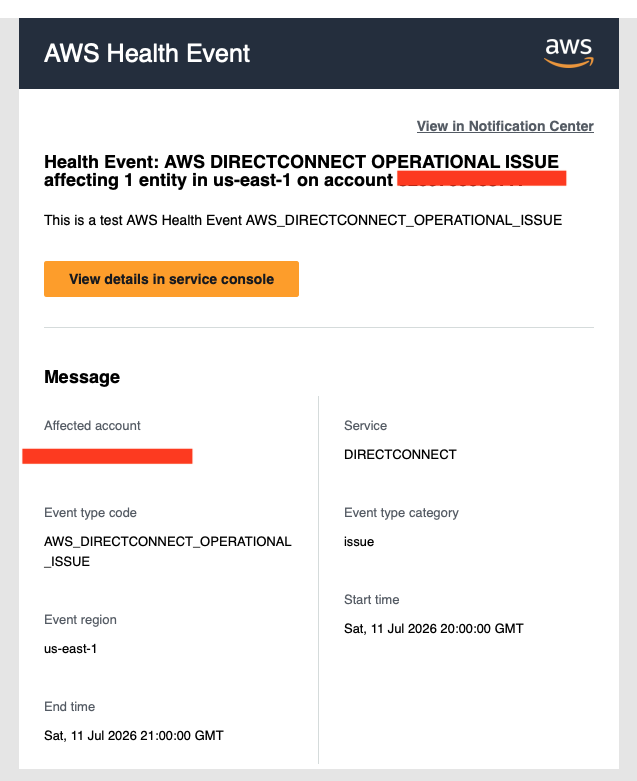
Figure 5: Sample CRITICAL email notification from AWS User Notifications related to an ISSUE.
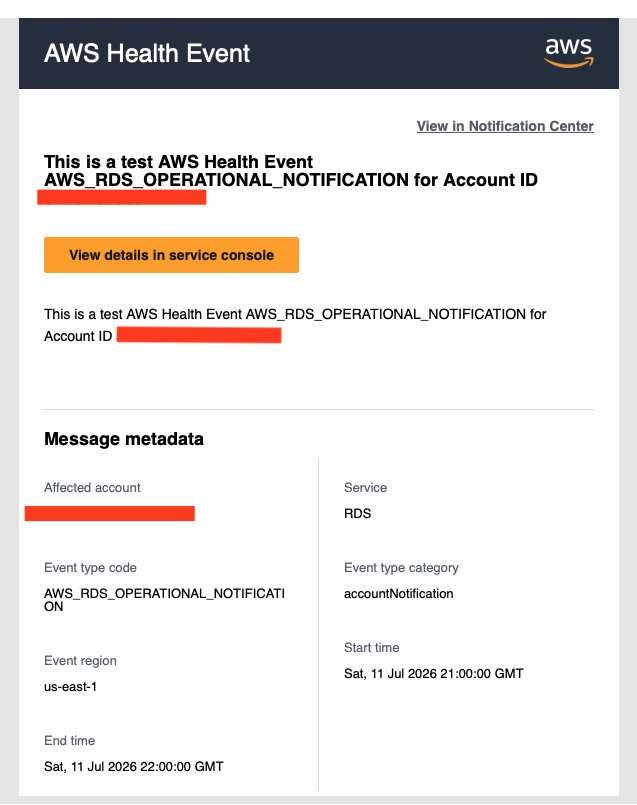
Figure 6: Sample INFORMATIONAL digest email from AWS User Notifications related to an accountNotification.
Customizing the solution
You can tailor the solution to your environment by adjusting which services are monitored and which Regions are covered.
Adding or removing monitored services
This template monitors AWS Direct Connect, Amazon Connect Customer, and Amazon RDS by default. To monitor additional services, update the service array in the EventPattern of both event rules. For example, to add Amazon Elastic Compute Cloud (Amazon EC2):
Update the stack, and the new services are covered immediately.
Multi-Region monitoring
To get notifications about other AWS Regions, pass multiple Regions in the NotificationRegions parameter:
Always include us-east-1 regardless of where your workloads run. AWS Health global events — such as those for AWS Identity and Access Management (IAM), Amazon Route 53, and Amazon CloudFront — are delivered to us-east-1. If you exclude it, you miss global events.
Adding delivery channels
The solution starts with an email, but you can extend it without modifying the core event rules or notification configurations:
- More email recipients: Create additional EmailContact resources and associate them with the existing CRITICAL and INFORMATIONAL configurations.
- Slack or Microsoft Teams: Set up an AWS Chatbot in chat applications channel and create a ChannelAssociation linking it to the notification configurations.
- Mobile push: Install the AWS Console Mobile App and sign in. User Notifications delivers to the mobile app automatically — no additional CloudFormation resources needed.
- Team-based routing: Associate the network team’s email only with the CRITICAL configuration, and the general ops team with both CRITICAL and INFORMATIONAL. This is done through channel associations alone — no changes to event rules.
How this solution compares to existing approaches
Several tools exist for routing AWS Health events, each designed for different operational needs. This solution is not a replacement for all of them — it fills a specific gap.
| Approach | What it does | Trade-offs |
| AWS Health Aware (AHA) | Open-source framework with Lambda, DynamoDB, Secrets Manager. Supports Slack, Teams, Chime, and email with event deduplication. | Requires Business or Enterprise Support plan. Ongoing maintenance of deployed components. |
| HEIDI / CID Health Events Dashboard | Historical analysis and trend visualization using Amazon QuickSight , Amazon Athena , and Amazon S3 . | Designed for operational planning and post-incident review — not real-time alerting. Requires Business or Enterprise Support plan. |
| Custom Amazon EventBridge + Lambda + SNS | Full flexibility for routing and transformation. | Requires writing, testing, and maintaining application code. |
| Third-party tools (PagerDuty, Datadog) | Escalation, on-call routing, and acknowledgment workflows. | Licensing costs and vendor dependencies. |
| This solution | Simplest path to priority-separated, real-time health alerting. One stack, no code, no compute, no support plan requirement. | No deduplication, no escalation/acknowledgment, no historical storage. |
The approach in this post sits at a different point on the spectrum. It works well as a standalone solution for teams that need straightforward alerting, and it works equally well as a foundation layer that feeds into more advanced tools as operational needs grow.
You can start with this solution for immediate coverage, then consider adding PagerDuty by subscribing it to the Amazon SNS topic (Combined mode) for escalation and on-call routing, or pair it with HEIDI for historical trend analysis.
Things to consider
This solution is intentionally lightweight, and that comes with trade-offs worth understanding:
- Email format: AWS User Notifications controls the email body and subject line. You cannot add custom text like ‘[CRITICAL]’ to the email itself by default. The priority signal is the delivery pattern — standalone means critical, batched means informational. For teams that need explicit priority labels in email, the Combined deployment mode adds an Amazon EventBridge + SNS layer with
InputTransformerthat prefixes the email body with ‘[CRITICAL]’ or ‘[INFORMATIONAL]’. - Delivery monitoring (Combined modes): The Amazon EventBridge + SNS layer includes built-in reliability. A dead letter queue (DLQ) retains failed deliveries for 14 days for troubleshooting, and a CloudWatch alarm fires if SNS fails to deliver notifications. This means you are alerted not just about AWS Health issues, but also about failures in the notification pipeline itself.
- No deduplication: AWS Health events have a lifecycle — created, updated, resolved. Each update triggers a new notification. A single incident might generate 2–4 emails as the event progresses. For strict deduplication, consider pairing with AHA or adding a lightweight Lambda function.
- No escalation or acknowledgment: This solution sends notifications but does not track whether anyone acted on them. For on-call routing and escalation chains, integrate with an incident management tool like PagerDuty or OpsGenie via the SNS topic.
- No historical storage: Notifications are delivered in real time but not stored for later analysis. For post-incident review and trend reporting, pair with HEIDI or the CID Health Events Dashboard.
The advantage of this approach is that it does not lock you into a single path. The notification configurations and event rules remain in place as you layer on additional capabilities.
Cleanup
If you no longer need the health notification resources, delete the CloudFormation stack:
Note: AWS CloudFormation preserves resources with DeletionPolicy: Retain (notification configurations, event rules, email contacts, and channel associations) after you delete the stack. To fully remove them, delete the resources manually through the AWS User Notifications console or the AWS CLI.
Expected result: Stack reaches DELETE_COMPLETE within 2–3 minutes.
Conclusion
In this post, we walked through how to set up priority-based AWS Health alerting using AWS User Notifications and a single CloudFormation template. The solution filters health events to only the services that matter to your organization, then separates what remains into immediate critical alerts and batched informational summaries.
The core value is simplicity. No Lambda functions to patch. No DynamoDB tables to manage. No code to maintain. One stack, deployed in minutes, covering a single account or an entire organization. Because it uses only native AWS services with no support plan requirement, any team can adopt it regardless of their current tooling or support tier.
This approach works as a standalone alerting solution. It also works as a starting point that you can extend with Slack and Microsoft Teams integration through AWS Chatbot in chat applications, escalation workflows through PagerDuty or OpsGenie, and historical analysis through HEIDI or CID.
To get started, download the CloudFormation templates from the GitHub repository. For more information, see the AWS User Notifications User Guide and the AWS Health User Guide.
If you have questions or want help implementing this solution for your organization, contact your AWS account team or visit the AWS Contact Us page.