AWS for M&E Blog
Schedule AWS Elemental MediaLive channel operations with AWS EventBridge
Live streaming helps businesses engage global audiences with low latency. Cloud-based streaming costs less up front than traditional broadcasting and scales to match your needs. By using serverless Amazon Web Services (AWS) services, you can automatically scale resources to match your exact streaming needs, spinning up channels for major events and efficiently cleaning up afterwards.
AWS Elemental MediaLive is a cloud-based, broadcast-grade video processing service you can use to deploy live channels within minutes. This post shows you how to automate MediaLive channel scheduling for both planned and one-time broadcasts, reducing operational costs and overhead while enabling your live streams to start and stop exactly when needed.
This solution uses a scalable, serverless architecture that automates channel management with AWS Lambda and Amazon EventBridge. You can concentrate on creating engaging viewer experiences while the infrastructure automatically manages streaming complexities.
Solution overview
The solution uses these key AWS services:
- Amazon DynamoDB stores channel scheduling information, including start times, end times, and channel IDs. When users create a schedule, Amazon DynamoDB Streams triggers an AWS Lambda
- Lambda functions process the schedule entries and create corresponding schedulers in Amazon EventBridge.
- Amazon EventBridge orchestrates the channel management workflows based on the defined schedules.
- Amazon EventBridge Scheduler executes the scheduled tasks at specified times, triggering the start and stop workflows.
- AWS Step Functions coordinates the workflow that:
- Starts or stops the MediaLive channel
- Verifies the channel status
- Sends notifications through Amazon Simple Notification Service (Amazon SNS)
Figure 1 shows the architecture for this solution.
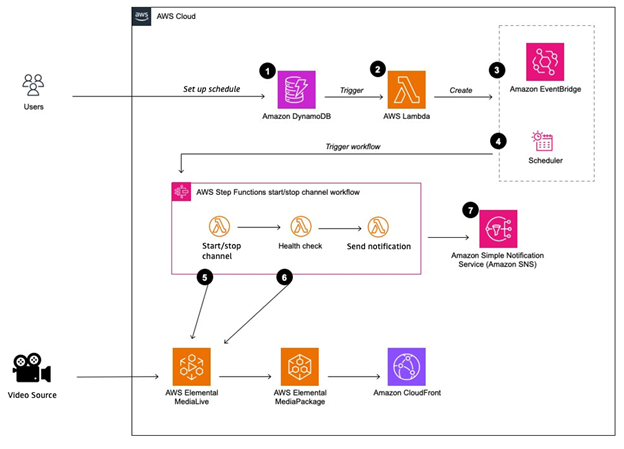
Figure 1: High-level architecture for the solution with serverless application.
Prerequisites
Before you begin, ensure you have the following:
- An AWS account.
- An AWS Identity and Access Management (IAM) user with sufficient permissions to deploy the AWS resources described in the solution overview, including DynamoDB, Lambda, EventBridge, Step Functions, and Amazon SNS.
- AWS Cloud Development Kit (AWS CDK) command line installed and your AWS environment bootstrapped. For more information, refer to the AWS CDK Developer Guide.
- A running channel on MediaLive. For more information, refer to Creating a channel from scratch.
Walkthrough
In this section, we walk you through the steps to schedule MediaLive channel operations with AWS EventBridge. The walkthrough follows these high-level steps:
- Provision required AWS components
- Add channel schedules to DynamoDB
- Verify your schedule
- Test your schedule
Complete the steps in the following sections.
Provision required AWS components
To deploy the solution using AWS CDK, on the AWS Management Console, navigate to AWS CloudShell, as shown in the following screenshot.
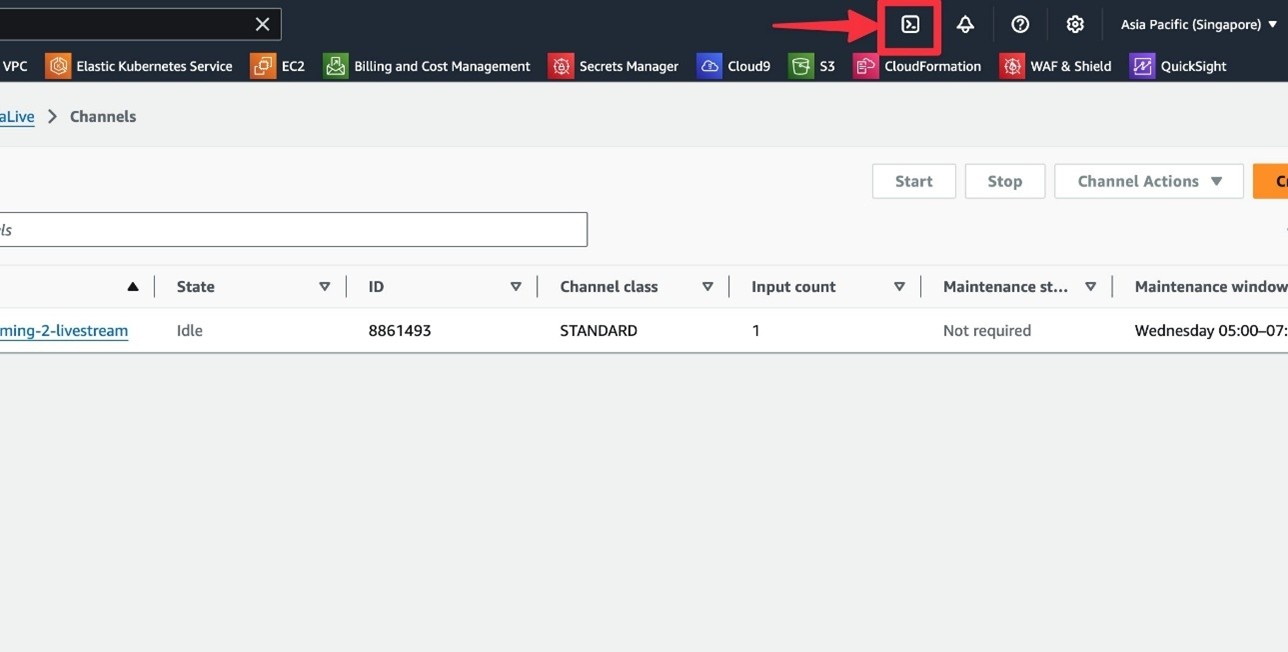
Figure 2: AWS CloudShell icon on the console navigation bar.
Enter the following command to install the stack:
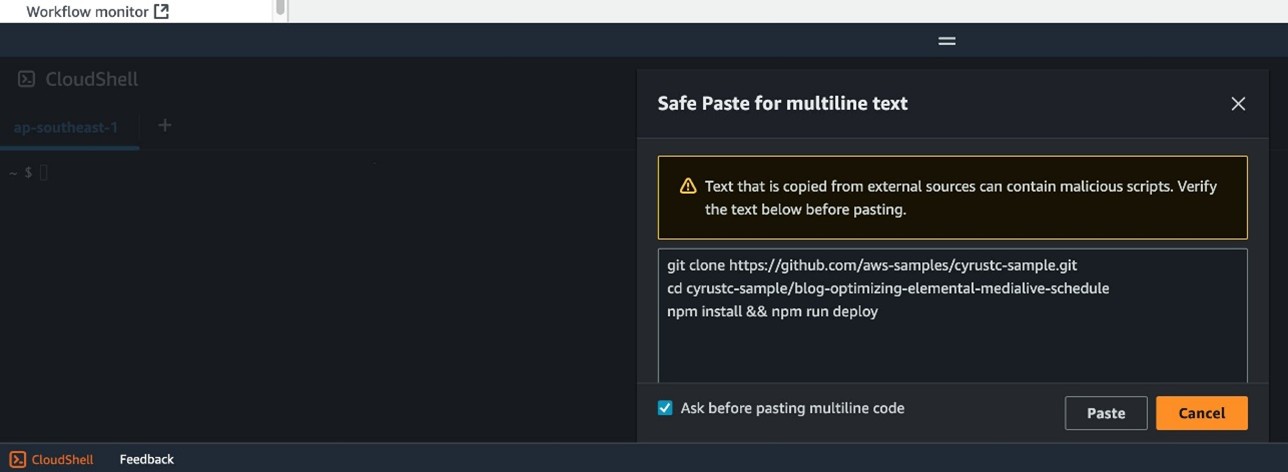
Figure 3: Paste the command into the CloudShell console.
The deployment takes approximately 5 minutes. When it’s complete, you receive a confirmation message, as shown in the following screenshot.
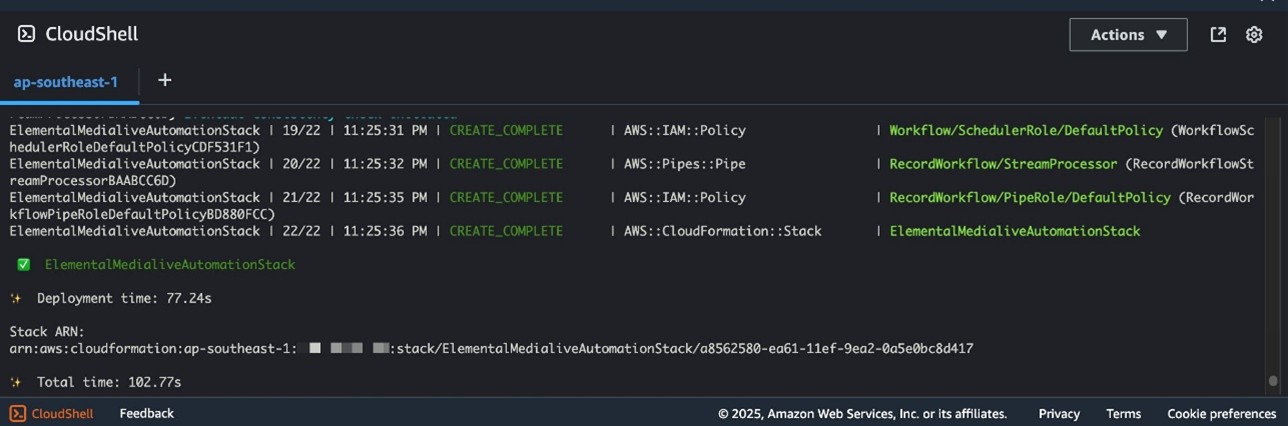
Figure 4: Successful deployment confirmation.
Add channel schedules to DynamoDB
In this step, you define the criteria to automatically start and stop a MediaLive channel. Each schedule entry applies to one specific MediaLive channel and includes stream health monitoring so your channel runs properly beyond basic start and stop operations.
To create a schedule entry, follow these steps:
- Navigate to the DynamoDB console You should find a table with name starting with media-scheduler, as shown in the following screenshot.
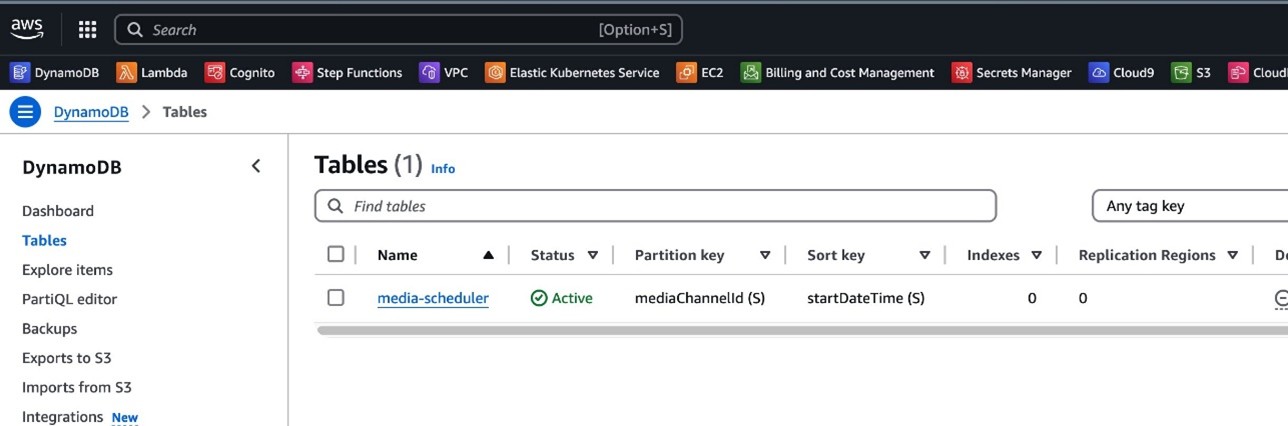
Figure 5: DynamoDB tables list showing media-scheduler table.
- Choose the table and choose Explore table items, as shown in the following screenshot.
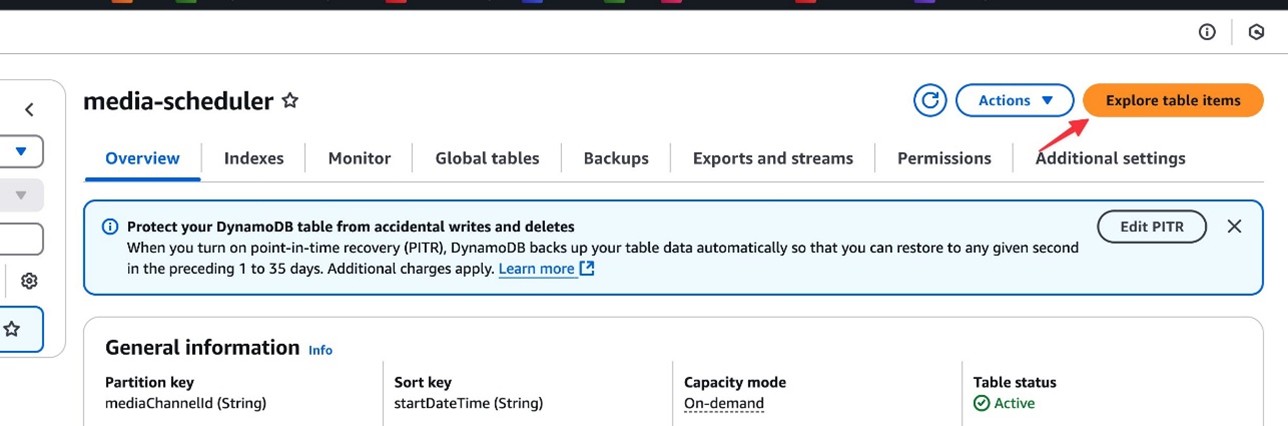
Figure 6: Table exploration view.
- Scroll down and choose Create item
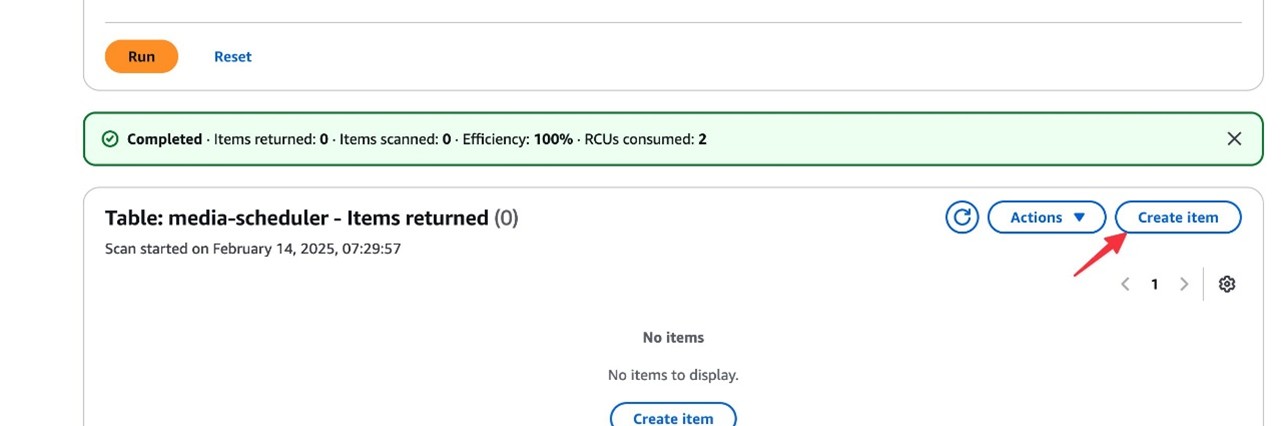
Figure 7: Create item in the table.
- Choose JSON view and enter the following configuration:
mediaChannelId: This is the unique MediaLive channel ID and can be obtained from the MediaLive console. Each entry schedules one specific channel. For more information, visit Viewing a channel configuration.
startDateTime and endDateTime: Input a date time in ISO8601 format. The automation will start and stop accordingly.
manifestUrl: Enter your HTTP Live Streaming (HLS) or Dynamic Adaptive Streaming over HTTP (DASH) manifest URL. The automation will verify the connectivity after the channel is started. You will be notified if the health check fails.
Choose JSON view and confirm that the input values are correct, then choose Create item, as shown in the following screenshot.
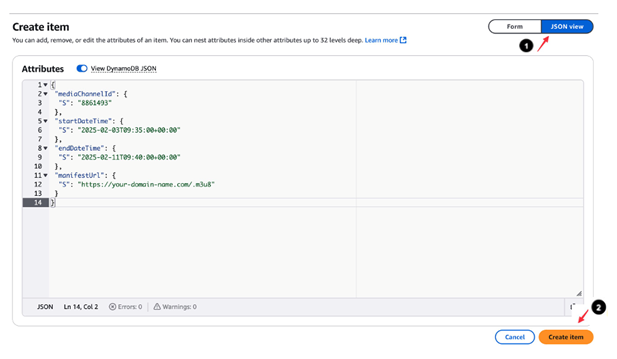
Figure 8: JSON configuration for schedule entry.
You have now added your schedule.
Verify your schedule
After you add your schedule entry to the table, DynamoDB triggers Step Functions through EventBridge. The system automatically creates an EventBridge schedule based on the table data.
To view these scheduled events:
- Navigate to the Amazon EventBridge console.
- In the navigation pane, choose Schedule.
- Locate the schedule that was created. Each automation is programmed to start 10 minutes before your specified startDateTime, providing adequate preparation time. You can identify events by their naming convention because each begins with your MediaLive channel ID.
- Choose an individual event to view its details.
- Verify detailed configuration and status information.
The following screenshot shows the Schedule tab with the configuration and status information.
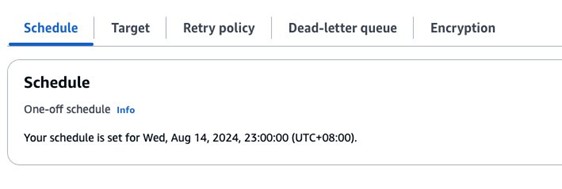
Figure 9: EventBridge schedule details.
Note: The Amazon EventBridge schedule is automatically removed after it starts.
Test your schedule
Ten minutes before your scheduled start time, EventBridge triggers the WorkflowStateMachine.
To monitor workflow execution:
- Navigate to the AWS Step Functions console.
- Choose State machines.
- Choose the state machine named WorkflowStateMachine.
- Choose Executions to view running workflows.
- Choose an execution to view its progress.
- Verify the workflow completes these steps:
- Starts the AWS Elemental MediaLive channel.
- Waits 60 seconds for the channel to initialize.
- Checks the manifest URL for stream health.
- Sends a notification through Amazon SNS.
If the health check fails, you receive an SNS notification with error details. The following diagram shows a complete workflow execution in Step Functions.
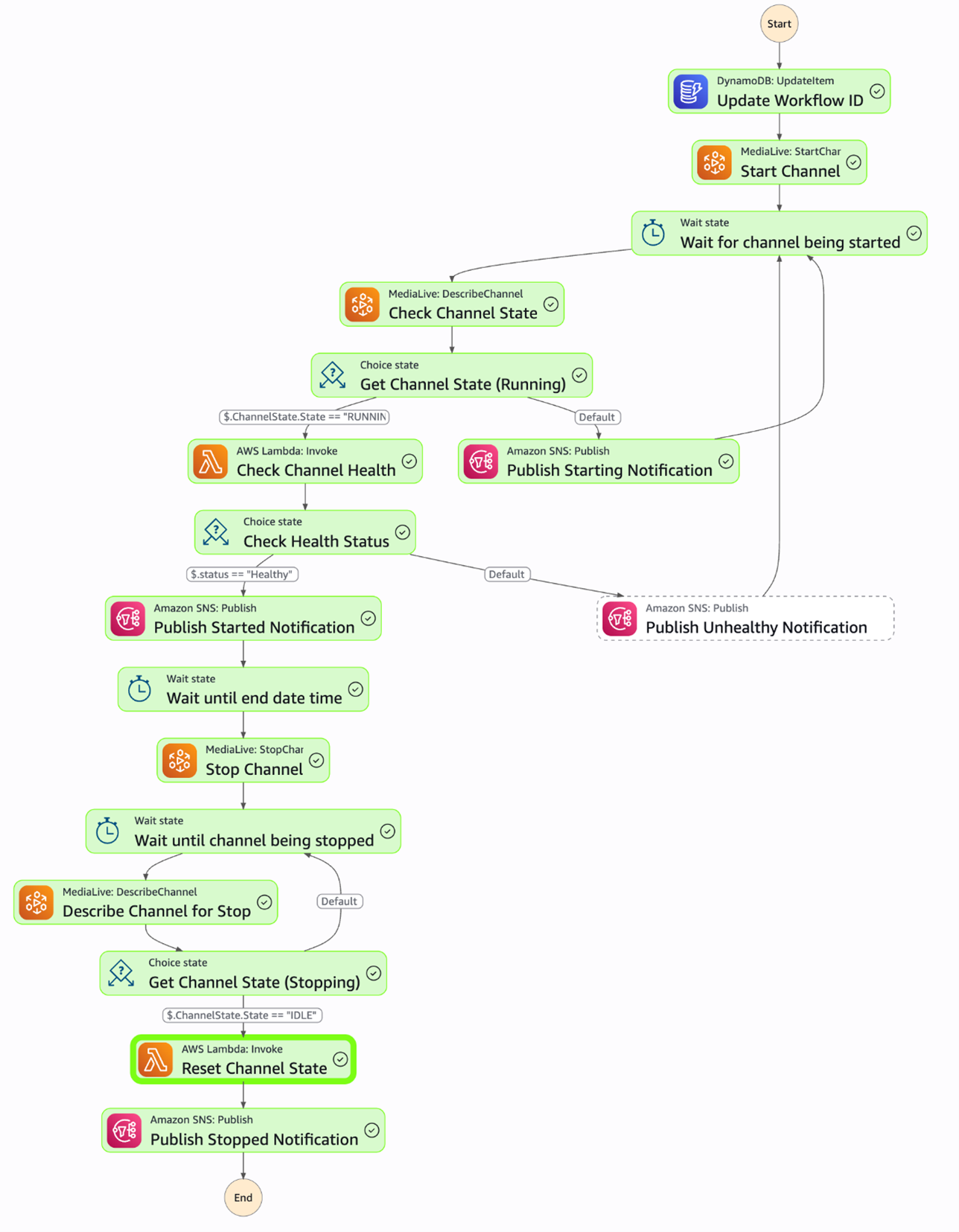
Figure 10: A complete workflow execution in Step Functions.
Clean up resources
To avoid incurring future charges, delete the CDK or CloudFormation stack named ElementalMedialiveAutomationStack, which you deployed in Provision required AWS components.
Conclusion
This serverless solution automates AWS Elemental MediaLive channel management with AWS Lambda, Amazon EventBridge, and AWS Step Functions. You control costs by only running channels when needed.
This automated approach delivers two key benefits:
- Teams can focus on creating engaging content rather than managing infrastructure
- Organizations gain efficient resource allocation and cost control through automated scheduling
This architecture provides a foundation for organizations to scale their streaming capabilities while minimizing operational overhead.
If you need further information, create an issue on this GitHub repository or contact your account team.