
Sold by: cloudimg
Deployed on AWS
Free Trial
AWS Free Tier
This product has charges associated with it for seller support. Launch a private, production-ready web file manager in minutes. File Browser pre-configured with nginx reverse proxy and unique admin credentials generated per instance.
Overview
Image
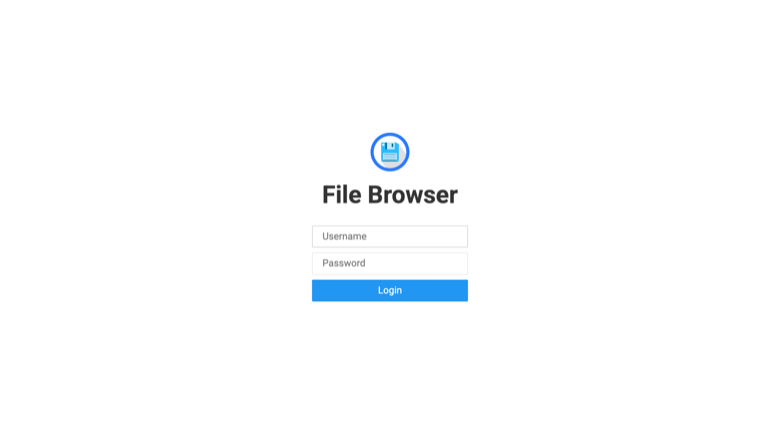
File Browser sign-in
Image
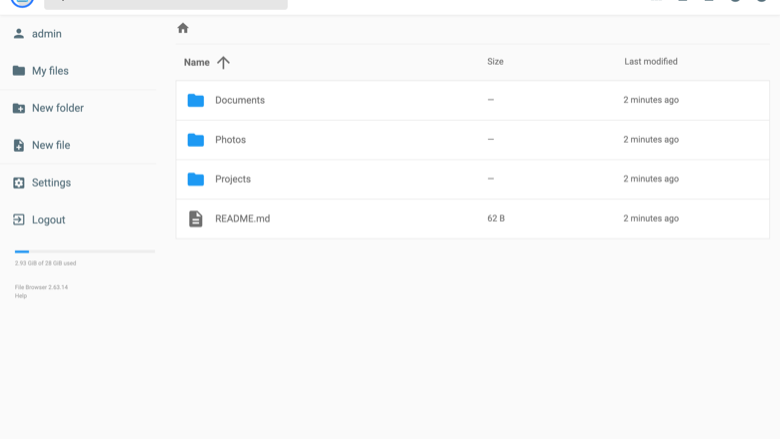
File listing
Image
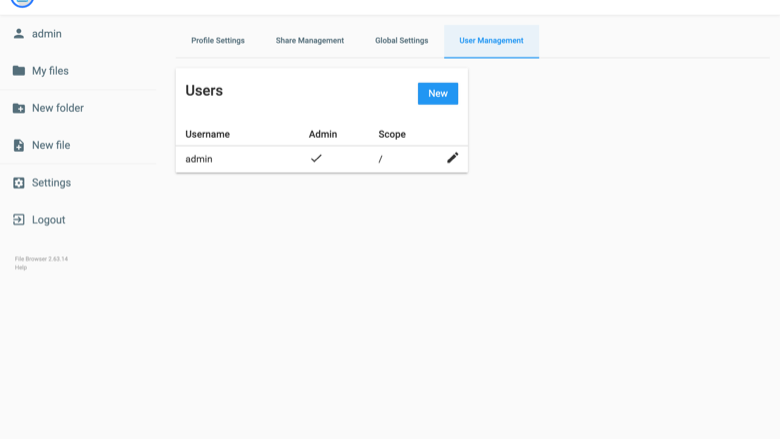
User management
This is a repackaged open source software product wherein additional charges apply for cloudimg support services.
File Browser - Production-Ready Web File Manager by cloudimg
Deploy a private, self-hosted web file manager on your own AWS infrastructure in minutes - no manual installation, no shared credentials, no third-party SaaS dependency. This AMI delivers File Browser 2.63 fully installed, hardened, and reverse-proxied behind nginx so you can browse, upload, download, edit, preview, and share files through a clean, fast web UI immediately after launch.
Why This AMI Instead of Manual Installation
Installing File Browser from source or via Docker requires configuring a reverse proxy, generating TLS certificates, hardening default credentials, and maintaining updates. This AMI eliminates that operational burden:
- Pre-configured nginx reverse proxy - Production-grade request handling without manual setup
- Per-instance security - No shared default passwords; a unique administrator credential is generated on every first boot
- Immediate time-to-value - Sign in and manage files within minutes of launching your EC2 instance
- Ongoing expert support - 24/7 cloudimg engineers handle upgrades, TLS termination, and storage integration so you can focus on your workflow
Use Case: Team File Sharing Without Third-Party SaaS
A development team needs to distribute build artifacts, design assets, or project documentation internally without uploading sensitive files to external cloud storage. With this AMI, a DevOps engineer launches an instance, retrieves the generated admin password, creates user accounts with scoped directory access, and the team is sharing files through a browser-based UI - all within their own VPC. Share links let external collaborators download specific files without needing accounts, while per-user permissions keep internal directories isolated.
Application Stack
The File Browser server - a single Go binary serving both the API and the web UI - runs behind nginx as a reverse proxy. The datastore is an embedded SQLite database. The server binds to the loopback interface, ensuring external traffic passes through nginx.
Secure By Default
Authentication is required from the first moment. On first boot, a one-shot service recreates the database (yielding a fresh per-instance session signing key) and creates a single administrator account with a unique password written to a root-only file. No shared or default credentials ship in the image. This eliminates the common risk of deploying upstream defaults with the well-known admin/admin credential pair.
Multi-User Support
Create additional user accounts with individual scopes and permissions. Each user sees only the directories you assign, making this suitable for teams that need isolated workspaces within a single instance.
Getting Started
- Launch the AMI on your chosen EC2 instance type
- Retrieve the generated administrator password from the root-only file on the instance
- Access the web UI through your browser via the instance public IP or domain
- Sign in as administrator, upload files, create users, and generate share links
cloudimg Support
24/7 technical support by email and live chat covers deployment, upgrades, integrations, TLS termination, and storage configuration. Critical issues receive a one-hour average response time.
File Browser is a trademark of its respective owner. All product and company names are trademarks or registered trademarks of their respective holders. Use of them does not imply any affiliation with or endorsement by them.
Highlights
- File Browser, the open source self-hosted web file manager - browse, upload, edit, preview and share files through a clean web UI - reverse-proxied with nginx
- Secure by default: authentication required and a per-instance administrator password generated on first boot, stored in a root only file
- 24/7 technical support from cloudimg for deployment, upgrades, integrations and TLS termination
Details
Sold by
Categories
Delivery method
Delivery option
64-bit (x86) Amazon Machine Image (AMI)
Latest version
Operating system
Ubuntu 24.04
Deployed on AWS
New
Introducing multi-product solutions
You can now purchase comprehensive solutions tailored to use cases and industries.

Features and programs
Financing for AWS Marketplace purchases
AWS Marketplace now accepts line of credit payments through the PNC Vendor Finance program. This program is available to select AWS customers in the US, excluding NV, NC, ND, TN, & VT.

Pricing
Free trial
Try this product free for 7 days according to the free trial terms set by the vendor. Usage-based pricing is in effect for usage beyond the free trial terms. Your free trial gets automatically converted to a paid subscription when the trial ends, but may be canceled any time before that.
Pricing is based on actual usage, with charges varying according to how much you consume. Subscriptions have no end date and may be canceled any time. Alternatively, you can pay upfront for a contract, which typically covers your anticipated usage for the contract duration. Any usage beyond contract will incur additional usage-based costs.
Additional AWS infrastructure costs may apply. Use the AWS Pricing Calculator to estimate your infrastructure costs.
If you are an AWS Free Tier customer with a free plan, you are eligible to subscribe to this offer. You can use free credits to cover the cost of eligible AWS infrastructure. See AWS Free Tier for more details. If you created an AWS account before July 15th, 2025, and qualify for the Legacy AWS Free Tier, Amazon EC2 charges for Micro instances are free for up to 750 hours per month. See Legacy AWS Free Tier for more details.
Dimension | Description | Cost/hour |
|---|---|---|
t3.small Recommended | t3.small | $0.05 |
t3.micro | t3.micro instance type | $0.04 |
t2.micro | t2.micro instance type | $0.04 |
m8i-flex.8xlarge | m8i-flex.8xlarge instance type | $0.24 |
r7a.xlarge | r7a.xlarge instance type | $0.12 |
r5d.16xlarge | r5d.16xlarge instance type | $0.24 |
c7i.metal-24xl | c7i.metal-24xl instance type | $0.24 |
c5n.xlarge | c5n.xlarge instance type | $0.12 |
m5zn.xlarge | m5zn.xlarge instance type | $0.12 |
m5zn.metal | m5zn.metal instance type | $0.24 |
Vendor refund policy
Refunds available on request.

Legal
Vendor terms and conditions
Upon subscribing to this product, you must acknowledge and agree to the terms and conditions outlined in the vendor's End User License Agreement (EULA) .
Content disclaimer
Vendors are responsible for their product descriptions and other product content. AWS does not warrant that vendors' product descriptions or other product content are accurate, complete, reliable, current, or error-free.
Delivery details
64-bit (x86) Amazon Machine Image (AMI)
Amazon Machine Image (AMI)
An AMI is a virtual image that provides the information required to launch an instance. Amazon EC2 (Elastic Compute Cloud) instances are virtual servers on which you can run your applications and workloads, offering varying combinations of CPU, memory, storage, and networking resources. You can launch as many instances from as many different AMIs as you need.
Version release notes
Initial release of File Browser 2.63 self-hosted web file manager.
Additional details
Usage instructions
Connect via SSH on port 22 as the default login user for your operating system variant (the user guide lists it per variant; on Ubuntu it is 'ubuntu'). File Browser is served on port 80 through nginx (the server listens on 127.0.0.1:8080). Retrieve the generated administrator login with: sudo cat /root/filebrowser-credentials.txt. Browse to http://<instance-public-ip>/ and sign in with the username and password shown. The health endpoint http://<instance-public-ip>/health is open. Files are served from /var/lib/filebrowser/files. Services are managed with systemctl (filebrowser, nginx). To enable HTTPS, follow the Let's Encrypt section of the user guide.
Resources
Vendor resources
Support
Vendor support
cloudimg Support
cloudimg provides 24/7 technical support for this File Browser AMI through two channels:
- Email: support@cloudimg.co.uk
- Live chat: Available around the clock
What We Help With
Our engineers assist with deployment, configuration, version upgrades, performance tuning, TLS termination setup, storage integration, multi-user configuration, and general troubleshooting.
Response Times
Critical issues receive a one-hour average response time. Our team monitors support channels continuously to ensure timely assistance regardless of time zone.
Getting Help
To reach support, email support@cloudimg.co.uk with your instance ID and a description of the issue. For faster resolution on urgent matters, use the live chat option. If you need assistance with refunds or billing questions, contact us through the same channels and we will guide you through the process.
AWS infrastructure support
AWS Support is a one-on-one, fast-response support channel that is staffed 24x7x365 with experienced and technical support engineers. The service helps customers of all sizes and technical abilities to successfully utilize the products and features provided by Amazon Web Services.
Similar products

This product has charges associated with it for seller support. Self-hosted GitLab CE on Ubuntu 24.04 with CI/CD, container registry, and Let's Encrypt SSL. Pre-configured for AWS with24/7 expert support by cloudimg.

This product has charges associated with it for seller support. Self-hosted Prefect orchestration server ready in minutes - no manual setup. Build resilient Python data workflows with retries, scheduling, and a live UI. Backed by 24/7 cloudimg support.

This product has charges associated with it for seller support. Launch a private, production-ready Calibre-Web ebook server in minutes - pre-configured with nginx, OPDS, and per-instance security. Backed by 24/7 cloudimg support.

This product has charges associated with it for seller support. Self-hosted remote management console for Windows, macOS, and Linux devices. Keep full data sovereignty in your VPC with unlimited agents and no per-seat fees.
Customer reviews
No customer reviews yet
Be the first to review this product . We've partnered with PeerSpot to gather customer feedback. You can share your experience by writing or recording a review, or scheduling a call with a PeerSpot analyst.