
Sold by: cloudimg
Deployed on AWS
Free Trial
AWS Free Tier
This product has charges associated with it for seller support. Portainer CE delivers a browser-based Docker management console - preinstalled, hardened, and serving on EC2 within minutes. Backed by 24/7 cloudimg support.
Overview
Image
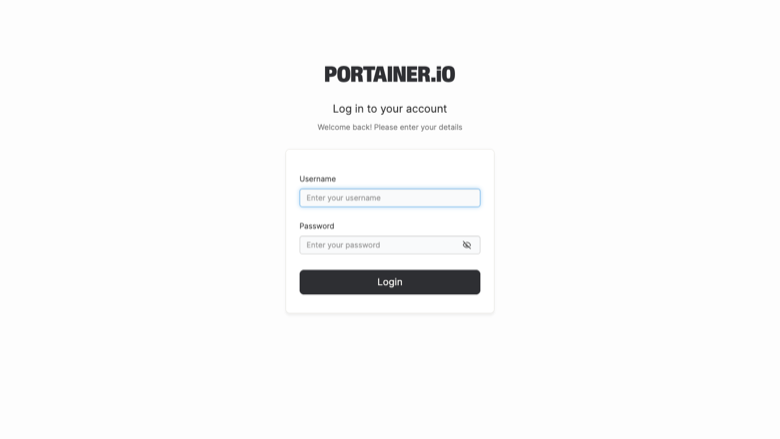
Portainer sign-in
Image
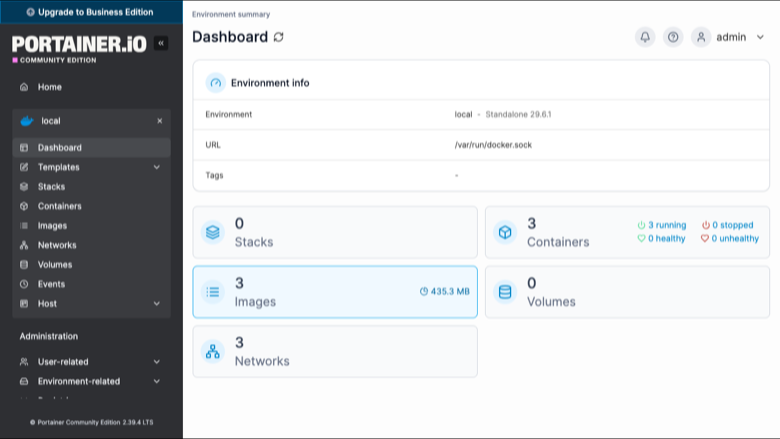
Environment dashboard
Image
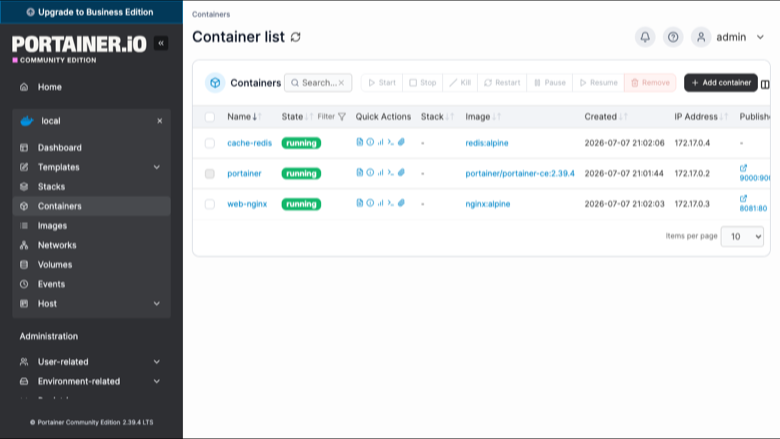
Container list
Image
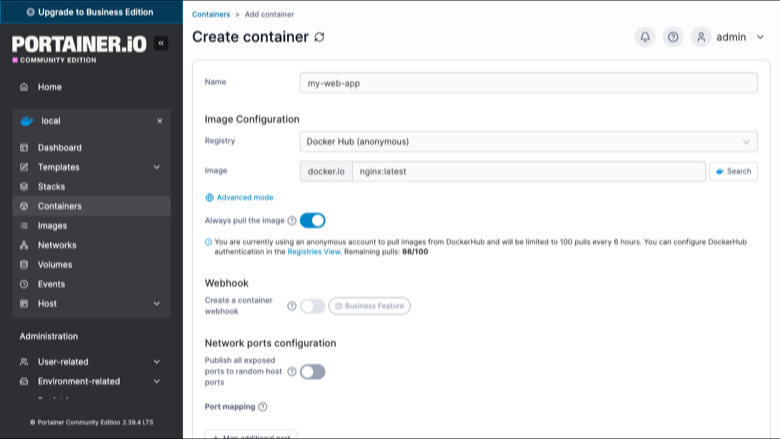
Deploy a container
This is a repackaged open source software product wherein additional charges apply for cloudimg support services.
Overview
Portainer CE is a lightweight management UI that lets you deploy and operate Docker entirely from your web browser. You get a clear view of every container, image, volume, network and stack on the host, with controls to create, start, stop, inspect, exec into and remove them - without memorising Docker CLI commands. This AMI delivers Portainer CE fully installed and running behind an nginx reverse proxy, with the local Docker environment already connected, so your container-management console is serving within minutes of launch.
Why This AMI Over Manual Installation
Installing Portainer manually requires provisioning an instance, installing Docker, pulling the Portainer image, configuring a reverse proxy, setting up WebSocket upgrades for console access, and securing the initial admin registration window before an attacker does. This AMI eliminates those steps and closes the security gap: the admin account is created automatically with a unique password on first boot, before the UI is exposed, so the open-registration vulnerability present in default Portainer deployments never exists on your instance. The dedicated data disk means you can resize Portainer's database storage independently of the OS disk - no redeployment needed if your stack definitions or user base grows. Nginx is pre-configured with the WebSocket upgrade header so in-browser consoles and live log streaming work immediately.
Application Stack
Portainer runs as a container that manages the host's own Docker engine through the Docker socket. It binds to the loopback interface and is fronted by nginx on port 80, with the WebSocket upgrade for container console and log streaming already configured. Docker and the reverse proxy start on boot and the container restarts on failure. Portainer's database of users, environments, stacks and settings lives on a dedicated data disk so it is independently resizable and separate from the operating system disk.
Manage Docker From Your Browser
- Browse and search every container with its state, ports and resource usage
- Start, stop, restart, pause, kill, remove and duplicate containers in a click
- Open an in-browser console into a running container or stream its live logs
- Pull and manage images, create and inspect volumes and networks
- Deploy multi-container applications as stacks from Compose files or the web editor
- Role-based access control lets you add teams and users with scoped permissions
Security and Hardening
On first boot a one-shot service creates the Portainer admin account with a fresh password unique to that instance and records it in a file only the root user can read. No shared or default credentials ship in the image, and the admin is initialised within Portainer's own security window - eliminating the open-registration risk. Portainer binds only to the loopback interface; nginx is the sole public-facing listener. The Docker socket is accessible only to the Portainer container.
Concrete Use Cases
- Single-host application management: A developer running 10-50 containers on one EC2 instance deploys a multi-container web app from a Compose file, inspects logs across services, and rolls back a failed update - all from the browser without SSH.
- Team onboarding and training: A bootcamp instructor provisions isolated lab environments where students manage containers through the UI, learning Docker operations visually before moving to the CLI.
- Small-team DevOps without Kubernetes: Teams of 2-5 engineers who run Docker on a single host but want visibility, access control, and stack management without the overhead of a full orchestrator.
Ready To Use
Open the web UI in your browser, read the generated password from the instance, sign in as admin, and the local Docker environment is already connected. A built-in health endpoint answers on the reverse proxy for load-balancer and uptime checks.
cloudimg Support
Portainer CE has over 1 million Docker Hub pulls, making it one of the most widely adopted open-source container management interfaces available.
Highlights
- Deploy and manage Docker containers, images, volumes, networks and stacks from your browser in minutes - no CLI commands or SSH required. This AMI eliminates the manual setup steps of installing Docker, pulling Portainer, configuring a reverse proxy, and securing the admin registration window. On a single EC2 instance you can manage 10-50 containers with full role-based access control for your team.
Details
Sold by
Categories
Delivery method
Delivery option
64-bit (x86) Amazon Machine Image (AMI)
Latest version
Operating system
Ubuntu 24.04
Deployed on AWS
New
Introducing multi-product solutions
You can now purchase comprehensive solutions tailored to use cases and industries.

Features and programs
Financing for AWS Marketplace purchases
AWS Marketplace now accepts line of credit payments through the PNC Vendor Finance program. This program is available to select AWS customers in the US, excluding NV, NC, ND, TN, & VT.

Pricing
Free trial
Try this product free for 7 days according to the free trial terms set by the vendor. Usage-based pricing is in effect for usage beyond the free trial terms. Your free trial gets automatically converted to a paid subscription when the trial ends, but may be canceled any time before that.
Pricing is based on actual usage, with charges varying according to how much you consume. Subscriptions have no end date and may be canceled any time. Alternatively, you can pay upfront for a contract, which typically covers your anticipated usage for the contract duration. Any usage beyond contract will incur additional usage-based costs.
Additional AWS infrastructure costs may apply. Use the AWS Pricing Calculator to estimate your infrastructure costs.
If you are an AWS Free Tier customer with a free plan, you are eligible to subscribe to this offer. You can use free credits to cover the cost of eligible AWS infrastructure. See AWS Free Tier for more details. If you created an AWS account before July 15th, 2025, and qualify for the Legacy AWS Free Tier, Amazon EC2 charges for Micro instances are free for up to 750 hours per month. See Legacy AWS Free Tier for more details.
Dimension | Description | Cost/hour |
|---|---|---|
t3.medium Recommended | t3.medium | $0.04 |
t2.micro | t2.micro instance type | $0.04 |
t3.micro | t3.micro instance type | $0.04 |
c5a.12xlarge | c5a.12xlarge instance type | $0.24 |
c5a.16xlarge | c5a.16xlarge instance type | $0.24 |
c5a.24xlarge | c5a.24xlarge instance type | $0.24 |
c5a.2xlarge | c5a.2xlarge instance type | $0.24 |
c5a.4xlarge | c5a.4xlarge instance type | $0.24 |
c5a.8xlarge | c5a.8xlarge instance type | $0.24 |
c5a.large | c5a.large instance type | $0.08 |
Vendor refund policy
Refunds available on request.

Legal
Vendor terms and conditions
Upon subscribing to this product, you must acknowledge and agree to the terms and conditions outlined in the vendor's End User License Agreement (EULA) .
Content disclaimer
Vendors are responsible for their product descriptions and other product content. AWS does not warrant that vendors' product descriptions or other product content are accurate, complete, reliable, current, or error-free.
Delivery details
64-bit (x86) Amazon Machine Image (AMI)
Amazon Machine Image (AMI)
An AMI is a virtual image that provides the information required to launch an instance. Amazon EC2 (Elastic Compute Cloud) instances are virtual servers on which you can run your applications and workloads, offering varying combinations of CPU, memory, storage, and networking resources. You can launch as many instances from as many different AMIs as you need.
Version release notes
Initial release of Portainer CE 2.39.4 as a ready-to-use browser-based Docker management UI with the admin password generated on first boot.
Additional details
Usage instructions
Connect via SSH on port 22 as the default login user for your operating system variant (for the Ubuntu 24.04 variant the user is ubuntu). Retrieve the generated admin password with: sudo cat /root/portainer-credentials.txt. Open Portainer in a browser at http://<instance-public-ip>/ and sign in as admin with the generated password. The local Docker environment is already connected, so you can immediately deploy and manage containers, images, volumes, networks and stacks. The application is served by nginx on port 80 (Portainer runs on loopback 9000); an unauthenticated health endpoint is available at http://<instance-public-ip>/healthz. Portainer's database lives on a dedicated data disk mounted at /var/lib/portainer. The instance security group opens ports 22, 80 and 443. Portainer runs as a Docker container: sudo docker ps; the reverse proxy runs under systemd: systemctl status nginx.
Resources
Vendor resources
Support
Vendor support
cloudimg provides 24/7 technical support for this product by email and live chat.
What We Help With
- Deployment and initial configuration
- HTTPS and reverse-proxy setup
- Connecting additional Docker or Kubernetes environments
- Role-based access control configuration
- Storage resizing and upgrade planning
- Performance tuning and troubleshooting
Getting Started
After launching your instance, contact our team for a free guided setup session if you need help configuring HTTPS, connecting remote environments, or planning your access control structure.
Prerequisites and Instance Sizing
This AMI runs on standard EC2 instances. Portainer CE itself is lightweight - a t3.micro is sufficient for managing a small number of containers. For workloads with more containers or heavier log streaming, consider t3.small or larger. Open port 80 (or 443 if you configure HTTPS) in your security group. The generated admin password is stored at a root-only file on the instance - retrieve it via SSH or EC2 Instance Connect on first login.
Refunds
If you experience issues with the product, contact us first so we can help resolve them. Refund requests can be submitted through our support channels.
Contact
Email: support@cloudimg.co.uk Live chat: Available 24/7
AWS infrastructure support
AWS Support is a one-on-one, fast-response support channel that is staffed 24x7x365 with experienced and technical support engineers. The service helps customers of all sizes and technical abilities to successfully utilize the products and features provided by Amazon Web Services.
Similar products
This product has charges associated with it for seller support. Portainer is a user-friendly container management platform that simplifies the deployment, management, and scaling of containerized applications. With its intuitive web-based interface, Portainer allows users to easily create, monitor, and control Docker containers, making container orchestration accessible to users of all skill levels.

This product has charges associated with it for Websoft9 support. Pre-configured, web-based, cloud-native, secure, one-click to deploy Portainer with Websoft9 Applications Hosting Platform on AWS. Portainer is a Web-based tool for Docker and Kubernetes (built-in to Websoft9), used for Cloud Infrastructure Monitoring.

This product has charges associated with it, which includes support and maintenance. Our AMI solutions are built on top-notch technology which makes sure that your business is future-ready! We implement the latest advancements into AMIs thus enhancing adaptability and sustainability.

This product has charges associated with it, which includes support and maintenance. Our AMI solutions are built on top-notch technology which makes sure that your business is future-ready! We implement the latest advancements into AMIs thus enhancing adaptability and sustainability.
This product has fees associated with the provision and deployment of the application and AMI support. Portainer is the most popular container management platform in the world, with more than 1 Million users and 21,700 GitHub stars.
Customer reviews
No customer reviews yet
Be the first to review this product . We've partnered with PeerSpot to gather customer feedback. You can share your experience by writing or recording a review, or scheduling a call with a PeerSpot analyst.