Sold by: Newt Global
Deployed on AWS
Database modernization support for Oracle for use with AWS EC2 including analysis, assessment, auto and manual target provisioning, database installation, data migration and validation.
Overview
Image
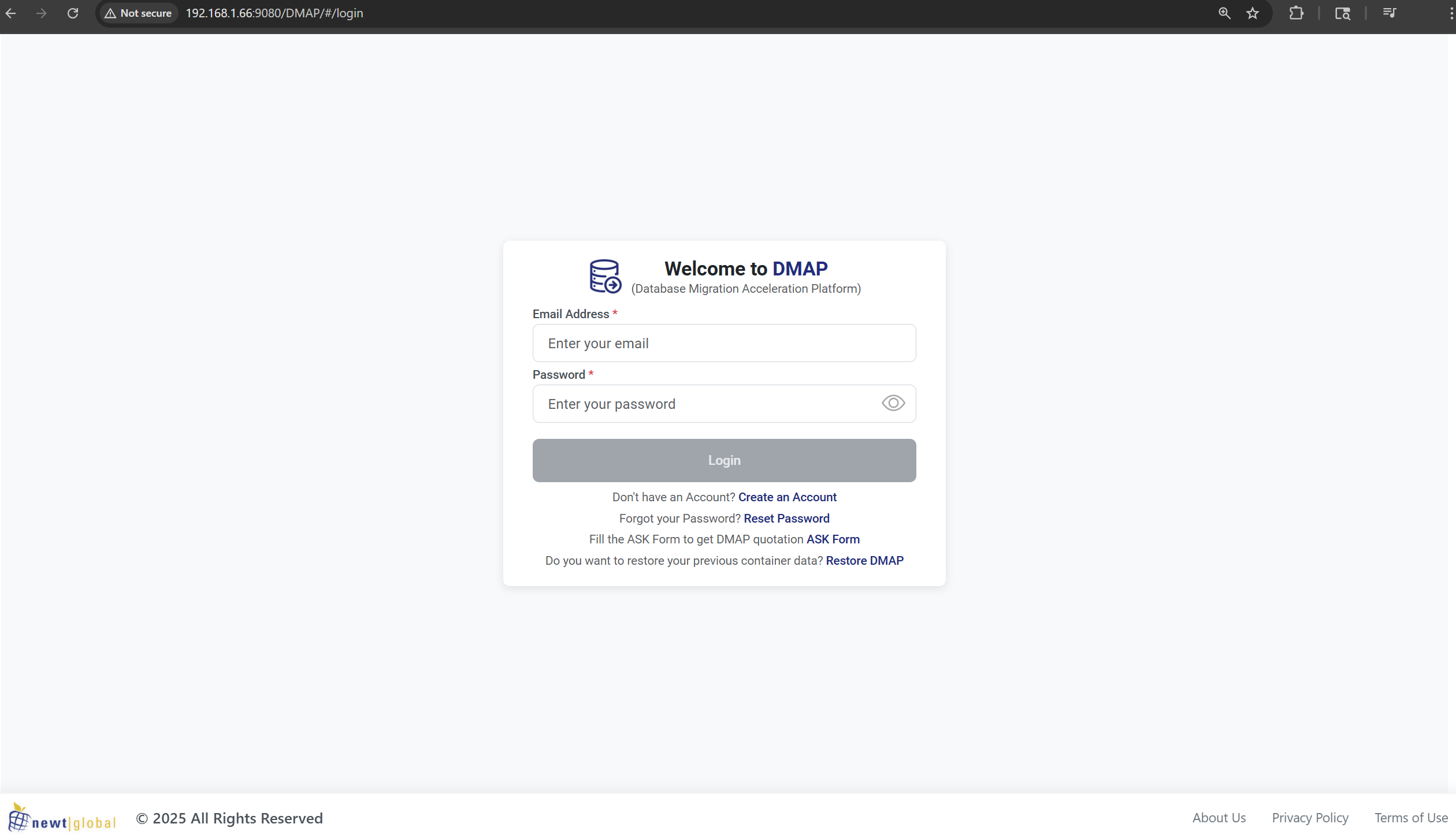
Dmap Login Page
Image
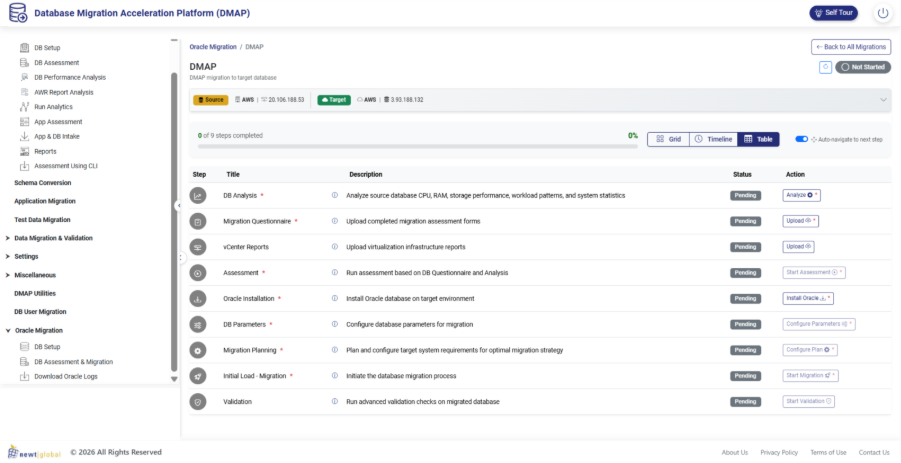
Migration Steps
Image
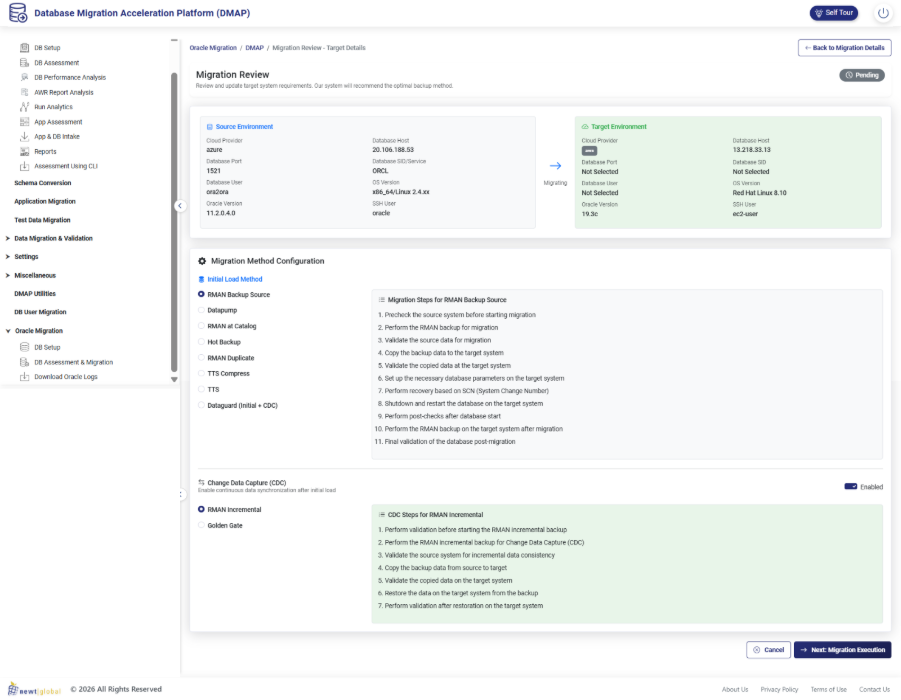
Migration types for Inital and CDC
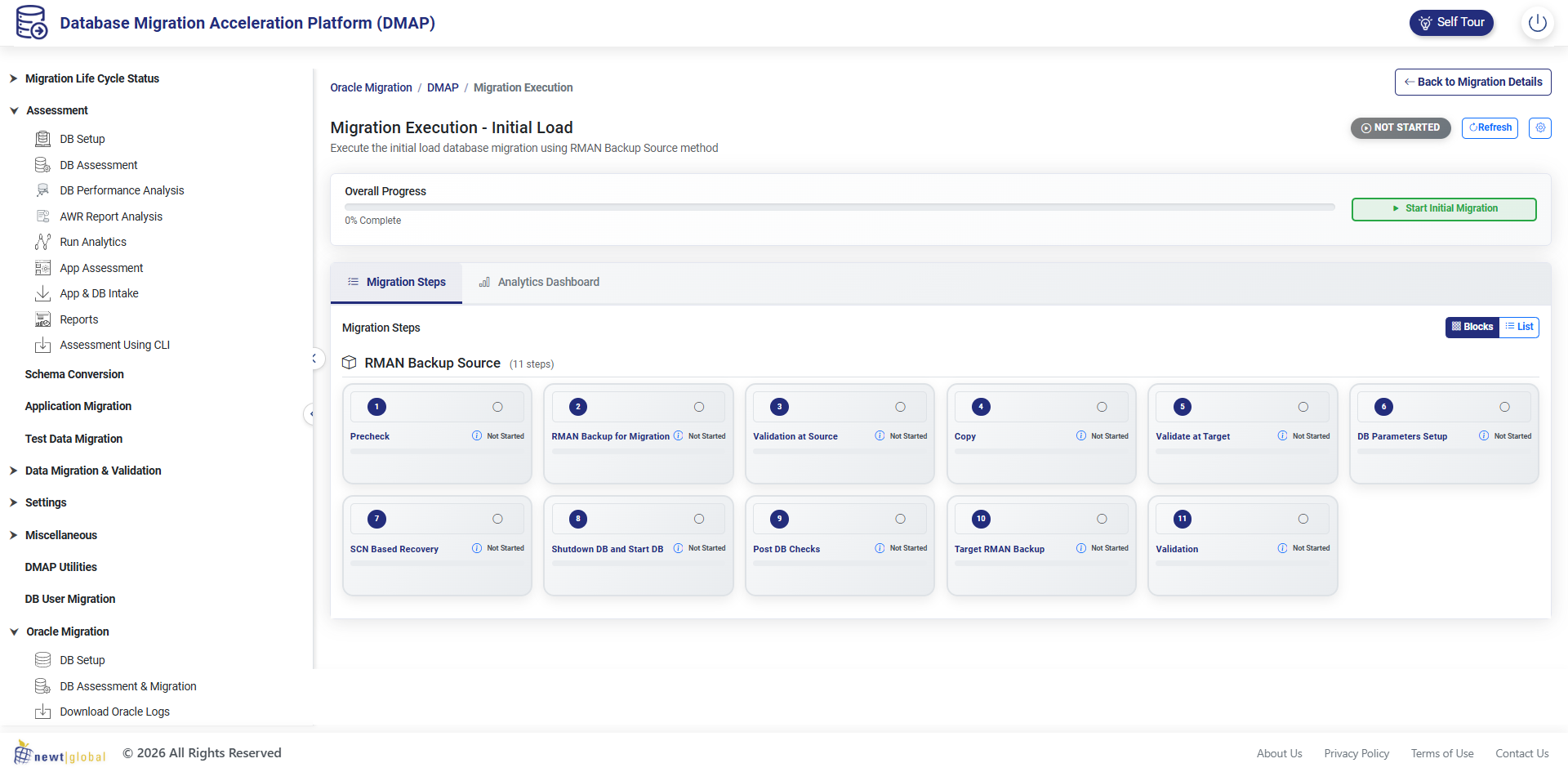
Image
Migration Status Page
Newt Global Data Modernization Acceleration Platform (DMAP) is a database modernization solution that supports homogenous database migration on Oracle for use with AWS EC2. DMAP provides source database analysis, assessment, auto and manual target EC2 instance provisioning, target database installation, data migration from source to target database and data validation between source and target. DMAP provides Oracle workload insights using Automatic Workload Repository (AWR) trends, including resource utilization and SQL analysis, to support target planning and configuration considerations. It supports data migration for multiple databases and schemas, including concurrent approaches designed to reduce downtime, and includes schema and data validation to verify structure, constraints, and migrated data accuracy and completeness. DMAP produces migration blueprints, target architecture guidance, and sizing recommendations.
Highlights
- Ready to Use Tool/Solution/Accelerator. Fixed Time commitment. Database Migration from On-Premise to AWS Cloud Platform.
- Database Upgrade from lower version to higher version from any On-Prem/Cloud to AWS Cloud Platform. Automatic Target EC2 Provisioning.
- Recommendation for correct target sizing. Product support available for technical inquiries.
Details
Sold by
Delivery method
Delivery option
64-bit (x86) Amazon Machine Image (AMI)
Latest version
Operating system
AmazonLinux Amazon Linux 2023 AMI 2023.10.20260202.2 x86_64 HVM kernel-6.1
Deployed on AWS
New
Introducing multi-product solutions
You can now purchase comprehensive solutions tailored to use cases and industries.

Features and programs
Financing for AWS Marketplace purchases
AWS Marketplace now accepts line of credit payments through the PNC Vendor Finance program. This program is available to select AWS customers in the US, excluding NV, NC, ND, TN, & VT.

Pricing
Pricing and entitlements for this product are managed through an external billing relationship between you and the vendor. You activate the product by supplying a license purchased outside of AWS Marketplace, while AWS provides the infrastructure required to launch the product. AWS Subscriptions have no end date and may be canceled any time. However, the cancellation won't affect the status of the external license.
Additional AWS infrastructure costs may apply. Use the AWS Pricing Calculator to estimate your infrastructure costs.
Vendor refund policy
Refund Policy: This AWS Marketplace listing is free $0. Because no fees are charged through AWS Marketplace, refunds are not applicable. This is a BYOL product any license fees are purchased separately from us and are subject to our separate terms.

Legal
Vendor terms and conditions
Upon subscribing to this product, you must acknowledge and agree to the terms and conditions outlined in the vendor's End User License Agreement (EULA) .
Content disclaimer
Vendors are responsible for their product descriptions and other product content. AWS does not warrant that vendors' product descriptions or other product content are accurate, complete, reliable, current, or error-free.
Delivery details
64-bit (x86) Amazon Machine Image (AMI)
Amazon Machine Image (AMI)
An AMI is a virtual image that provides the information required to launch an instance. Amazon EC2 (Elastic Compute Cloud) instances are virtual servers on which you can run your applications and workloads, offering varying combinations of CPU, memory, storage, and networking resources. You can launch as many instances from as many different AMIs as you need.
Version release notes
Additional details
Usage instructions
DMAP Ora2Ora Application Usage Instructions
Step 1: Launch the AMI. Log in to AWS Management Console and navigate to EC2. Click Launch Instance and select this DMAP Ora2Ora AMI. Choose instance type t3.xlarge or higher for optimal performance.
Step 2: Configure Security Group. Create or select a security group with inbound rules allowing SSH on port 22, DMAP Application Service on port 5004, DMAP Database UI on port 9090, Database Port 5433, Application Database Port 5434, and Python Service port 7002 from your IP address or as needed.
Step 3: Select or create a key pair, download the PEM file, review configuration and launch the instance. Wait for Running state and note the Public IP address.
Step 4: Connect to Instance. Open terminal and run chmod 400 followed by path to your PEM file. Connect via SSH using ssh -i followed by PEM file path and ec2-user@ followed by instance public IP.
Step 5: Start Docker Service. Run sudo systemctl enable docker then sudo systemctl start docker to enable and start Docker service.
Step 6: Launch Database Container. Run sudo docker run -d -it -p 5433:5432 -p 9090:8080 -p 7002:5002 -e UI_PORT=9090 -e SERVICE_PORT=7002 -e DB_PORT=5433 --name=dmap_db_prod_ora2ora ngdmapo/dmap_db_prod_ora2ora:latest
Step 7: Launch Application Container. Run sudo docker run -d -it -p 5434:5432 -p 5004:5002 --name=dmap_app_prod_ora2ora ngdmapo/dmap_app_prod_ora2ora:latest
Step 8: Verify containers are running using sudo docker ps. You should see both dmap_db_prod_ora2ora and dmap_app_prod_ora2ora containers with Up status.
Step 9: Access Application. Open browser and navigate to http:// followed by your instance public IP :5004/DMAP/#/login
Troubleshooting: If unable to access, check Security Group rules ensure port 5004 is open. Verify containers using sudo docker ps -a. Check logs using sudo docker logs dmap_app_prod_ora2ora or sudo docker logs dmap_db_prod_ora2ora. Restart containers if needed using sudo docker restart dmap_app_prod_ora2ora dmap_db_prod_ora2ora.
Port Configuration: Default ports are 5433 for database, 9090 for database UI, 7002 for Python service, 5434 for application database, and 5004 for application service. Ports can be customized but update security group accordingly.
Important: Database container must start before application container. All commands require sudo privileges. Ensure chosen ports are available and not used by other processes.
Resources
Vendor resources
Support
Vendor support
AWS infrastructure support
AWS Support is a one-on-one, fast-response support channel that is staffed 24x7x365 with experienced and technical support engineers. The service helps customers of all sizes and technical abilities to successfully utilize the products and features provided by Amazon Web Services.
Similar products

Mactores Application and Database Modernization helps enterprises reduce Microsoft SQL Server, Oracle, DB2, Teradata, and SSIS licensing costs while retiring legacy application and database technical debt. We modernize databases, stored procedures, application code, ETL pipelines, APIs, and downstream dependencies together, not as disconnected migration workstreams. Using, Mactores’ proprietary agent platform, plus CodeConverter, CodeAnalyzer, and forward-deployed engineers, we automate dependency discovery, schema conversion, T-SQL/PL-SQL to PL/pgSQL conversion, application code remediation, parity testing, validation, and cutover planning. Common paths include SQL Server to Amazon Aurora PostgreSQL, Oracle to Aurora, SSIS to AWS Glue, and monolithic applications to Amazon ECS, Amazon EKS, AWS Lambda, or AWS Fargate. Customers use this offering to reduce TCO, improve performance, minimize migration risk, and build a scalable AWS-native foundation.

Migrate your database to AWS Cloud quickly, efficiently, and securely. Our Database Migration planning service is a 5-day process that ensures your on-premises databases will migrate successfully.

Virtusa has helped migrate several customers out of their commercial on-prem DBs using proprietary frameworks, tools & methodology built for purpose. Our approach and tools are engineered to help clients assess, migrate and modernize out of Oracle DB to AWS.

CloudZone’s unique Oracle DB migration methodology enables enterprise & public sector clients to move DB workload from On-premises to AWS Cloud by either a homogenous to a public cloud-based VMs fleet or A heterogeneous migration by completing the full cycle and migrating to a managed public cloud-based Database.
This unique methodology, based on the unique knowledge and expertise in the DB arena, will perform deployment from On-Premises to AWS and mitigate most DB lift-to-cloud challenges.
Customer reviews
No customer reviews yet
Be the first to review this product . We've partnered with PeerSpot to gather customer feedback. You can share your experience by writing or recording a review, or scheduling a call with a PeerSpot analyst.