
Sold by: Techlatest.net
Deployed on AWS
Free Trial
AWS Free Tier
Hermes Agent enables organizations & individuals to create autonomous AI agents that execute tasks, manage workflows, and integrate with modern tools.
Create and scale AI agents using Hermes extensible open-source platform that learn ,adapt and improve from the interactions
Overview
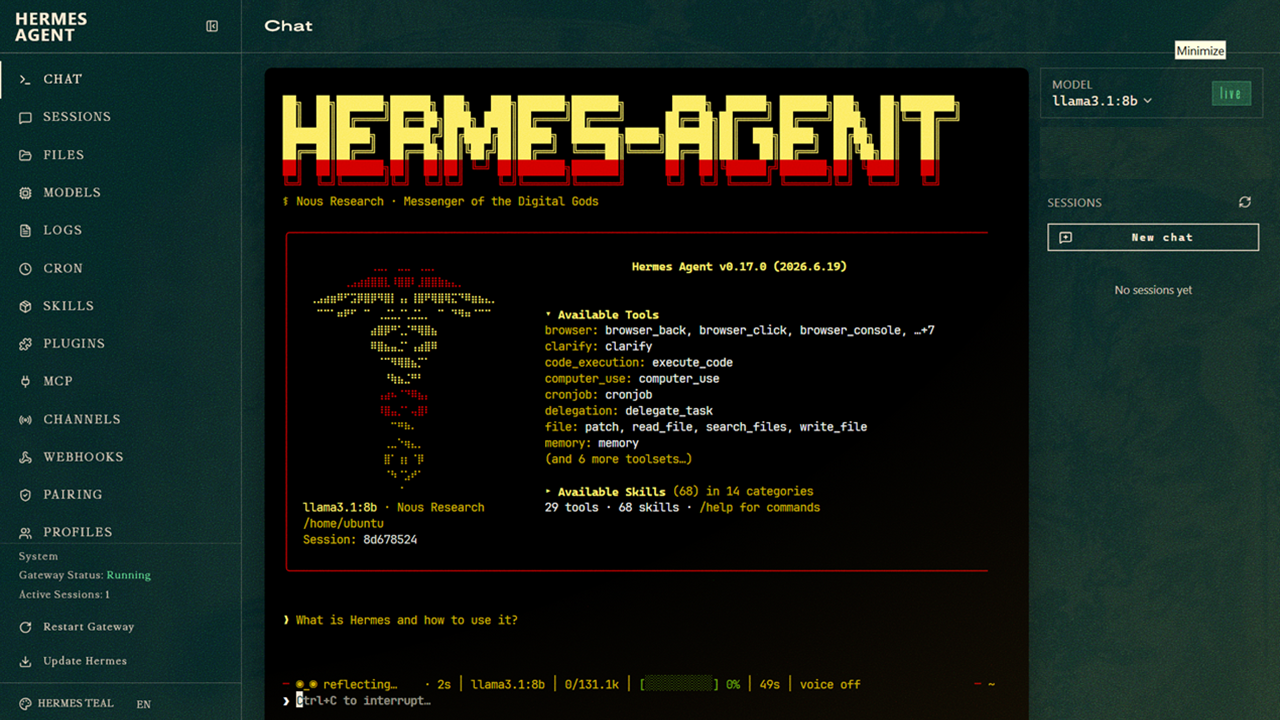
Image
Hermes Dashboard
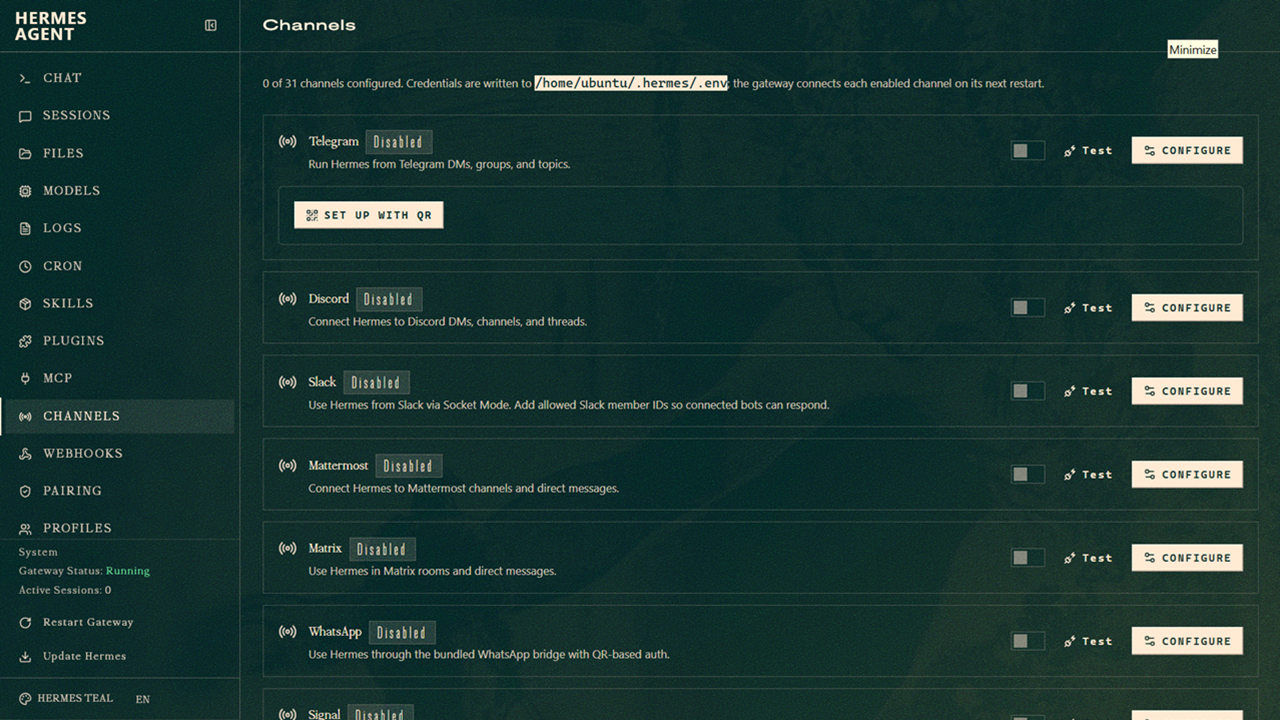
Image
Hermes Supported Channels
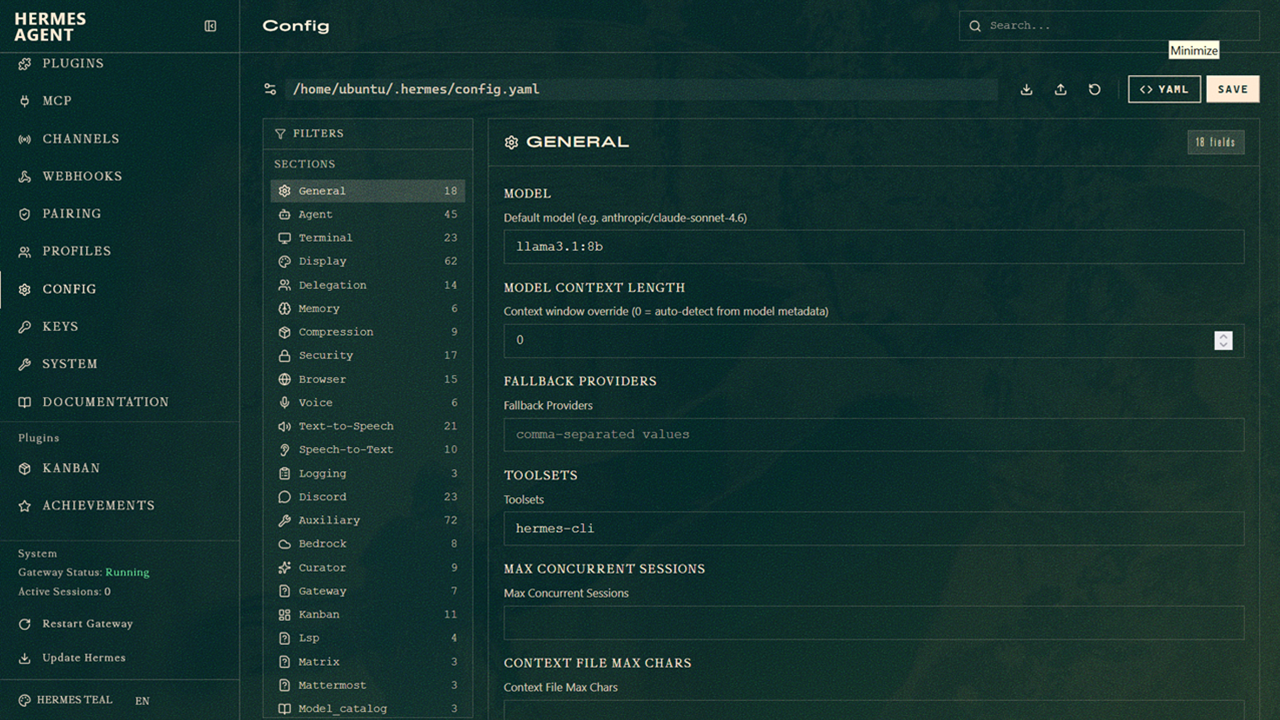
Image
Configuration
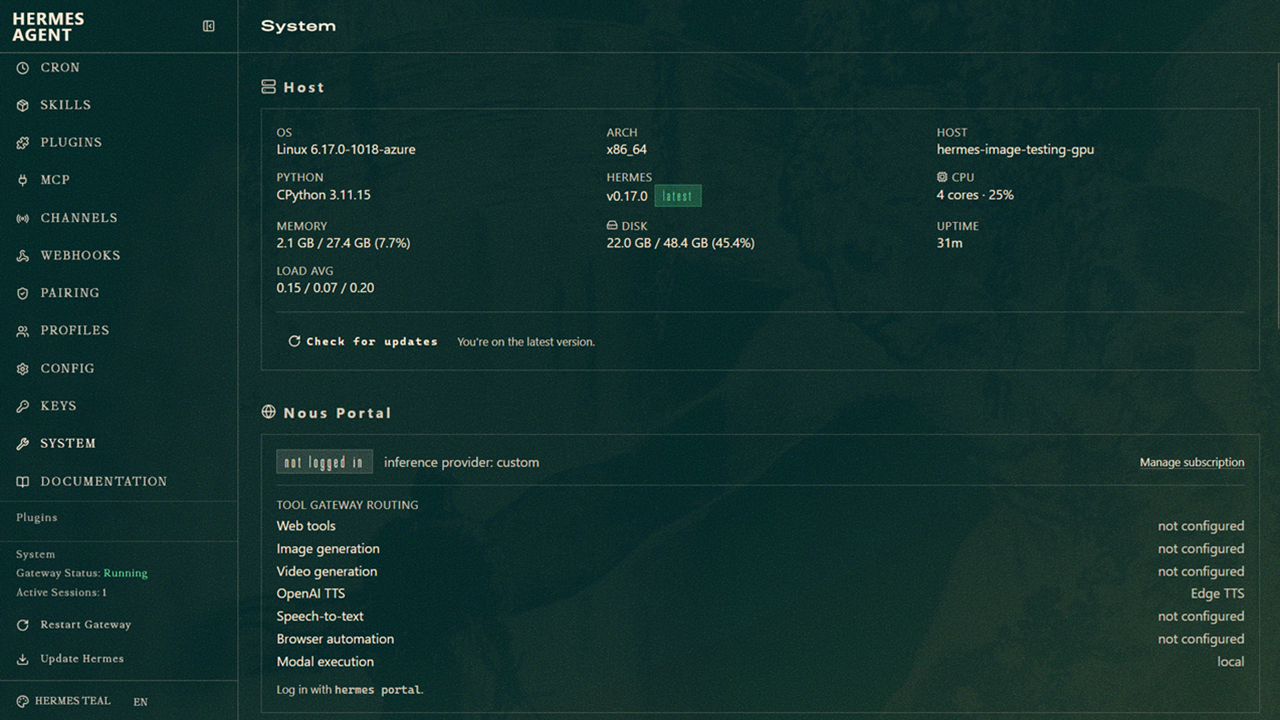
Image
System Info
Image
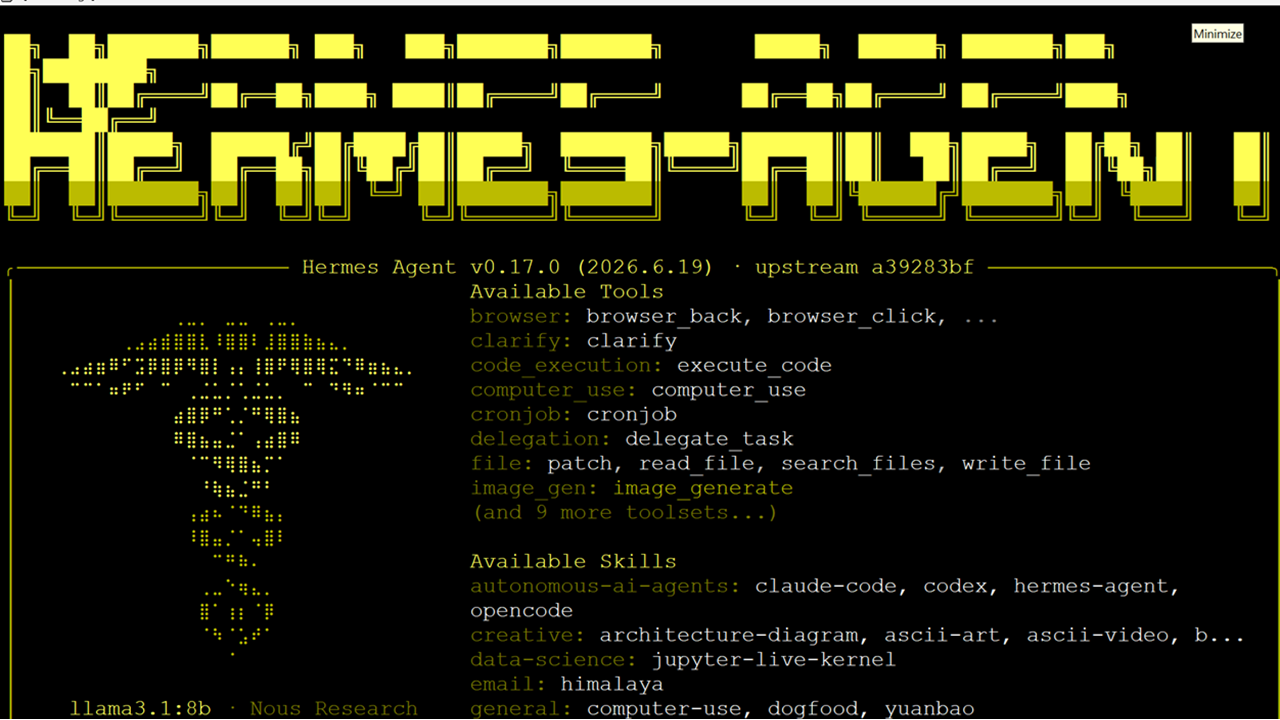
Hermes CLI
Hermes Agent - Private, GPU-Ready AI Automation on AWS
Get a ready-to-use AI assistant that completes tasks, remembers useful information and automates everyday work. Use the included private local model, run a more powerful model on a GPU, or connect OpenAI, Anthropic or another popular model of your choice.
Product overview
Hermes Agent is an AI assistant that can complete multi-step tasks, use tools, work with files and remember useful information. This ready-to-use AWS VM keeps Hermes separate from your personal computer and includes a local AI model for greater privacy.
You can also use a larger local model on a compatible GPU or connect OpenAI, Anthropic or another popular model of your choice.
Highlights
-
Private local-model option: process prompts on the VM without a third-party LLM API; enabled tools and integrations may still share data externally.
-
Ready-to-run Hermes Agent with browser dashboard and CLI
-
Ollama installed with the latest best-performing local model configured by default
-
NVIDIA GPU support for compatible EC2 GPU instances
-
Connect OpenAI, Anthropic or another supported model provider
-
Pull another compatible open-source model through Ollama
What is included
- Hermes Agent browser dashboard and CLI
- Ollama installed and ready to use
- gemma4:e2b configured as the default local model
- NVIDIA GPU software support for compatible EC2 GPU instances
Run a larger local model on NVIDIA GPU
Launch the VM on a compatible NVIDIA GPU EC2 instance, download a model supported by the selected GPU and available memory, then configure Hermes to use that Ollama model:
ollama pull <model_name>Why use this VM?
-
Start faster: Hermes, Ollama, the dashboard and CLI are already installed.
-
Keep work separate: the EC2 instance does not automatically access files, email or credentials on your personal computer.
-
Choose how AI runs: use the included local model, a larger GPU-powered model or a supported external provider.
-
Scale when needed: move from a CPU instance to a compatible NVIDIA GPU instance for more demanding local models.
Default model: Latest best-performing local model through Ollama
Access: Hermes browser dashboard and CLI
Billing: Software charge plus separate AWS infrastructure charges
Getting started Subscribe, launch the EC2 instance, retrieve the Hermes dashboard password using the TechLatest guide, and open the dashboard over HTTPS.
Free-trial terms, software pricing, supported regions, GPU availability, instance recommendations and exact component versions must match the current AWS Marketplace offer and approved image build. Model compatibility and performance depend on the selected instance and model requirements. Running Hermes on a VM reduces exposure to personal-device data but does not by itself prevent data sharing through tools or integrations that the user enables.
Disclaimer: Other trademarks and trade names may be used in this document to refer to either the entities claiming the marks and/or names or their products and are the property of their respective owners. We disclaim proprietary interest in the marks and names of others.
Highlights
- Create, deploy, and scale AI agents that automate, learn and adapt.
Details
Sold by
Categories
Delivery method
Delivery option
64-bit (x86) Amazon Machine Image (AMI)
Latest version
Operating system
Ubuntu 24.04
Deployed on AWS
New
Introducing multi-product solutions
You can now purchase comprehensive solutions tailored to use cases and industries.

Features and programs
Financing for AWS Marketplace purchases
AWS Marketplace now accepts line of credit payments through the PNC Vendor Finance program. This program is available to select AWS customers in the US, excluding NV, NC, ND, TN, & VT.

Pricing
Free trial
Try this product free for 5 days according to the free trial terms set by the vendor. Usage-based pricing is in effect for usage beyond the free trial terms. Your free trial gets automatically converted to a paid subscription when the trial ends, but may be canceled any time before that.
Pricing is based on actual usage, with charges varying according to how much you consume. Subscriptions have no end date and may be canceled any time.
Additional AWS infrastructure costs may apply. Use the AWS Pricing Calculator to estimate your infrastructure costs.
If you are an AWS Free Tier customer with a free plan, you are eligible to subscribe to this offer. You can use free credits to cover the cost of eligible AWS infrastructure. See AWS Free Tier for more details. If you created an AWS account before July 15th, 2025, and qualify for the Legacy AWS Free Tier, Amazon EC2 charges for Micro instances are free for up to 750 hours per month. See Legacy AWS Free Tier for more details.
Dimension | Cost/hour |
|---|---|
t2.xlarge Recommended | $0.04 |
t2.micro | $0.04 |
u7i-8tb.112xlarge | $0.04 |
r8in.48xlarge | $0.04 |
r8in.metal-48xl | $0.04 |
x8i.48xlarge | $0.04 |
x8i.metal-48xl | $0.04 |
u-3tb1.56xlarge | $0.04 |
u-6tb1.56xlarge | $0.04 |
x8i.64xlarge | $0.04 |
Dimensions summary
You pay by the hour for the Amazon EC2 instance that runs Hermes Agent. There is no separate software license tier; pricing is tied entirely to the instance type you pick at launch. The many options map to EC2 instance families and sizes, so your cost scales with the compute, memory, and storage you select. Smaller shared instances cost less per hour, while large memory, metal, and NVIDIA GPU instances cost more. GPU instances suit running larger local models. You can change instance type to match your workload, and billing follows actual running hours.
Top-of-mind questions for buyers
Each unit is one running Amazon EC2 instance of the type you pick at launch. You pay for every hour that instance runs. The hourly charge reflects the instance's vCPU, memory, storage, and any GPU. One instance equals one billable unit, metered by wall-clock running time.
Hourly software charges apply only while the instance runs. A stopped instance stops hourly software metering, though AWS storage fees may continue. To run larger local models, you deploy a compatible NVIDIA GPU instance. GPU instances generally cost more per hour than CPU-only instances.
No. Pricing is tied entirely to the EC2 instance type you choose. There is no separate license tier. Cost scales with the compute, memory, storage, and GPU of the selected instance. Choosing a larger instance raises your hourly rate; choosing a smaller one lowers it.
www.techlatest.net+1
Helpful?
Vendor refund policy
Will be charged for usage, can be canceled anytime and usage fee is non refundable.

Legal
Vendor terms and conditions
Upon subscribing to this product, you must acknowledge and agree to the terms and conditions outlined in the vendor's End User License Agreement (EULA) .
Content disclaimer
Vendors are responsible for their product descriptions and other product content. AWS does not warrant that vendors' product descriptions or other product content are accurate, complete, reliable, current, or error-free.
Delivery details
64-bit (x86) Amazon Machine Image (AMI)
Amazon Machine Image (AMI)
An AMI is a virtual image that provides the information required to launch an instance. Amazon EC2 (Elastic Compute Cloud) instances are virtual servers on which you can run your applications and workloads, offering varying combinations of CPU, memory, storage, and networking resources. You can launch as many instances from as many different AMIs as you need.
Version release notes
hermes upgraded to v0.21.7, ollama v0.40.3 on ubuntu 24.04 LTS
Additional details
Usage instructions
-
On the EC2 Console page, instance is up and running. To connect to this instance through putty, copy the IPv4 Public IP Address (refer Putty Guide available at https://docs.aws.amazon.com/AWSEC2/latest/UserGuide/connect-linux-inst-from-windows.html for details on how to connect using putty/ssh)
-
To connect to this instance through putty, copy the IPv4 Public IP Address from the VM's details page.
-
Open putty, paste the IP address and browse your private key you downloaded while deploying the VM, by going to SSH->Auth->Credentials, click on Open. Enter ubuntu as userid
-
The VM will generate a random password to login to Hermes Web Interface. To get the password, connect via SSH terminal as shown in above step and run below command.
cat /home/ubuntu/.hermes/.env | grep HERMES_DASHBOARD_BASIC_AUTH
-
To access the Hermes Web Interface, copy the public IP address of the VM and paste it in your local browser as https://public_ip_of_vm. Make sure to use https and not http.
-
It will open a login page. Provide the password we got at above step and click Sign In.
-
Now you are connected to out of box Hermes Web Interface.
For more details please visit - https://www.techlatest.net/support/hermes_agent_support/aws_gettingstartedguide/index.html
Support
Vendor support
Email: info@techlatest.net
AWS infrastructure support
AWS Support is a one-on-one, fast-response support channel that is staffed 24x7x365 with experienced and technical support engineers. The service helps customers of all sizes and technical abilities to successfully utilize the products and features provided by Amazon Web Services.
Similar products

Pre-configured Hermes Agent AI with browser automation, Docker, Tailscale, Caddy, and developer tools. SSH in, run hermes setup, start building with AI.

Hermes Agent is a self-hosted, self-improving autonomous AI agent that learns from experience, builds its own skills, and remembers past conversations across sessions. It connects to Telegram, Discord, Slack, WhatsApp, and Signal through a unified gateway, runs scheduled automations, and works with any LLM provider including OpenAI, OpenRouter, and custom endpoints, giving teams a flexible, vendor-neutral foundation for autonomous AI workflows.

MaiAgent is an enterprise-grade AI agent platform that enables businesses to build, deploy, and manage intelligent chatbots across multiple channels. Powered by leading LLMs (including GPT-4 and Claude), MaiAgent helps teams automate customer support, internal Q&A, and business workflows 24/7, with no coding required.

High-performance inference server for Hermes open-weight LLMs with structured function calling, tool use, JSON mode, and an OpenAI-compatible API.
Customer reviews
No customer reviews yet
Be the first to review this product . We've partnered with PeerSpot to gather customer feedback. You can share your experience by writing or recording a review, or scheduling a call with a PeerSpot analyst.