Real-Time Data Reactions
Engineering organizations are continuously looking to reduce complexity. As teams have approached this challenge they have developed concepts, patterns and technologies towards meeting this goal amid accelerated software development lifecycles, growing IT estate and rapidly evolving technology stacks.
In this tutorial, you’ll learn how to combine these two paradigms with MongoDB Atlas, Amazon EventBridge, and AWS Lambda to build a lean, responsive microservices system that reacts to data changes in real time following two overarching architectural patterns:
Event-driven microservices: Fully decoupled and tightly scoped services that handle very specific business logic, triggered dynamically by events.
Serverless architecture: Both data and business logic are operated using services and a development architecture that eliminates the need to manage underlying infrastructure, and as far as services, can be scaled down to 0 as well as scale individually.
We’ll reduce complexity by:
Using the data schema as the API contract, eliminating redundant validation logic.
Triggering business logic from data events, avoiding the need for tightly coupled service integrations.
Leveraging fully managed cloud services, enabling scale and availability without infrastructure management.
Let’s begin by reviewing the architecture.
Architecture
Our objectives are:
Schema-driven API:
Rather than writing logic to validate every incoming request, we'll rely on MongoDB's schema enforcement at the database level. A simple CRUD service will pass HTTP requests directly to MongoDB, using the schema as a contract.Event-driven microservices:
Business logic will be triggered asynchronously when data changes, without any direct dependency on the original API request.
Let’s look at the various components required to achieve these objectives using fully managed and serverless options:
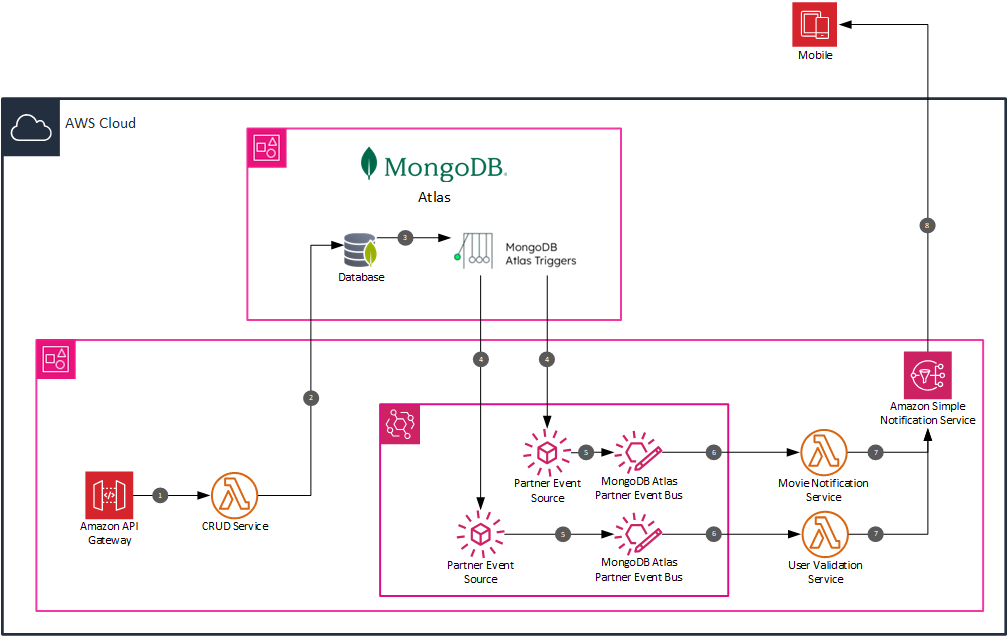
API Gateway receives RESTful HTTP requests and forwards them to the CRUD service.
CRUD Service maps requests to MongoDB Atlas operations.
Triggers in MongoDB Atlas listen for changes (e.g., inserts).
EventBridge Partner Event Source receives these triggers as events.
Event Bus routes messages to services using:
Rules route the events to the appropriate AWS Lambda functions.
AWS Lambda functions handle business logic based on the event data.
Amazon SNS sends notifications to users via push messages.
In this tutorial we will focus specifically on points 3 to 7 using the sample dataset included in your new cluster, and build a solution that will automatically send push notifications to users when a new movie is added to a collection.
This same pattern can be applied to many other scenarios, such as requesting user validation when changes are applied to their user record in the database.
Requirements
To complete this tutorial, you must have access to an active AWS account and enough permissions to:
Subscribe to products in AWS Marketplace
Create all necessary resources, including an EventBridge Event Buses and Rules, AWS Lambda functions, IAM roles, and others.
You have created an SNS topic and optionally have configured that topic to send Push notifications to devices.
Deployment steps
Create your MongoDB Atlas Cluster
Start by subscribing to MongoDB Atlas (pay-as-you-go) in AWS Marketplace. You can try the product with no cost using the Try for free option.
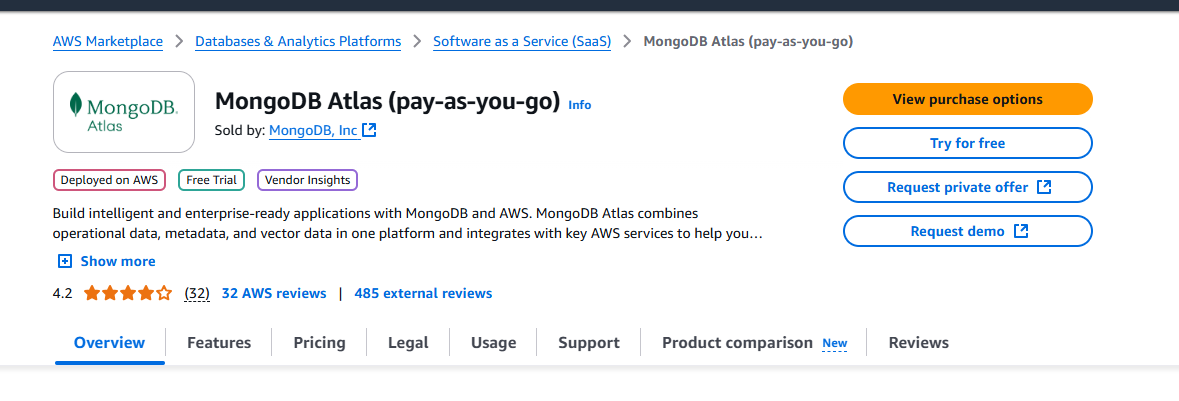
The subscription process takes a few minutes while MongoDB Atlas integrates with your AWS environment, while subscription completes you can start setting up your MongoDB Atlas account by clicking the Set up your account button.

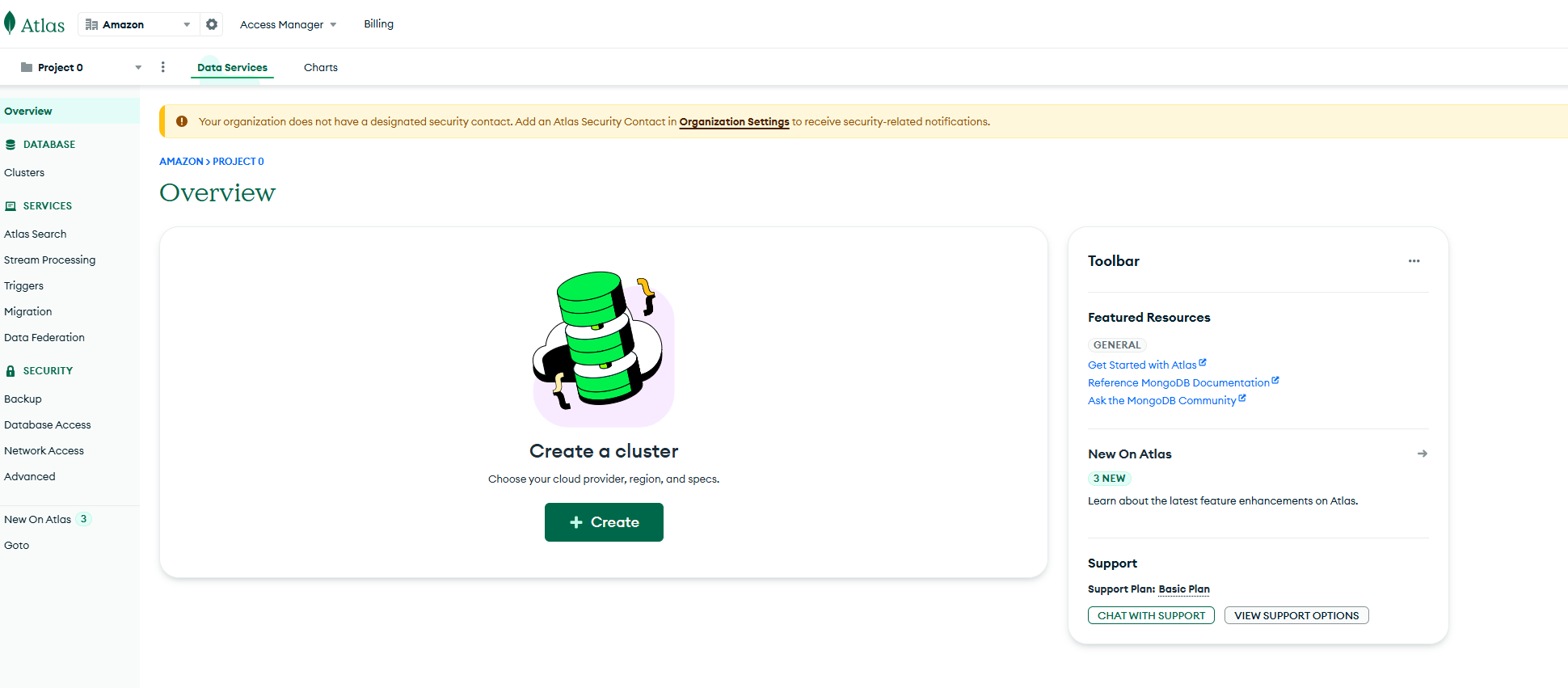
After you have created your account in MongoDB Atlas, is it time to create your first cluster. Click the + Create button to spin up your MongoDB Atlas cluster.
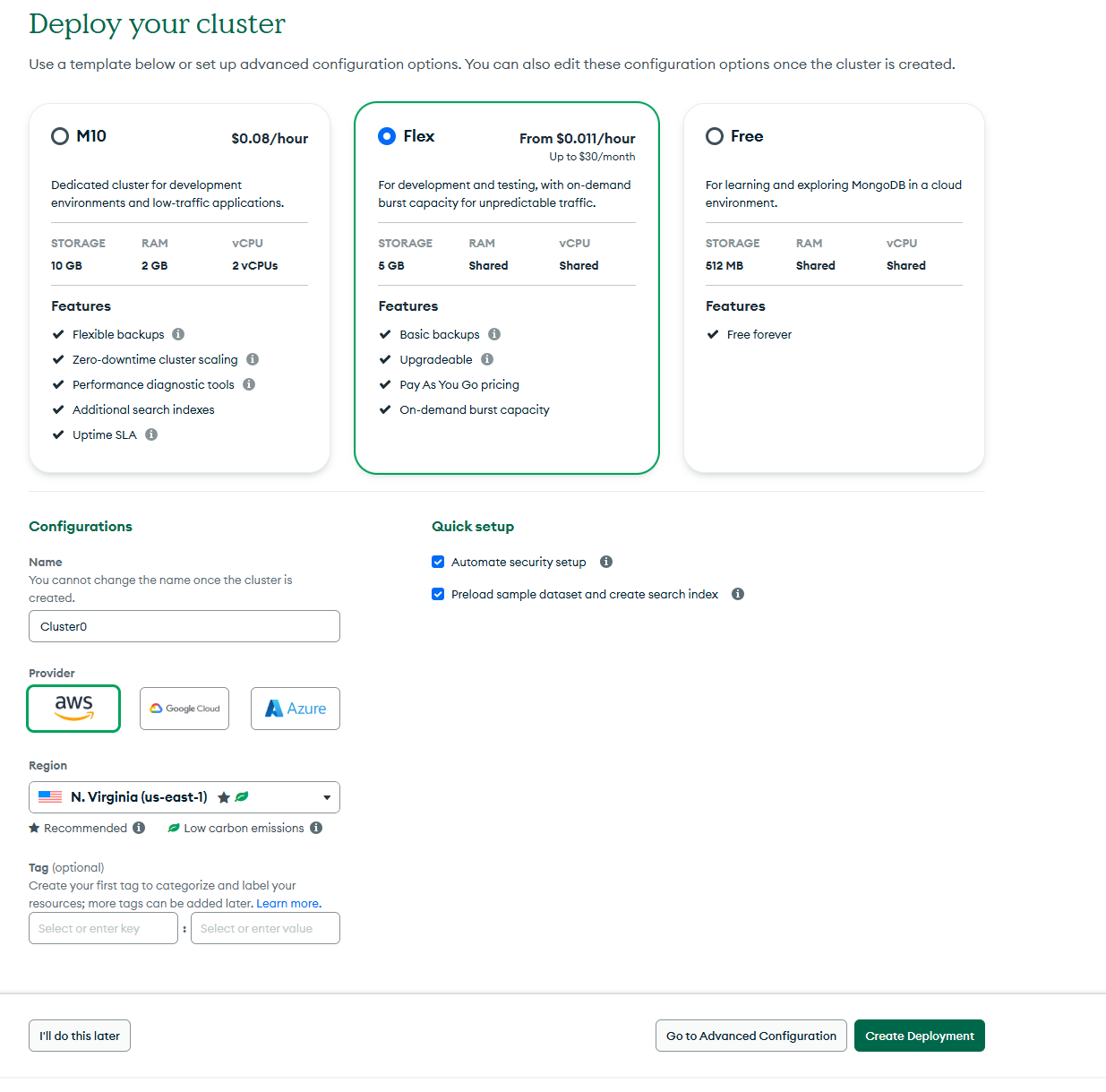
Choose the right capacity for your cluster, pick AWS for provider and select the region where you want the cluster to be created. Ideally choose a region close to where your applications will be running.
After your cluster is created, you must add the first user that will be able to connect to the databases in the cluster. You can do that in the Connect to cluster dialog, make sure you to write down the username and password entered here, since this will be the only way in which you will be able to establish the initial connection.
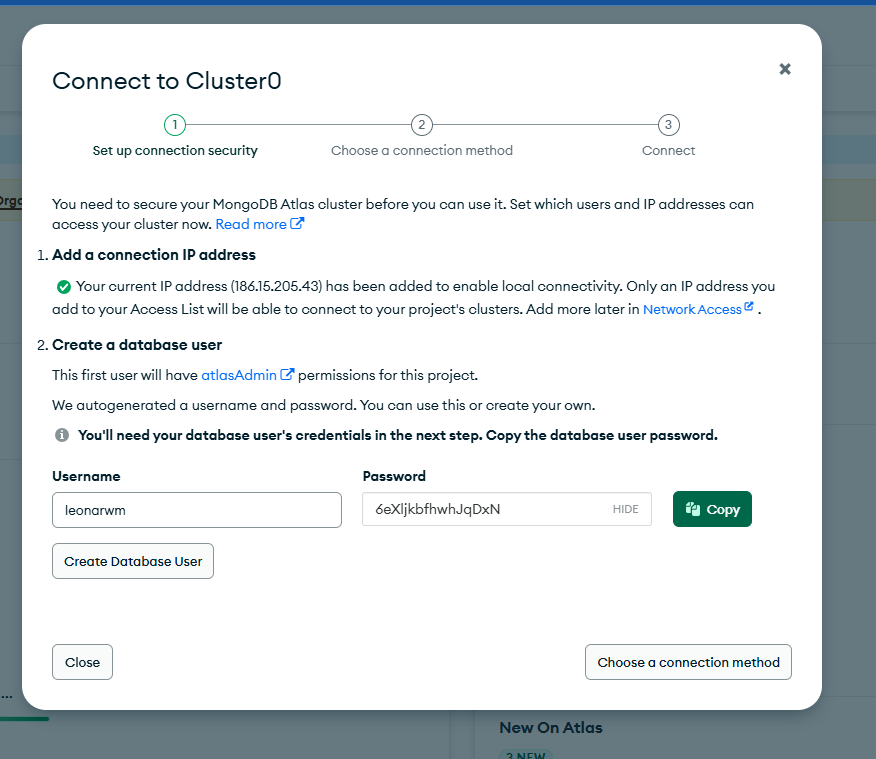
Once you are done with this simple process, you will see that the cluster is ready to use.

Configure your first trigger
Now is time to enable and configure your first Trigger. To learn more about MongoDB Atlas Triggers you can have a look at the official documentation. Start by enabling triggers in the MongoDB Atlas Cluster you’ve just created.
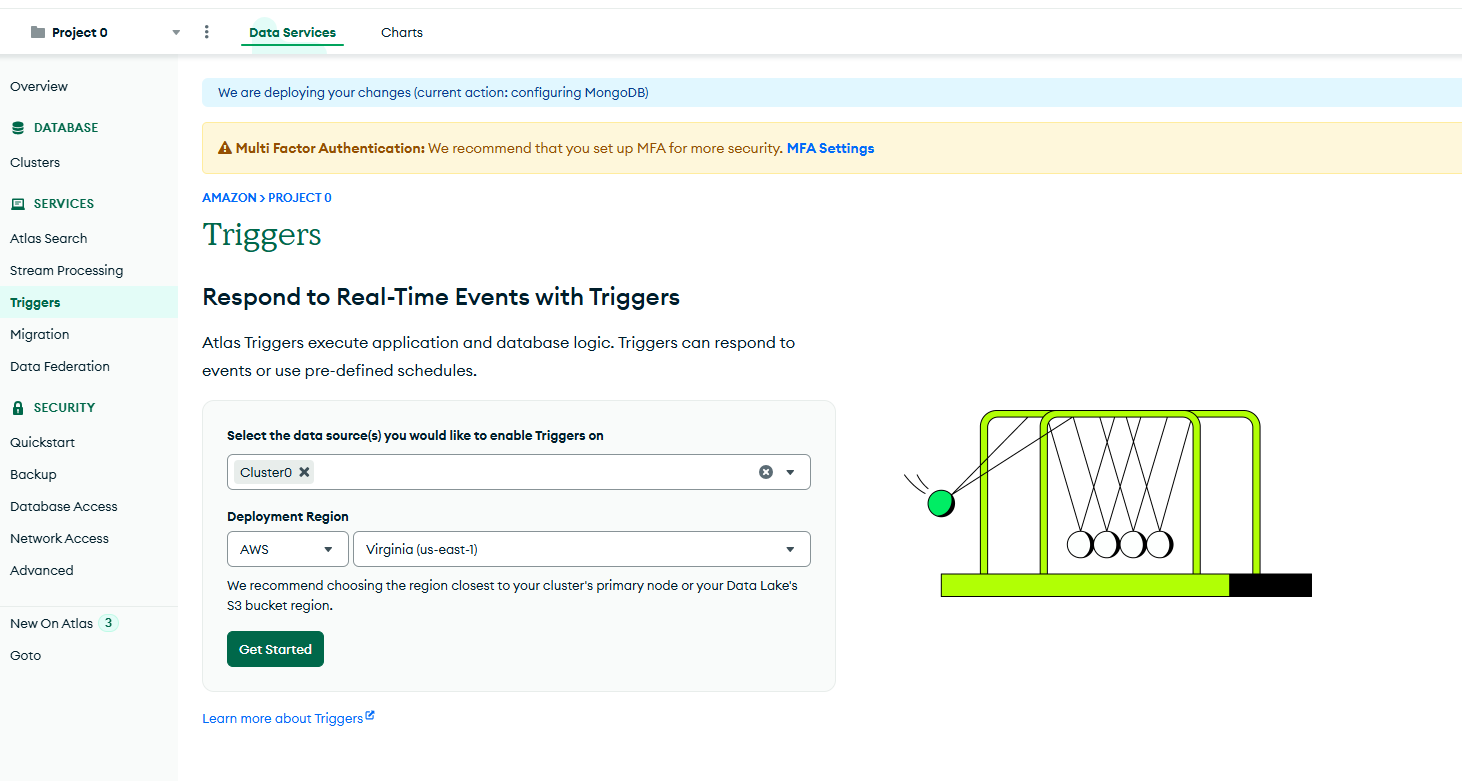
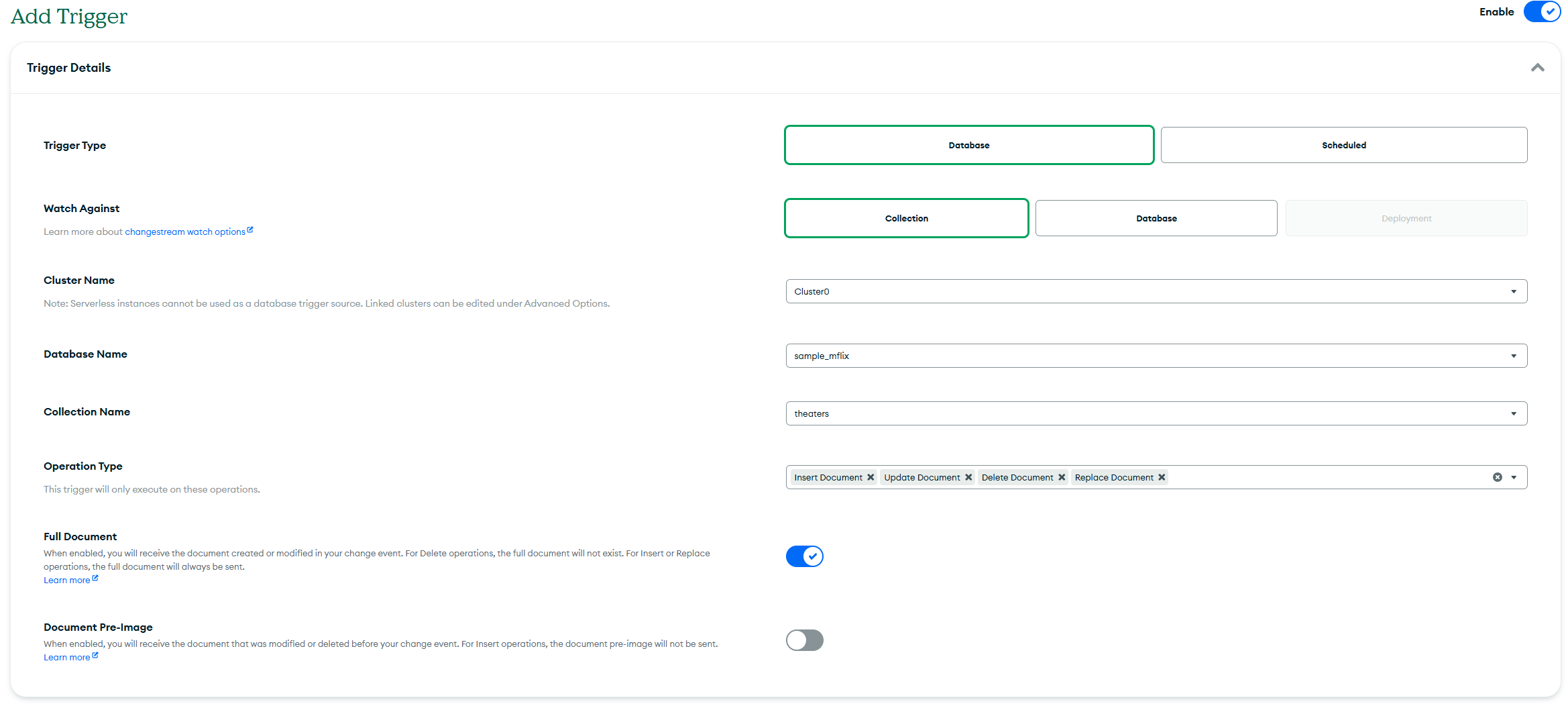
Once triggers are enabled, proceed to add a new Trigger. There are two high level trigger types: Database triggers, which fire up on collection or database operations, and Schedule triggers that, as the name implies, happen at specific times.
For our solution we will look at Database triggers, specifically adding a trigger whenever Insert Document operations happen on the movies collection of the sample_mflix database created with your cluster.
Triggers can generate events that call MongoDB Atlas Functions, or use Amazon EventBridge, which will be our choice as shown in the Architecture diagram. Select EventBridge on Event Type, enter your AWS Account ID and select the region where your EventBridge infrastructure will be created.
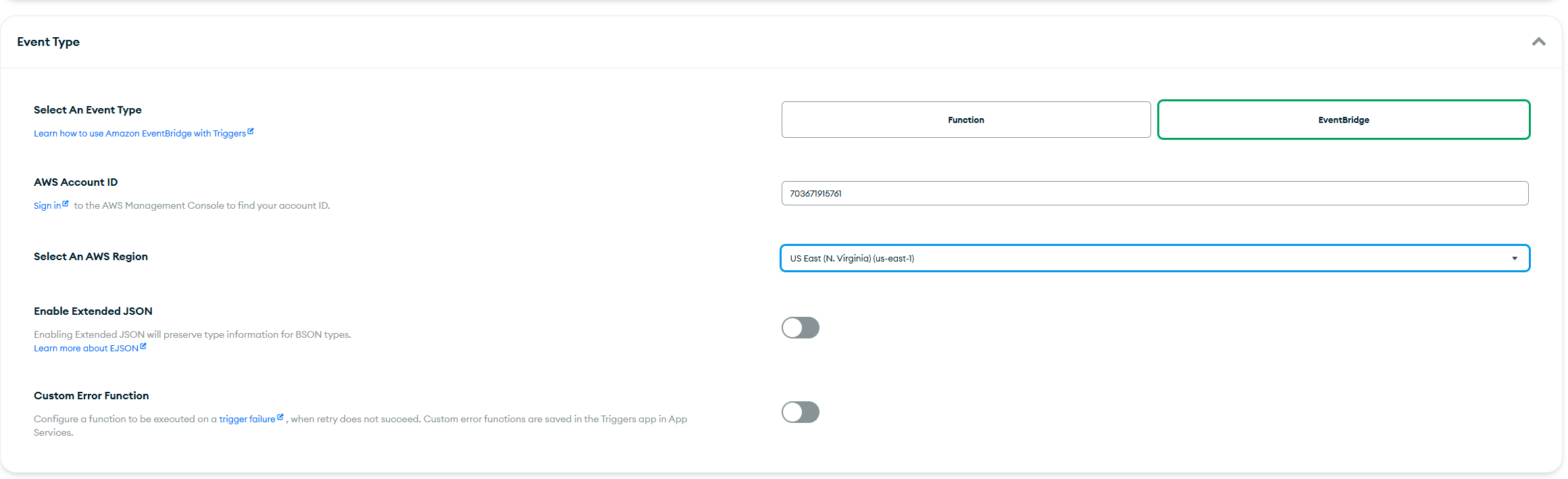
Completing these steps will not only create the MongoDB Atlas Trigger, it will also create a Partner Event Source in your AWS account automatically, which you will use to connect to an EventBridge Event Bus.
Now is time to configure the AWS side of the solution, go to your AWS Console into EventBridge. Under Integration click Partner Event Sources.
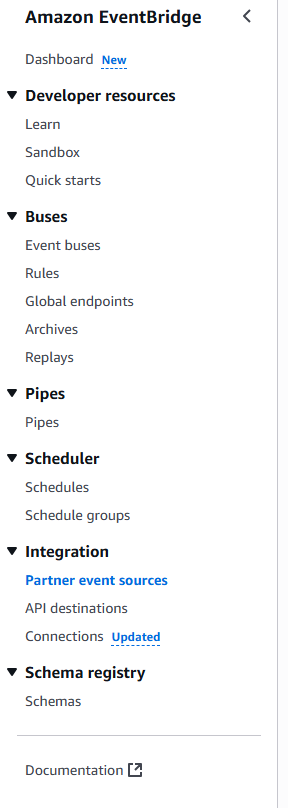
You will find that a new Partner event source has automatically been created in your AWS account. Since it has not yet been configured, it will be in Pending Status.

You can see the details of the Partner event source by clicking on its name, now is time to connect this event source to a bus, you can do that by clicking the Associate with event bus button.

After you have completed the association process, you will notice that the status is now Active in your Partner event source. Each trigger will create its own Partner event source.

Associating the event source will automatically create an Event bus, consistently named with the Partner event source that was created by the MongoDB Atlas Trigger.

Deploy your first service
In your AWS Console go to Lambda and click Create function:

There are multiple ways to create a function, in this example you should select Author from scratch, give the function a name and choose a Runtime and Architecture, we will be using Nodejs in our example.
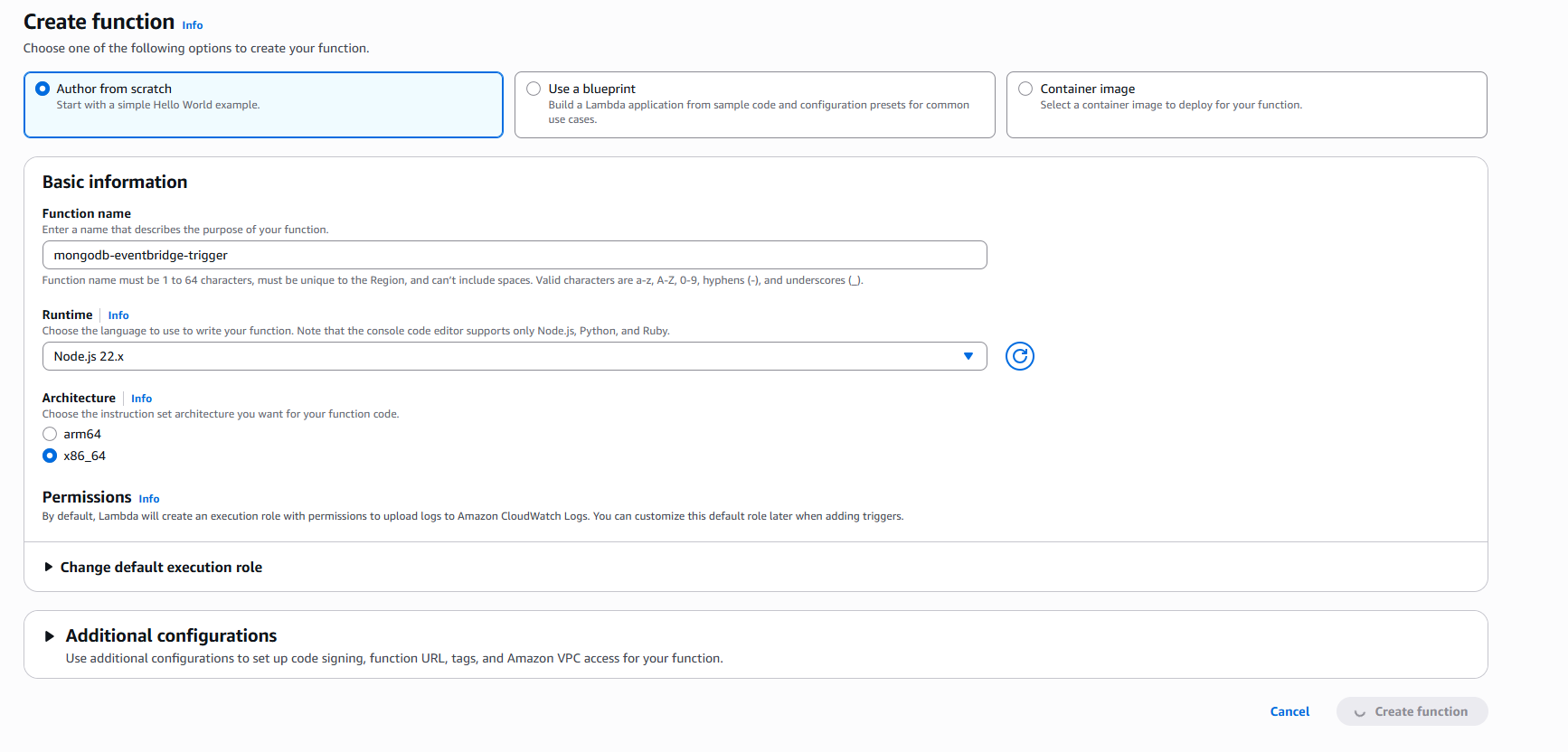
When done click Create function which will take you to the function editor once the creation process is complete.
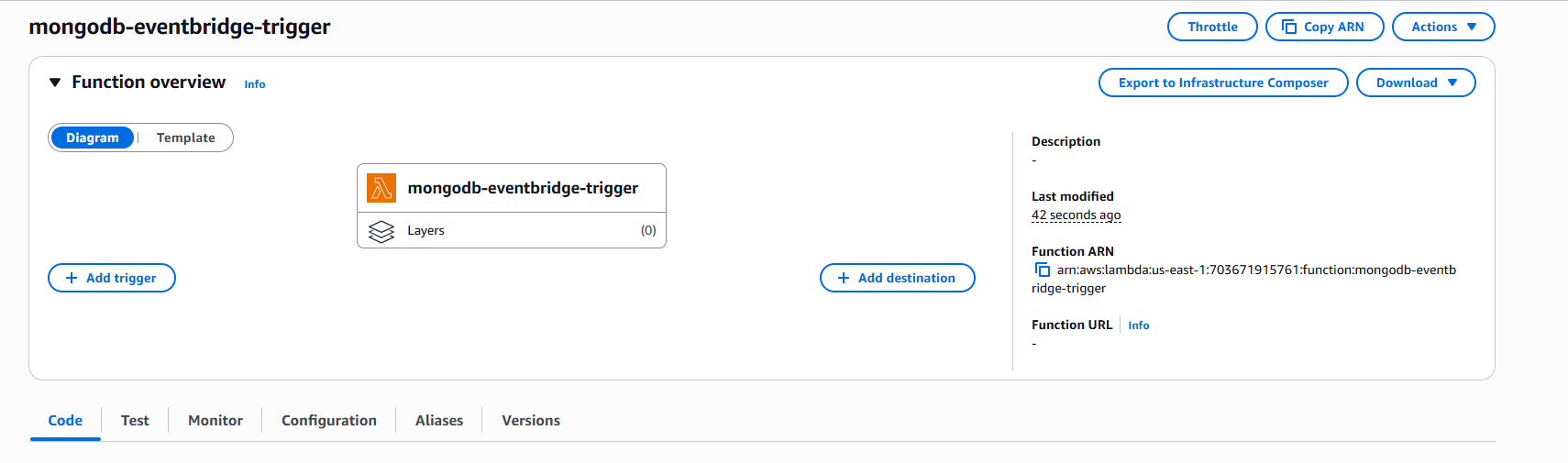
Enter the following code in your Lambda function. This simple example will receive the message from EventBridge, validate that a new movie has been inserted, and publish a message to SNS indicating that a new movie is now available:
import { SNSClient, PublishCommand } from '@aws-sdk/client-sns';

// Initialize SNS client
const snsClient = new SNSClient({ region: process.env.AWS_REGION });

export const handler = async (event) => {
    console.log('Received EventBridge event:', JSON.stringify(event, null, 2));

    try {
        // Extract movie data from the event
        const eventDetail = event.detail;

        // Validate that this is an insert operation for a movie
        if (eventDetail.operationType !== 'insert') {
            console.log(`Skipping non-insert operation: ${eventDetail.operationType}`);
            return {
                statusCode: 200,
                body: JSON.stringify({
                    message: 'Event processed - not an insert operation'
                })
            };
        }

        // Extract movie title from fullDocument
        const movieTitle = eventDetail.fullDocument?.title;

        if (!movieTitle) {
            console.error('Movie title not found in event data');
            return {
                statusCode: 400,
                body: JSON.stringify({
                    error: 'Movie title not found in event data'
                })
            };
        }

        // Prepare SNS message
        const message = `A new movie titled ${movieTitle} is now available.`;

        // SNS Topic ARN should be provided via environment variable
        const topicArn = process.env.SNS_TOPIC_ARN;

        if (!topicArn) {
            console.error('SNS_TOPIC_ARN environment variable is not set');
            return {
                statusCode: 500,
                body: JSON.stringify({
                    error: 'SNS topic ARN not configured'
                })
            };
        }

        // Publish message to SNS
        const publishCommand = new PublishCommand({
            TopicArn: topicArn,
            Message: message,
            Subject: 'New Movie Available'
        });

        const result = await snsClient.send(publishCommand);

        console.log('SNS message sent successfully:', result.MessageId);

        return {
            statusCode: 200,
            body: JSON.stringify({
                message: 'Notification sent successfully',
                messageId: result.MessageId,
                movieTitle: movieTitle
            })
        };

    } catch (error) {
        console.error('Error processing event:', error);

        return {
            statusCode: 500,
            body: JSON.stringify({
                error: 'Failed to process event',
                details: error.message
            })
        };
    }
};
With this function in place now is time to have the messages that get to the Event bus we created earlier trigger the Lambda function you just created. Go back to EventBridge, select Rules under Buses, select the correct Event bus from the dropdown list and press the Create rule button.

After giving the rule a name, click Next to configure the events that will trigger this rule. Select AWS events or EventBridge partner events under Event source and select Use pattern form under Event pattern. Select EventBridge partners under Source and look for MongoDB in the Partner drop down.
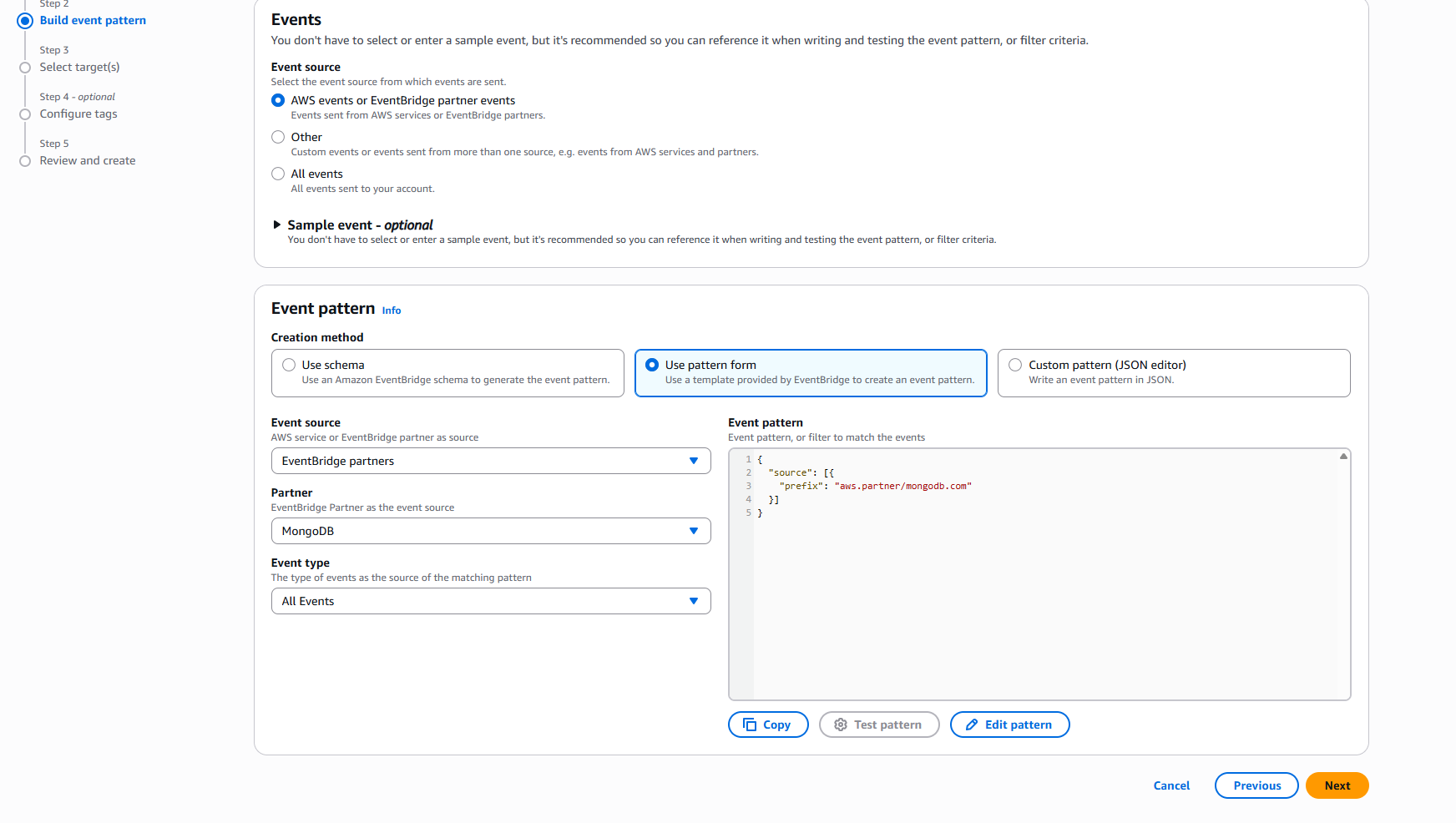
And voilà, now its time to test it out! Simply insert a document in the Movie collection on your MongoDB Atlas database and you will see the Lambda function get invoked and a notification published on your SNS topic!
Key takeaways
The architecture we have deployed in this tutorial presents a fully managed and serverless solution to event-driven microservices operating on an infinitely scalable platform.
Mapping requests to data operations eliminates the need to maintain a large surface of API logic by leveraging the data’s own transactions and validations to ensure requests are safely processed.
MongoDB Atlas triggers produce events that are decoupled from services, while services can be notified of events that are relevant using Amazon EventBridge Rules.
AWS Lambda functions work as microservices, encapsulating specifically scoped business logic.
This pattern, demonstrated using a simple example, can be applied to many use cases in fully-fledged and complex applications.
Next steps
With this tutorial you can see the powerful and flexible event-driven, microservices architecture that can be easily achieved using MongoDB Atlas and AWS services. Try MongoDB Atlas (pay-as-you-go) for free in AWS Marketplace using your AWS account.
Why AWS Marketplace for on-demand cloud tools
Free to try. Deploy in minutes. Pay only for what you use.