Building RAG Agents on AWS
AI agents provide users with a unique way to interact and get value out of applications, with agentic chatbots now able to leverage one or more knowledge bases, access external resources in real time and provide optimized behavior and data to users within a specific domain. Agents can even cooperate with one another, handing over a conversation to the best suited agent given the needs of the user.
Providing users with the ability to get things done faster and with less effort using natural human language is rapidly becoming a must-have feature of applications.
However, building an AI agent from scratch requires a lot of moving pieces and can take considerable effort, particularly considering the challenges in building a system that can scale.
In this tutorial you will learn how to build an agent that can use your custom knowledge using retrieval augmented generation (RAG) taking advantage of Amazon Bedrock and Pinecone Vector database.
Before getting started
In this tutorial you will focus on configuring Pinecone to store the vector embeddings of your data and use it as a data source for Amazon Bedrock. Please make sure you have completed the following prerequisites before getting started since they will not be covered in detail.
You must have access to an AWS account with enough permissions to complete the requirements below, including subscribing to AWS Marketplace products.
Create an Amazon S3 bucket with permissions for Amazon Bedrock to access data stored in it, you can follow this official user guide.
Subscribe to Pinecone Vector Database – Pay As You Go Pricing using your AWS account. Once you subscribe follow the instructions to create an account and automatically connect your Pinecone and AWS accounts.
Create a secret to store the API key that will be shown to you during account creation. This secret will be used by Amazon Bedrock to authenticate with your Pinecone database.
Architecture
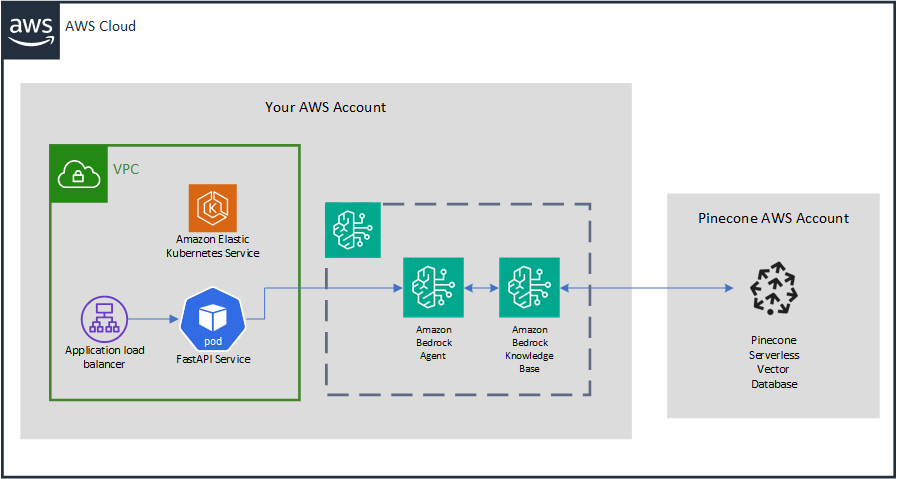
Deployment steps
Create an index in your Pinecone database
For those new to vector databases, an index is similar to the concept of a table in traditional relational databases: it is where vector data gets stored and queried.
Once you have subscribed to Pinecone Vector Database in AWS Marketplace and followed the instructions to connect your Pinecone and AWS accounts, the next thing you’ll need to do is create a new index. This index is where an Amazon Bedrock Knowledge Base will store the numerical representations of the data you’ve placed in the S3 bucket, but let’s not jump ahead.
There are a few different ways in which you can create an index, both using code as well as in the web console of your Pinecone account. A few important considerations must be kept in mind when creating the index:
You’ll need a dense index to store your Knowledge Base embeddings, dense indexes are suitable for semantic searches, which are used in RAG implementations by a model to identify relevant data.
The Dimension value must match the required value as defined by the embedding model of choice. In this tutorial you will be using Titan Embeddings G1, which creates 1536 dimensions. This value may change depending on the embedding model of your choice.
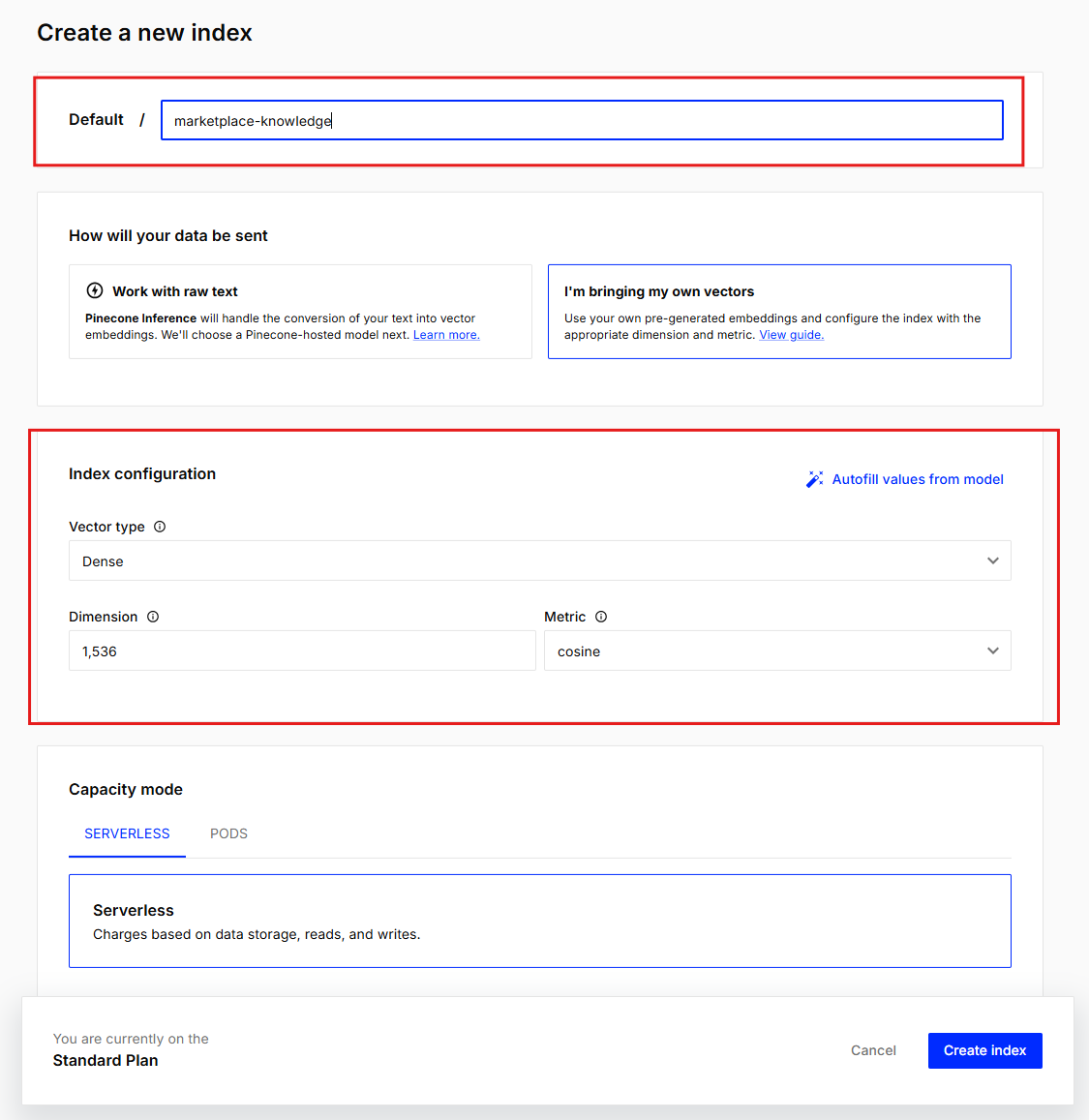
After giving the Index a name and configuring it as detailed, click Create index. Once created you will be able to see the dynamically generated endpoint for the it, keep a note of it, as you will need it when configuring the Amazon Bedrock Knowledge Base.
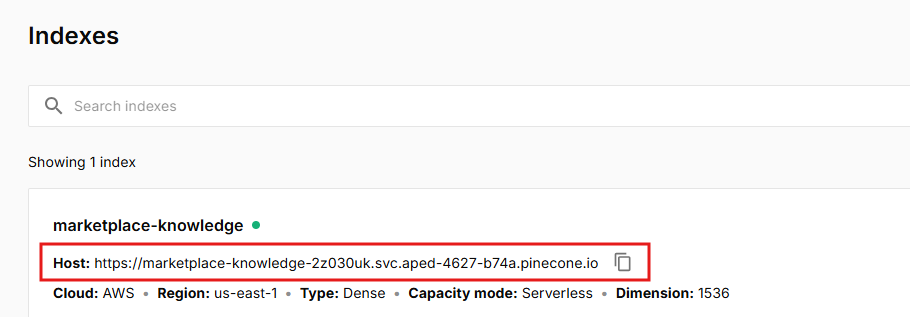
Create a new Knowledge Base in Amazon Bedrock
Now you can proceed to create your Knowledge Base. A Knowledge Base provides access to data to an Amazon Bedrock Agent. In this tutorial you will create one single Knowledge Base using a S3 bucket for data source – a very common scenario when you are looking to provide custom knowledge to your agent from unstructured data, such as documents.
This is not the only case though: Amazon Bedrock Agents can use multiple knowledge bases and go well beyond documents on S3 – Amazon Bedrock Knowledge Bases support web crawling for extracting data from accessible web pages, integration with common 3rd party enterprise applications and for all other scenarios support for custom data sources.
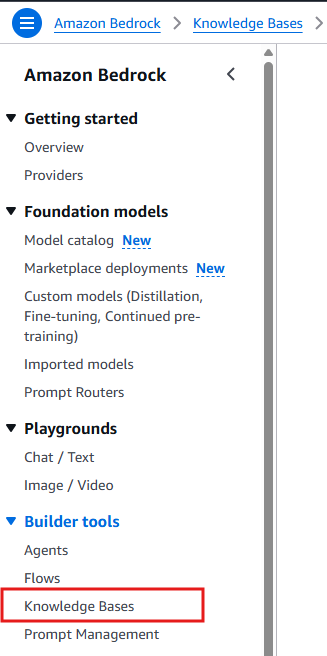
Look for Amazon Bedrock in your AWS Console and click on Knowledge Bases under Builder tools.
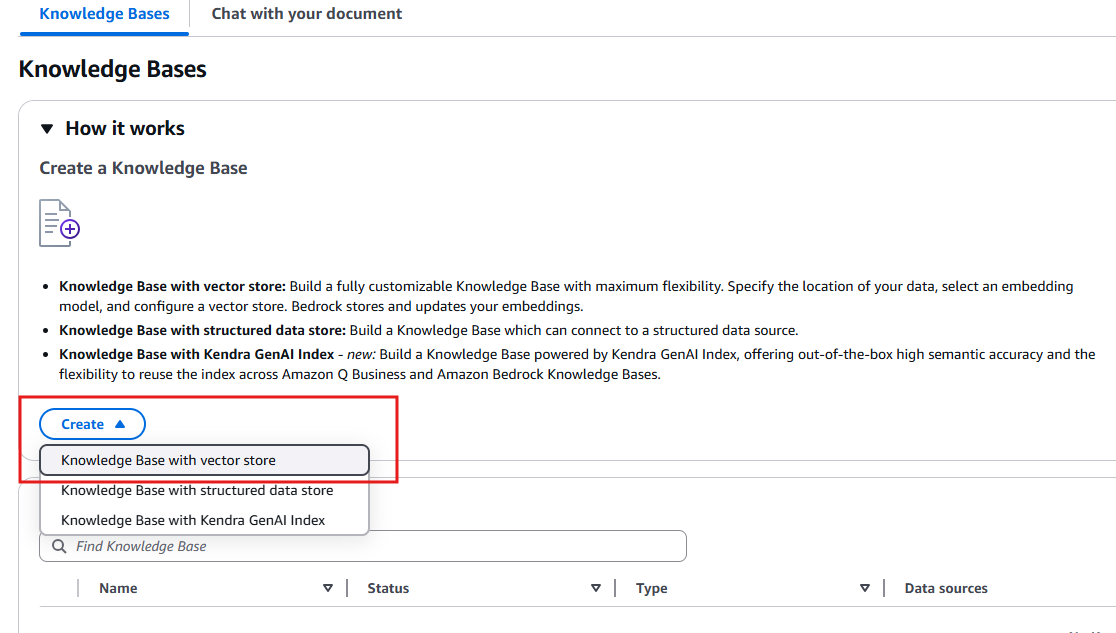
Click Create and select Knowledge Base with vector store, since you will be using a Pinecone Index to store vectorized embeddings of your data.
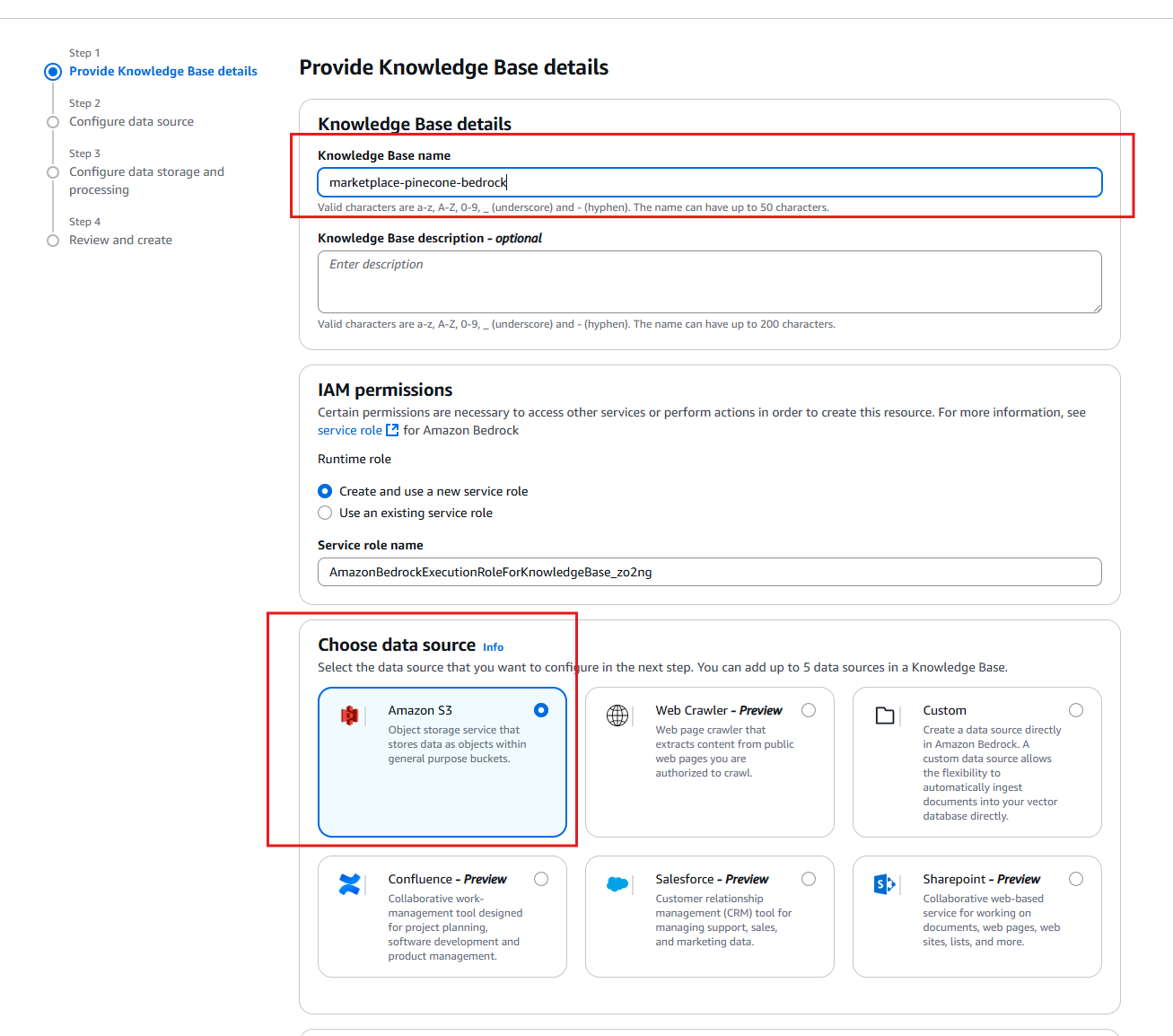
Give your Knowledge Base a name and pick Amazon S3 for data source. Notice that a service role with the required permissions can be automatically created for you by selecting the appropriate option under IAM permissions. For organizations that centrally manage IAM roles and in other such scenarios you can also specify an existing service role.
Now it’s time to configure the data source by choosing the S3 bucket you created before getting started. Give the data source a name and enter the URI of the bucket making sure that no specific object or wildcard is specified. Next, choose a Parsing strategy – in this tutorial you will use Amazon Bedrock Data Automation since it handles multimodal data and is fully managed without needing any additional prompt configuration. To learn more about the different parsing strategies you can look into the official documentation.
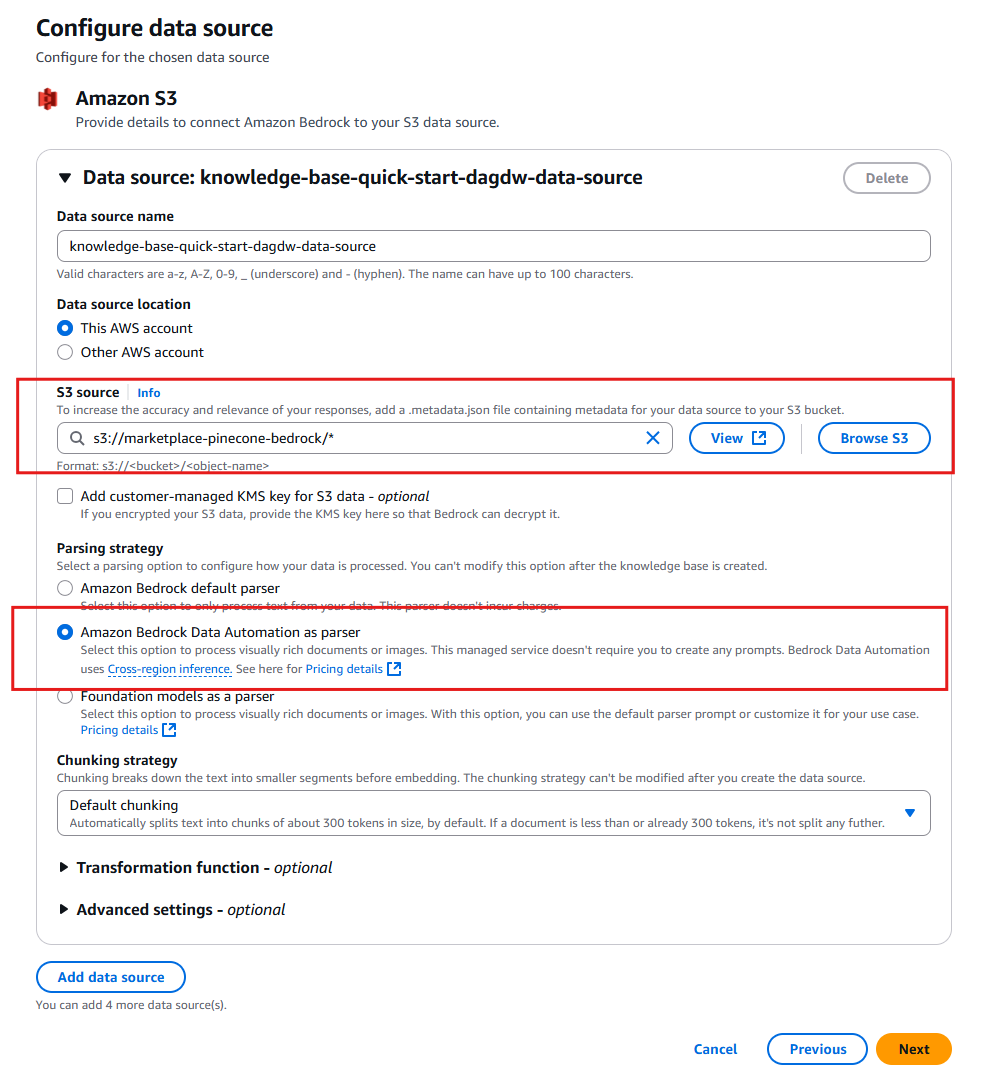
Hit Next when ready and move to configure the vector storage where embeddings of your S3 data will be stored.

Start by selecting the embeddings model that will be used to generate the vector representations of your data. Each model will perform differently given the type of data you are using as data source, as well as the expected use cases users will attempt to fulfill when interacting with the agent. It is recommended to do some research as well as try different options with your data to validate which model operates best – it’s a good thing Amazon Bedrock makes this type of exploration extremely simple, as you can easily create multiple configurations and switch them in your agent specification to check performance and behavior.
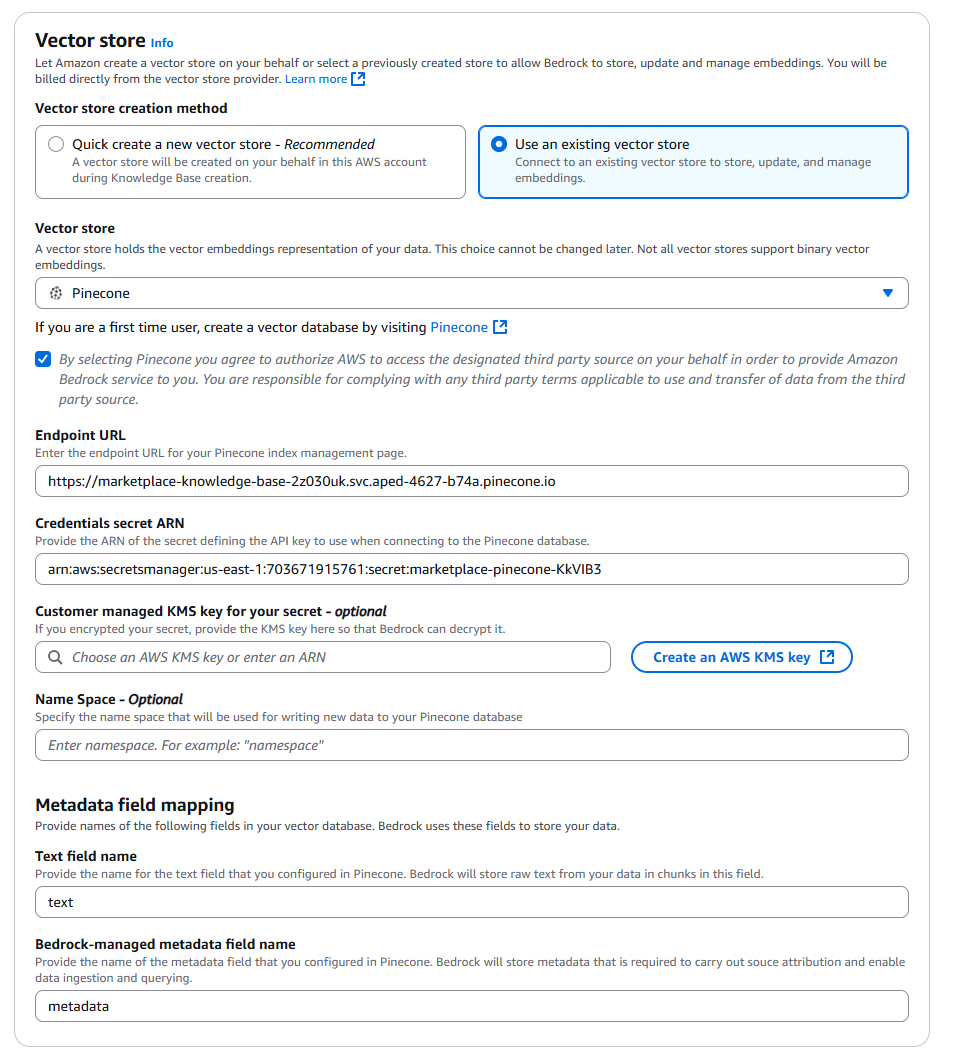
Now, configure your Pinecone index in your Vector store setting by choosing the Use an existing vector store option and selecting Pinecone for database. Make sure to select the checkbox agreeing for AWS to access your database, and enter the following required configuration details:
The Endpoint URL is the hostname you took note of in the Create a new index section.
Enter the ARN to the secret you created in the Before getting started section, which holds the Pinecone API key required to connect to your index.
Under Metadata field mapping specify the text and metadata field names.
After creating your Knowledge Base, it will appear in the list of Knowledge Bases, but will remain unusable and hold any data until it is first synced.

Syncing will process the data in your S3 bucket, generate embeddings from chunks of the processed data and store these vectors in your configured Pinecone database. It is worth highlighting the complexity of the data pipelines that is abstracted behind this incredibly simplified process!
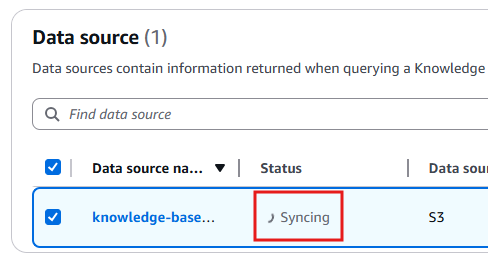
After clicking Sync you will see the data source in Syncing status, once completed you’ll be able to see a Last sync time as well as any warnings that may have been produced while processing the data.
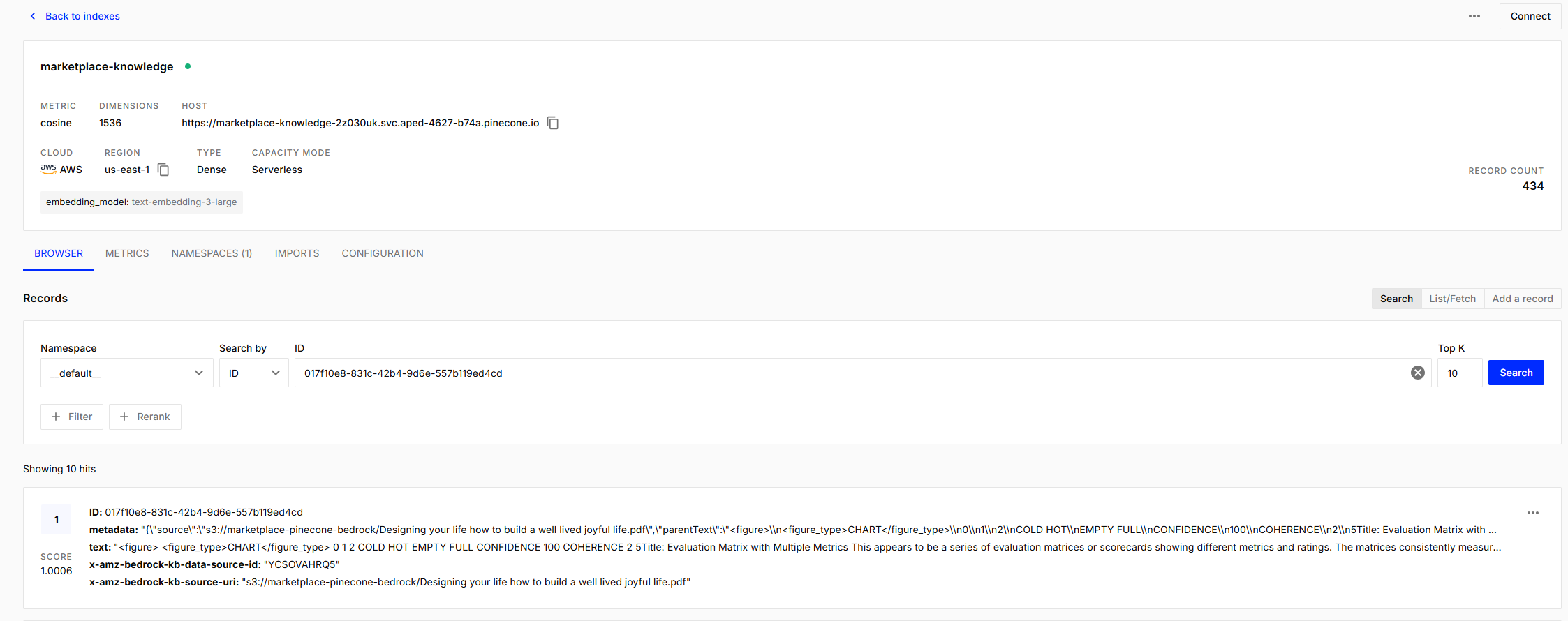
Once sync is complete, you can confirm that the data has been successfully processed by looking at the index in Pinecone, which now should show results when running a search.
Create an Amazon Bedrock Agent
Now that you have your custom knowledge available in a Knowledge Base, it is time to allow an agent to use that data as part of its response generation, let’s create an Amazon Bedrock Agent!
Click on Agents under Builder tools and click Create agent.

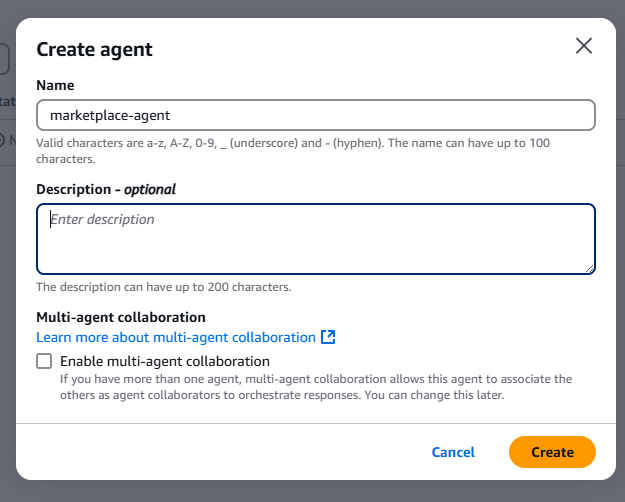
Give the agent a name and click Create. Remember we mentioned how Agentic architecture allows for individual and specialized agents to interact with each other? Multi-agent collaboration enables precisely that – since we are not going to dig into this subject, here’s some reading material to follow up with to better understand multi-agent architectures.
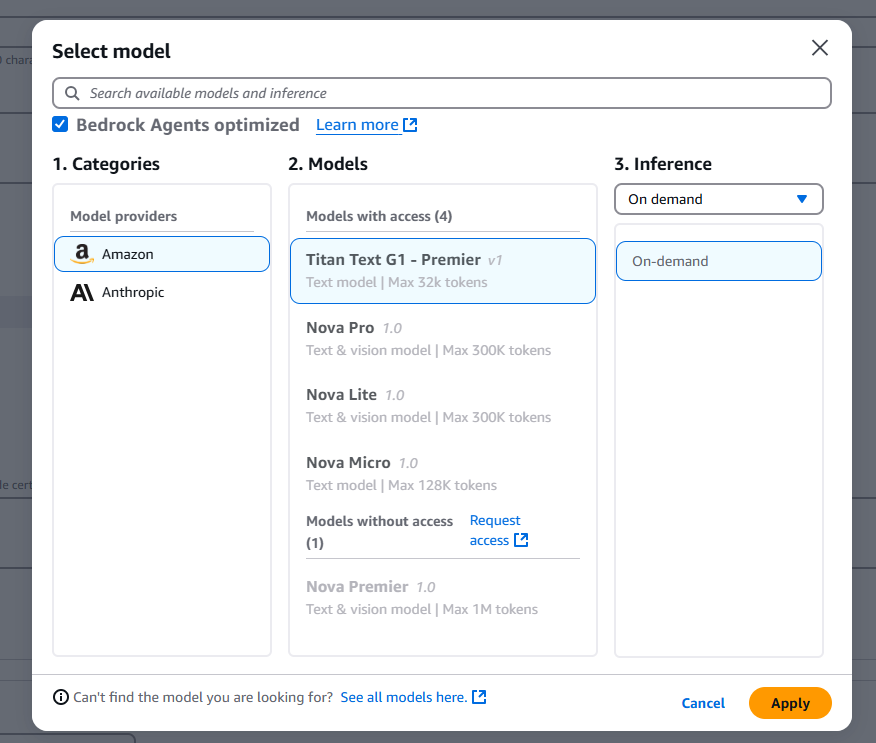
Your agent will also require the definition of a model, which will be used to process your users’ prompts and generate responses. In the Select model field you can click the pencil icon to change the selection.
It is also a requirement to enter Instructions for the agent – this is an important configuration parameter where you are entering the specific prompt that will detail to your agent what it is expected to accomplish and the data it will be working with. Make sure you provide a detailed set of instructions and there will be some trial and error as you optimize the prompt to get the best performance from your agent.
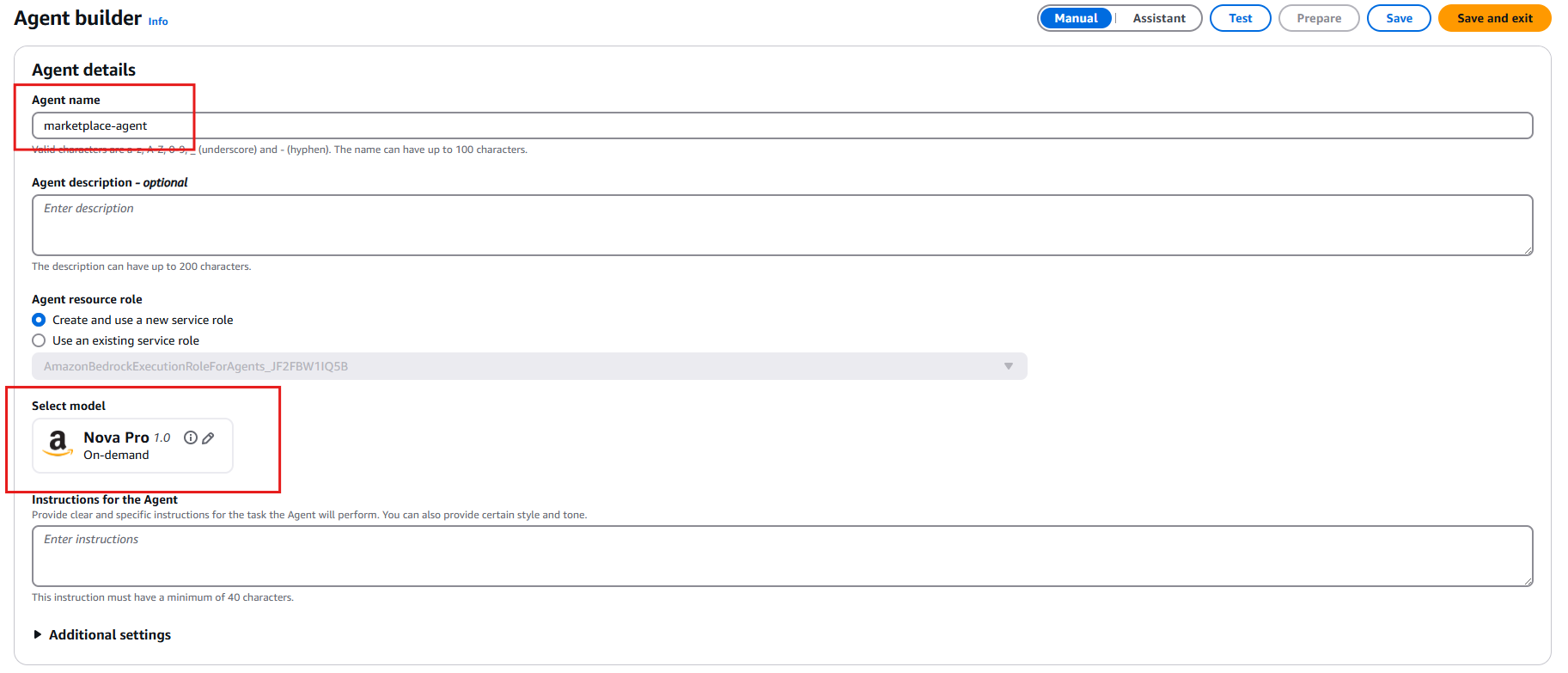
You can choose Bedrock Agents optimized models from Amazon as well as other providers. Each model has unique characteristics that must be evaluated to choose the best model for each use case – digging into this subject requires a whole separate tutorial, so for now we’ll use Amazon Nova Pro but feel free to learn more as to how to pick the best model for your use case.
There are various configuration parameters in an Amazon Bedrock Agent, we’re going to focus on Memory specifically but you can learn more about all available parameters by looking into the official documentation.
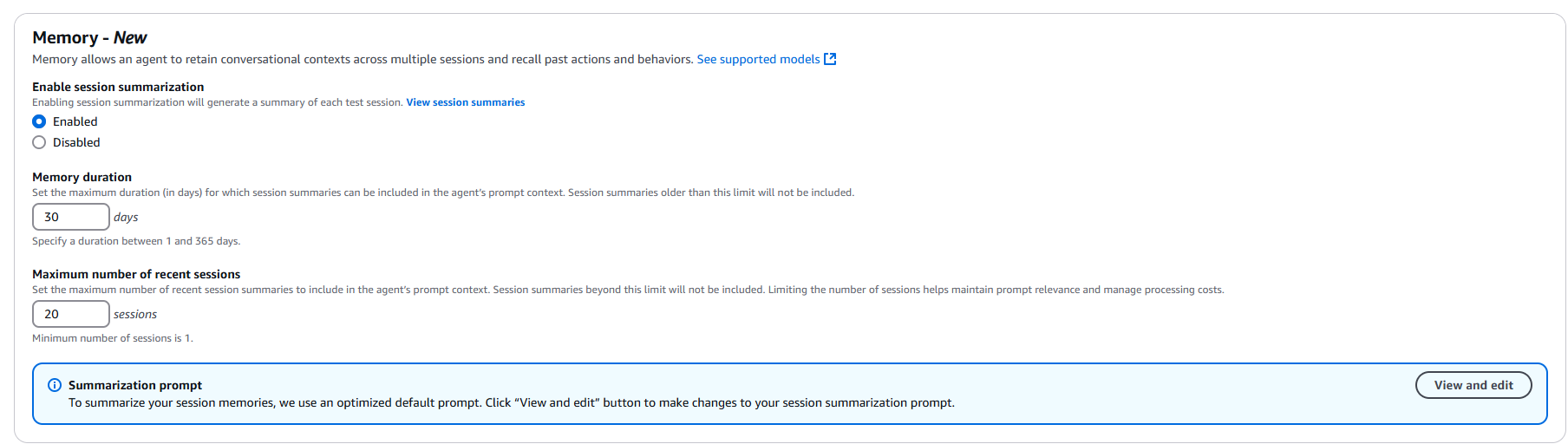
Memory is a key capability in conversational Agent use cases, where users may engage with the agent repeatedly over time, and it is desired that the agent remains aware of previous exchanges with users.
Once your configuration is ready click Save, your agent is almost ready. Now you just need to prepare the Agent so it’s good to go by clicking the Prepare button.

A small additional step is to create an alias that points to a specific version of the Agent, this alias will be required when using this agent in our Python code next.
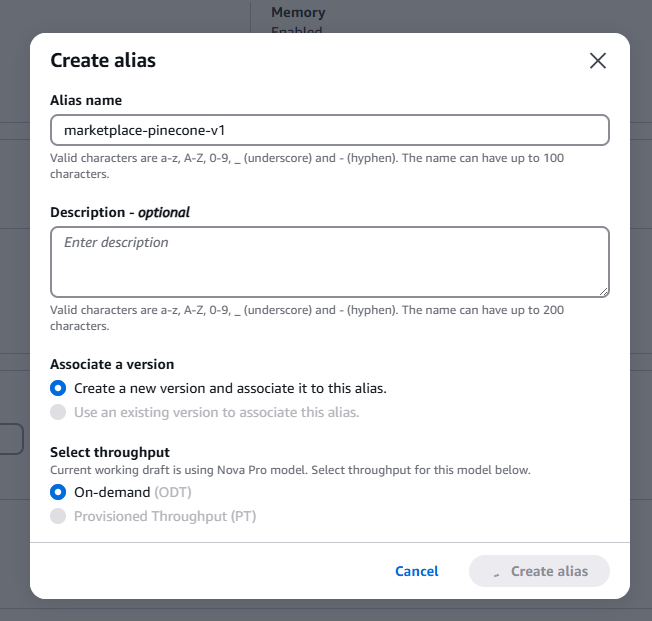
Expose the agent through an API
Now comes the final stretch of our journey – exposing the agent so users can interact with it from our applications.
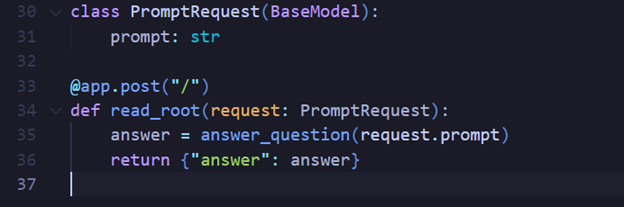
For practical purposes we’re going to expose our new Agent over a REST endpoint that expects a question in the JSON body of the request, which is a very simple and straightforward way to integrate with most web-based and mobile applications out there.
Considering the scope of this tutorial and the diverse methods by which the Bedrock Agent can be integrated with existing applications, including authentication and security, we will not be looking into such specifics. It is worth noting that these concerns must be carefully designed for production scenarios.
We’re going to be using FastAPI to create a single endpoint API that expects a prompt in the body of the request.
Import the required packages including FastAPI and create a boto3 client for the bedrock-agent-runtime, you can learn more about this client by looking into the official documentation.

Now we’re going to create a function that receives a question and sends this prompt to the Amazon Bedrock Agent to generate a response.

Pay attention to the invoke agent() call, as it requires three additional parameters aside from the question:
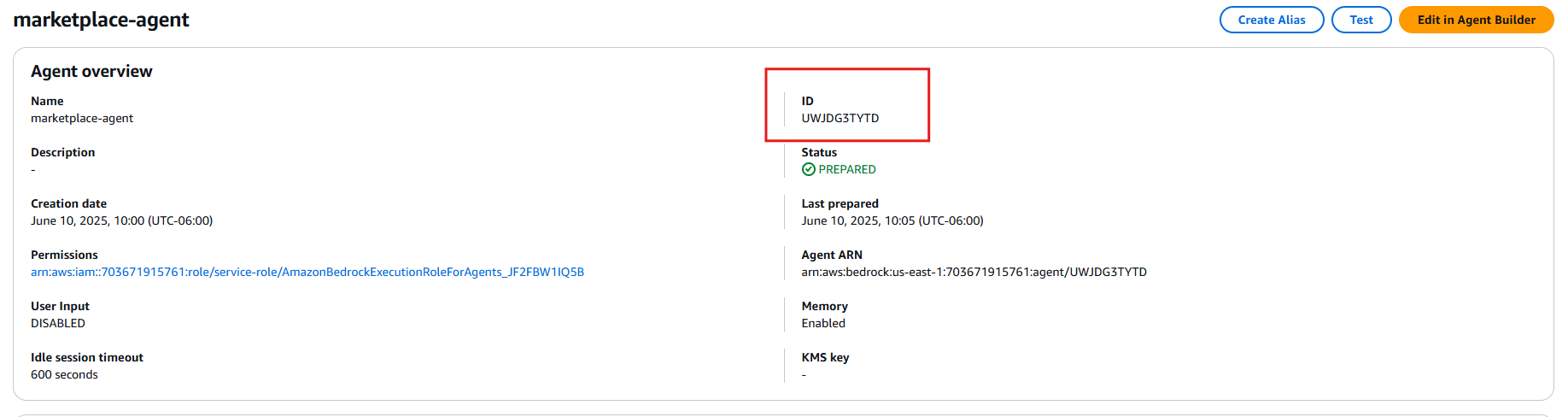
agentId:
This is the unique ID generated for your agent, which you can see in the Agent
details pane:
sessionId: This is an identifier that you must generate and store that will allow the Agent to track a conversation with the same user.
agentAliasId: This is a unique identifier for the versioned Alias of your agent, which you can get from the Aliases configuration section of your Agent:

Finally, we expose an endpoint using FastAPI that passes a prompt in the body to the Agent using the function defined above:
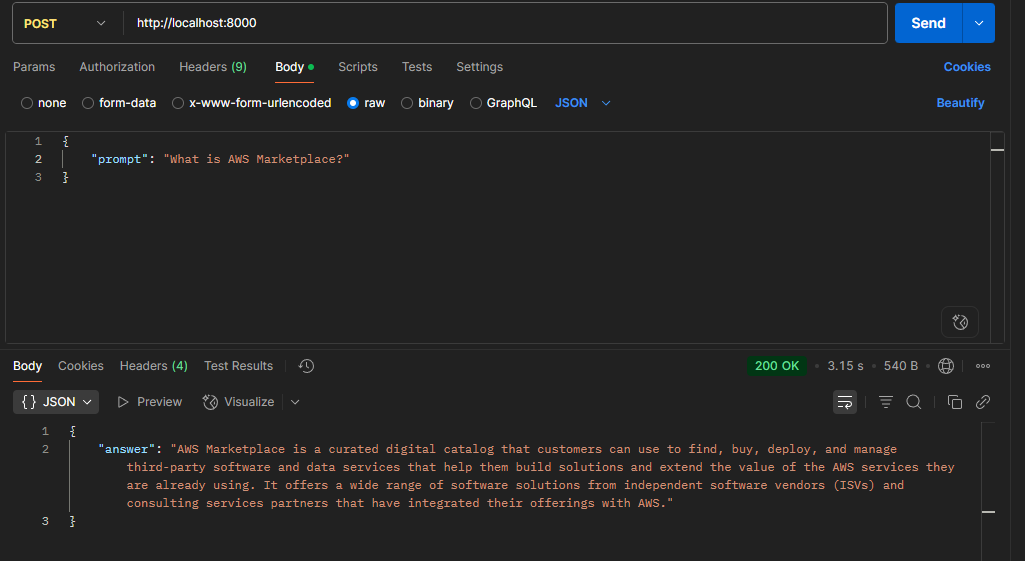
Now you can test this by running the FastAPI application and POSTing a prompt to the endpoint, and voilà, your Amazon Bedrock Agent is now ready to respond.
Key takeaways
In this tutorial you have explored the incredibly powerful capabilities of Amazon Bedrock and Pinecone Vector Database working together. Everything from the complexities of vector embedding generating pipelines to providing RAG based access to custom knowledge can be implemented with just a handful of steps, all while having the confidence that production ready scalability can be met.
Amazon Bedrock Agents can access data from numerous sources, from documents on S3 to third-party systems and proprietary services using custom data sources.
Multiple agents can work collaboratively, each leveraging one or more specific data sources and using custom instructions specific to the knowledge domain the Agent has access to.
Pinecone Vector Database provides infinitely scalable, managed pay as you go solution with full support for enterprise ready security and reliability.
Next steps
With this tutorial you have seen the simple steps it takes to build a production scale ready AI Agent in your AWS Cloud Environment using Amazon Bedrock and Pinecone Vector Database. Try Pinecone Vector Database in AWS Marketplace using your AWS Account.
Disclaimer
This tutorial will help you understand implementation fundamentals and serve as a starting point. The reader is advised to consider security, availability and other production-grade deployment concerns and requirements that are not within scope of this tutorial for a full scale, production-ready implementation.
Why AWS Marketplace for on-demand cloud tools
Free to try. Deploy in minutes. Pay only for what you use.