Introduction
In today's rapidly evolving digital landscape, organizations are increasingly turning to hybrid cloud architectures to balance cost-efficiency, flexibility, and control. This approach allows companies to maintain sensitive data and critical applications on-premises while leveraging the scalability and innovation offered by public clouds. A key component of many hybrid deployments is Amazon Virtual Private Cloud (VPC), which provides organizations with full control over their virtual networking environment, as well as facilitating integration between private and public infrastructure. Another key component of a hybrid cloud is AWS Outposts, which allows you to run AWS infrastructure and services privately on premises. AWS Outposts extends a VPC from an AWS Region to an outpost and makes VPC components accessible from your Outpost.
As businesses adopt hybrid networks, the importance of comprehensive intrusion detection becomes paramount. The combination of public and private clouds in a hybrid environment creates a set of attack vectors that are typically not addressed by traditional security measures. For example, the interconnection between these two environments must be secure, maintaining consistent security policies across different platforms can significantly reduce security gaps. The added complexity of managing multiple environments also introduces the potential for misconfiguration across these systems and a lack of unified visibility.
Architecture
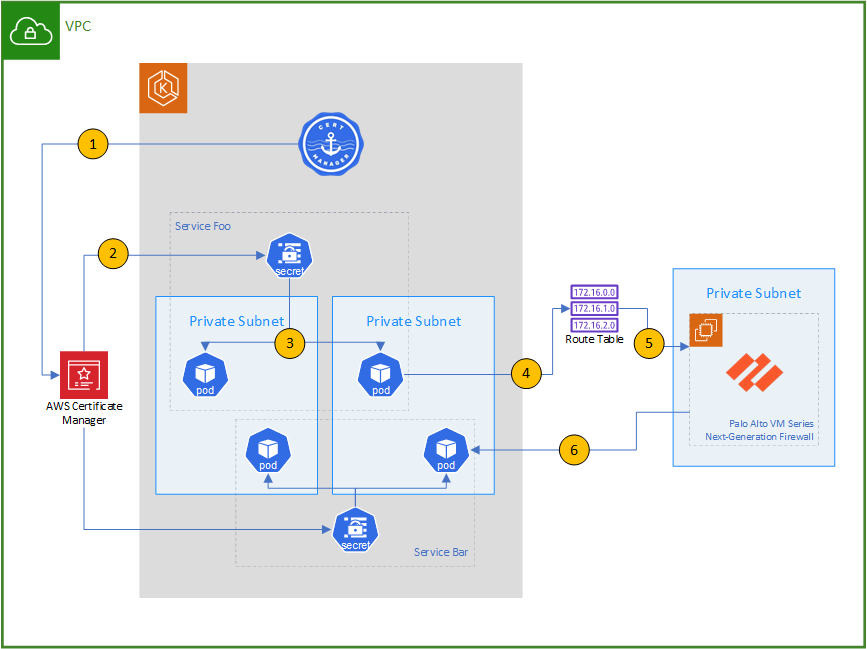
Cert Manager, using the AWS Private CA issuer, automatically generates certificates for each service using AWS Certificate Manager
Cert Manager stores the Certificate and key as a Secret in the EKS Cluster.
The certificate secret is mounted in the file system of the Pod and used to secure its HTTPS endpoint.
The cluster is configured to use the Amazon VPC CNI (container network interface), thus assigning an IP address in the VPC to each pod, as well as using the VPC’s ACLs and Routing Tables to manage Pod traffic.
Using the VPC routing table, all traffic is routed through Palo Alto Networks VM-Series NGFW.
The firewall using custom Application Identifiers uses the certificate’s server name to control traffic.
Requirements
To complete this tutorial, you must have access to an active AWS account and enough permissions to:
Subscribe to products in AWS Marketplace
Create all necessary resources, including an EKS Cluster, Amazon Certificate Manager certificates and IAM Roles.
It is expected that your AWS account already has a basic VPC configuration, including all required Routing Tables, Internet or NAT Gateways, and with enough IP addresses available to use native VPC routing with your EKS cluster. Note that AWS’ default VPC can be used to complete this tutorial.
Deployment steps
Deploy Palo Alto Networks VM-Series NGFW from AWS Marketplace
Palo Alto Networks VM-Series NGFW Firewall runs in an EC2 instance in your VPC and uses Elastic Network Interfaces to manage traffic from your different subnets. Start by going to AWS Marketplace and subscribe to VM-Series Next-Gen Virtual Firewall w/ Advanced Security Subs (PAYG), which includes a 15-day free trial and gets automatically deployed in a VM in your chosen VPC.
Palo Alto Networks Next Generation Virtual Firewall is highly flexible and can be deployed in many different configurations allowing for High Availability and different types of integrations. Going over all the options that can be configured would require a tutorial of its own, please refer to the official documentation and use the deployment option that is best suited for your specific AWS architecture.
Please note that this tutorial uses Palo Alto Networks Software Version 11.2, please make sure you choose the right version when deploying your VM-Series NGFS.
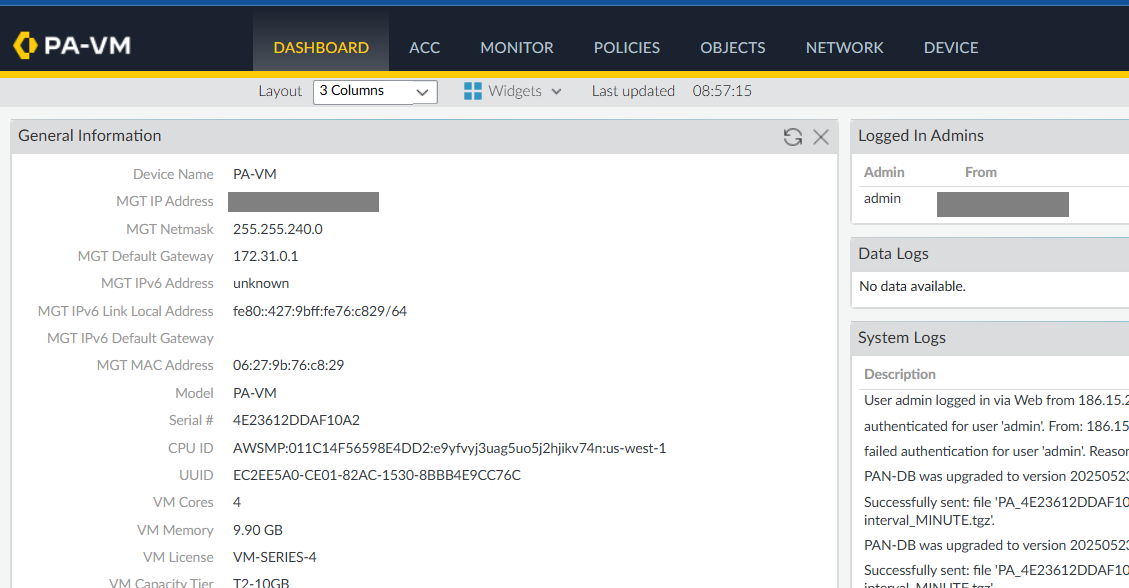
Once you are done with initial deployment and configuration, you will be able to access the Firewall admin interface using the IP address and credentials configured during deployment. The initial Dashboard looks something like this:
Create Application Objects
The key capability that Palo Alto Networks VM-Series NGFW provides towards satisfying our objective is called App-ID. Application Identification is a patented technology that can identify applications traffic regardless of port, protocol or encryption. There are many applications already available by default with your NGFW:
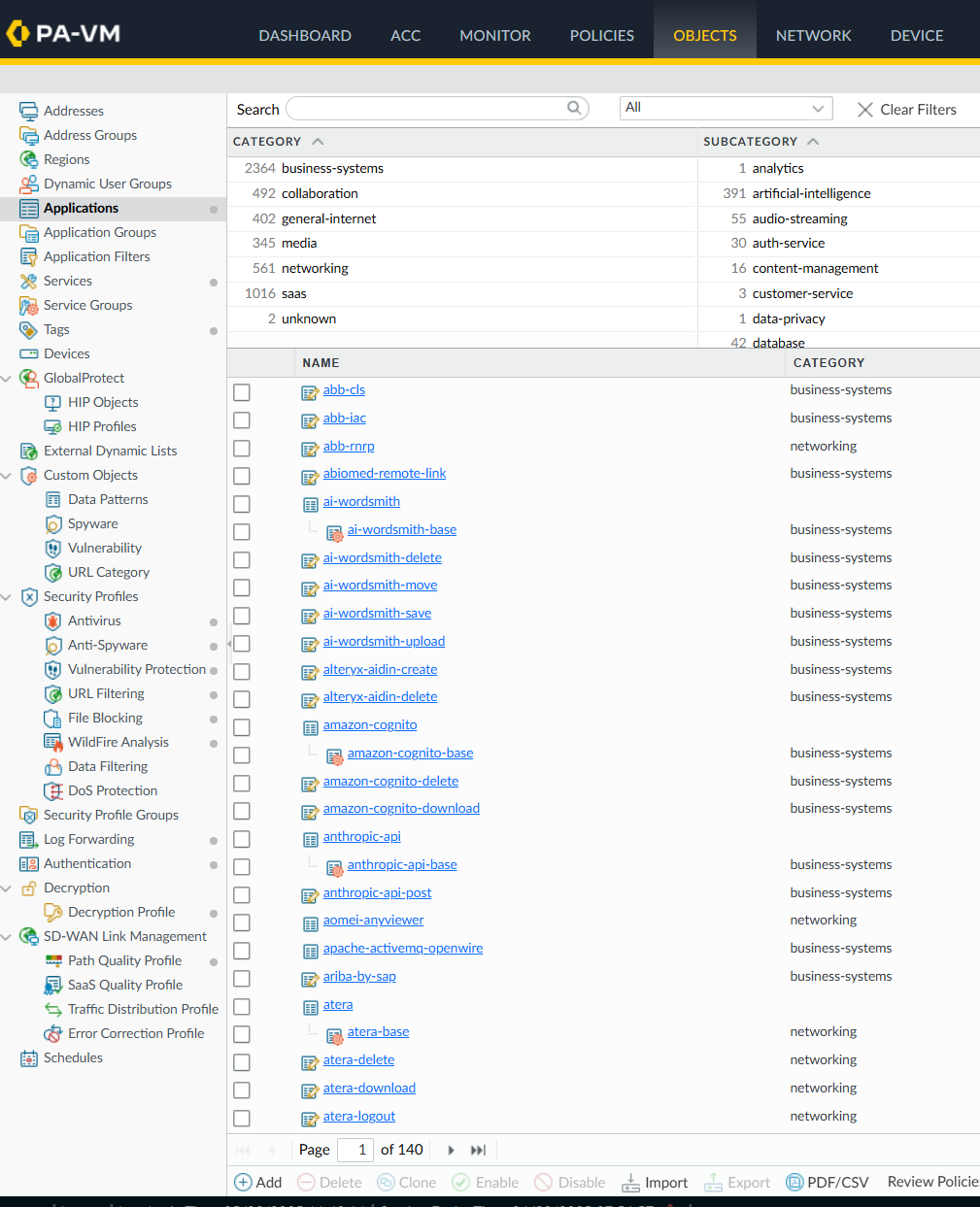
The key here is that you can also create your own App-IDs – you will use this feature to identify traffic from your different applications using data in the TLS certificates.
Click the Add button inside Objects | Applications. Here you will configure your new application identifier. Note that you will need to create one new App-ID for each service you want to identify.
Enter a Name for the service as well as category, subcategory and technology. The attributes under properties will not be used as part of our solution but are required to create the new App-ID, pick the options that make the most sense.
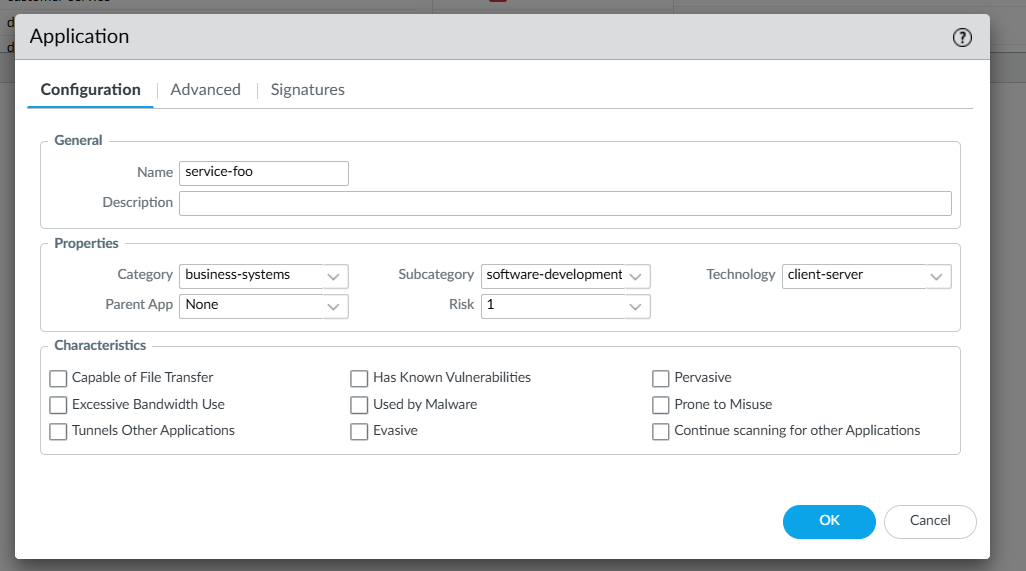
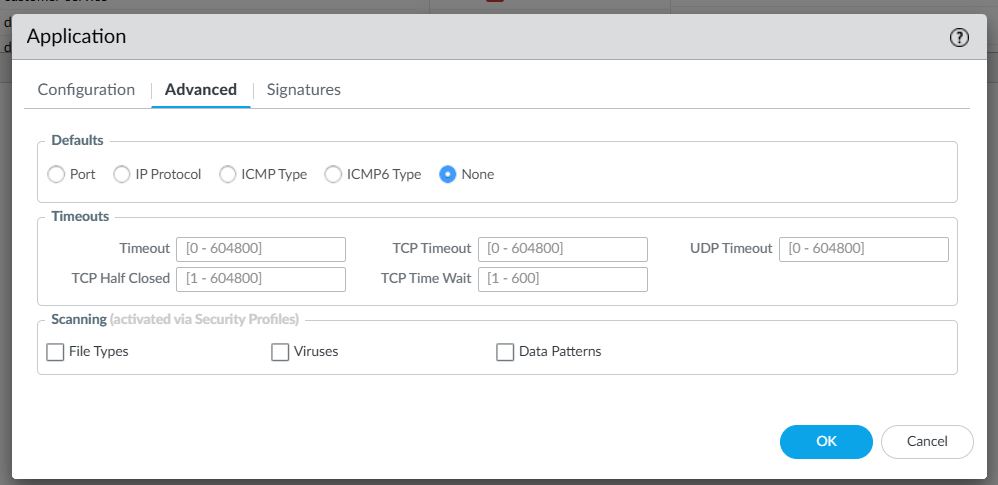
Under advanced select None for defaults, since only Signatures will be used to identify the application, regardless of the applications port or protocol. This is another crucial differentiator, allowing for ample flexibility in how your application is built and how it may evolve in the future.
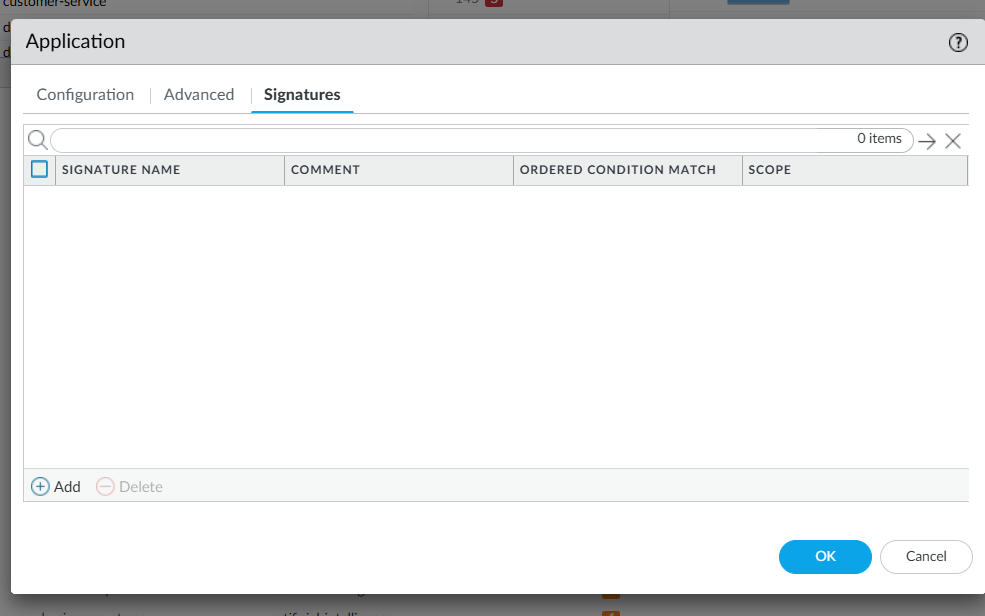
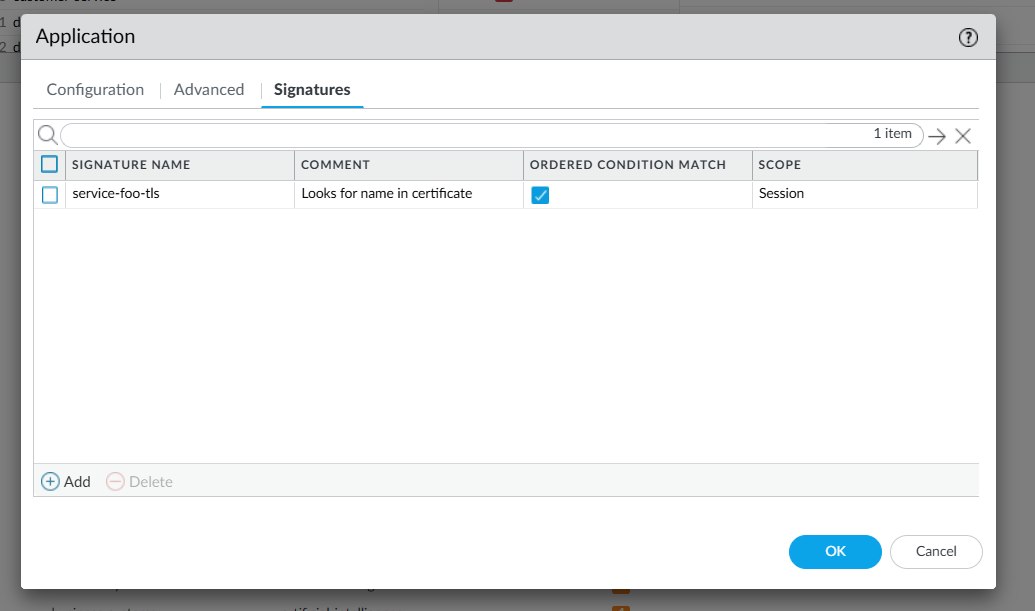
Now we get to the core configuration that will be leveraged: Signatures. Signatures are part of the App-ID traffic classification system, and they do exactly what you need, identify applications without relying on network attributes such as port, protocol or IP, which may change over time and can be dynamically modified in highly elastic cloud environments.
From the Application Signatures Dialog press the Add button.
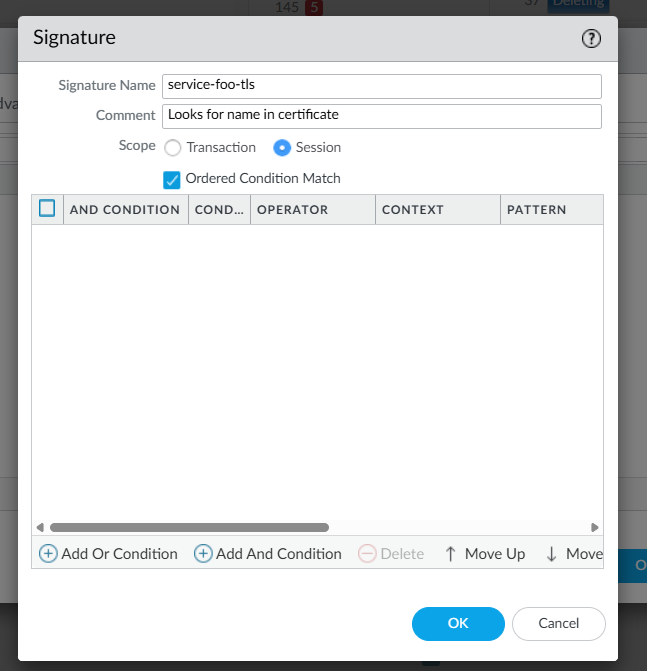
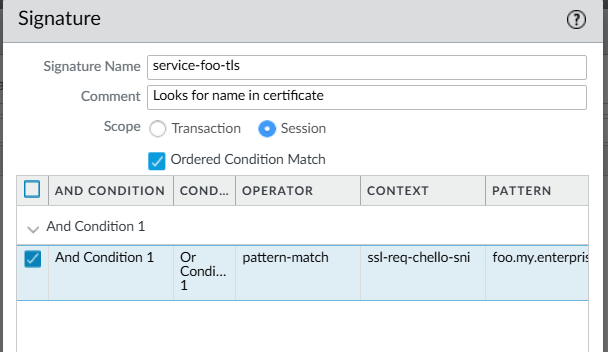
Give a Name to your Application Signature – it is recommended to use a naming convention that will make it intuitive to identify which signatures are being matched. In our scenario we will be using the server name property in the TLS certificate to match traffic to the application.
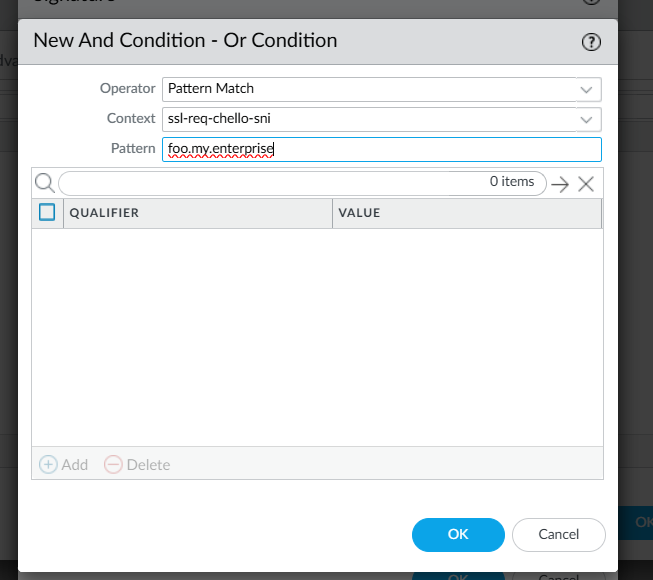
Click Add And Condition, select Pattern Match for Operator, ssl-req-chello-sni for Context and, in the Pattern field, enter the name for the service. Note that when generating certificates for each service, the name entered here must match the SANs (Subject Alternative Names) specified in the certificate request.
Create traffic policies
Once you have configured your Application Identifiers, you now can use them to allow or deny traffic in your policies. Clicking Policies will show you all existing policies in your firewall, make sure you are looking into the Security policies.
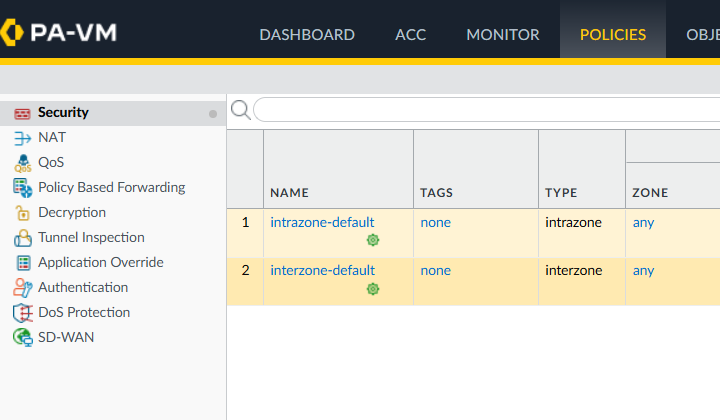
Click Add in Policies | Security to create a new Security Policy. Give your policy a Name.
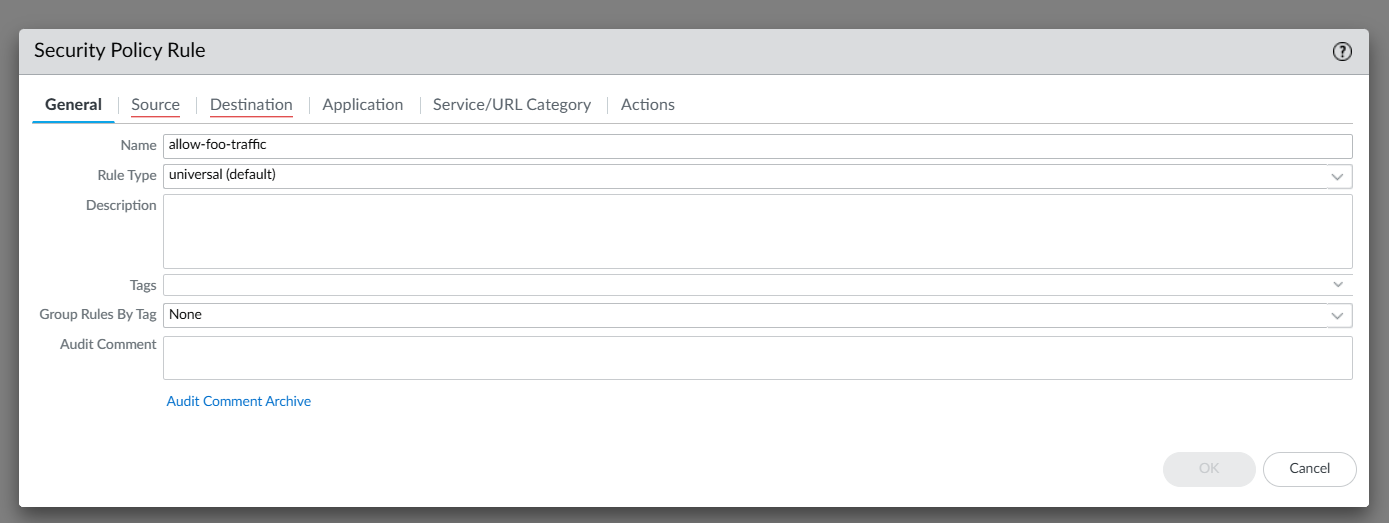
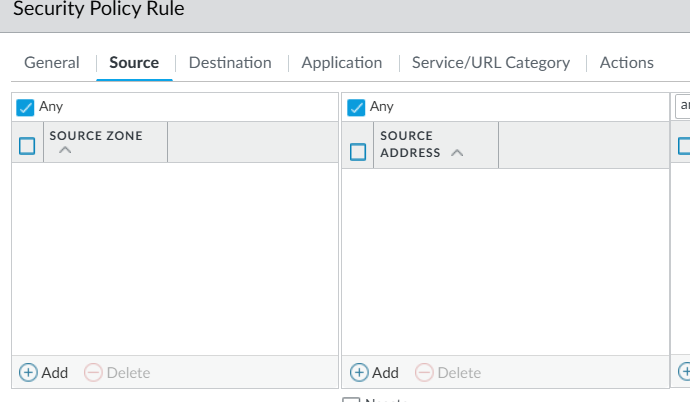
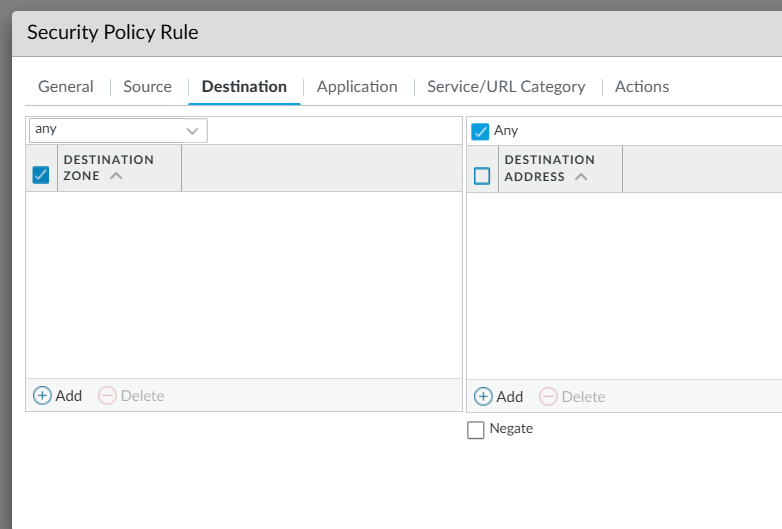
Using certificates for east-west traffic controls gives you a unique ability to have application specific identification and secured traffic regardless of the network subnet, IP address or other criteria traditionally used to define firewall rules, this is particularly valuable in cloud environments where application dynamically scale and can be relocated globally with little effort. Because of this, you can select Any both under Source as well as Destination for Zone and Address. You can of course combine network attributes such as zones, addresses and other such data to increase the granularity of your policies.
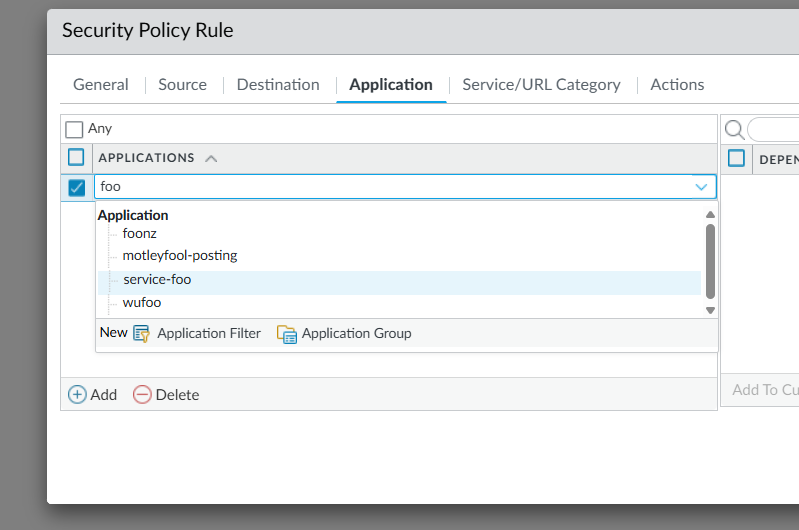
Now, click on Application. Here is where you will use the Application created earlier to match this rule to the traffic generated by your service. Look for the Application in the Applications drop down and select it.
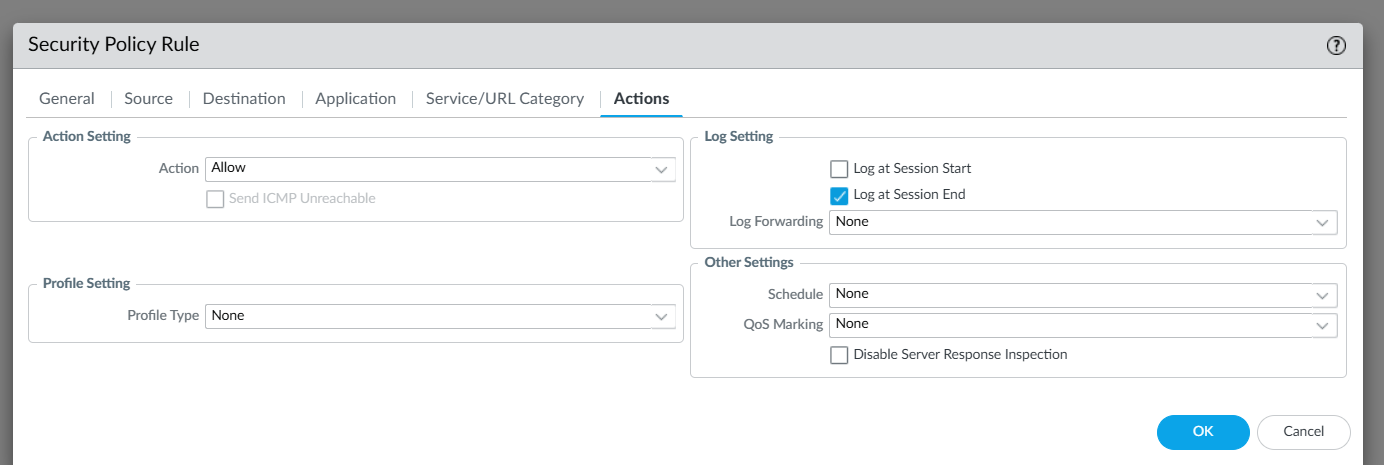
Now, choose whether you want to allow or deny the traffic and click OK.
You will now see the Policy in your list. Note that you can also combine Zones and other attributes for very granular control of which traffic your service is authorized to generate.

Automatic generation of TLS Certificates
Now comes the magic of automatically generating and assigning certificates that match the names we expect in our Policies to our containerized services running in EKS.
For this we will use a combination of three things:
Amazon Elastic Kubernetes Service using the AWS VPC CNI add-on. This add on integrates the Kubernetes network natively with the VPC, assigning VPC IP addresses to each Pod deployed to the cluster, thus leveraging all the networking capabilities available in AWS VPCs, from route tables to security groups and access control lists.
cert-manager, a Kubernetes native certificate management tool with support for a wide range of certificate issuers, and specifically the AWS Private CA certificate issuer.
Amazon Certificate Manager, specifically its Private CA capability, which allows you to generate certificates with a lot of flexibility, using a certification authority that you control.
Prerequisites
You will need to create a Private CA in your Amazon Certificate Manager service. Please follow the instructions in this user guide to complete this initial step.
You will need an operational Amazon EKS cluster with the AWS VPC CNI add on enabled and configured. To create your cluster you can follow this guide (we recommend using the eksctl method because of its simplicity). For details on how to configure the VPC CNI add-on you can look into this best practices guide.
Install cert-manager in your EKS cluster
There are different ways to install cert-manager that are beyond the scope of this tutorial. Using helm is a recommended option thanks to its simplicity and flexibility.
You can follow the official documentation to get step by step instructions on how to install the tool in your cluster.
Install and configure the AWS Private CA Issuer
There are also different ways in which you can install and configure the AWS Private CA Issuer. The AWS Private CA Issuer handles all communication with Amazon Certificate Manager to generate and store certificates in the right places. There are numerous ways in which you can configure the Issuer to authenticate with your AWS account, we recommend using IRSA (IAM Roles for Service Accounts) which offers a native way to securely authenticate your Kubernetes workloads using Amazon IAM roles and policies via Kubernetes native service accounts.
Follow the official documentation to find the installation option that best suits your own environment.
Mount and use the certificates in your Pods
In this article, you will find detailed instructions that guide you in integrating the tools you’ve just finished installing into a unified workflow that ultimately gets you Amazon Certificate Manager generated certificates available to use by your Pods.
Now you can configure NGINX or whichever HTTP server you are running in your Pod to use the certificate, which will be matched by Palo Alto Networks Application ID based Policy when traffic is routed through the Firewall!
Key takeaways
The architecture we have deployed in this tutorial presents a fully automated and cloud native way to secure traffic between services, all while making no modification to the applications.
Using fixed network attributes such as port, protocol or IP, is not a cloud native method to secure workloads, considering the highly dynamic and scalable environment that the cloud enables.
TLS certificates can be generated automatically using AWS Certificate Manager integrated to Kubernetes native tools such as cert-manager.
Using TLS certificates together with Palo Alto Networks App-ID technology provides a very robust and secure means to identify and secure applications in different environments, without the need for any type of application modification.
Next steps
With this tutorial, you can see the powerful and advanced ways in which you can build robust security in your cloud native environments using Palo Alto Networks VM-Series Next Generation Firewall together with AWS native services. Try Palo Alto Networks VM-Series Next Generation Firewall for free in AWS Marketplace using your AWS account.
Disclaimer
This tutorial will help you understand implementation fundamentals and serve as a starting point. The reader is advised to consider security, availability and other production-grade deployment concerns and requirements that are not within scope of this tutorial for a full scale, production-ready implementation.
Why AWS Marketplace for on-demand cloud tools
Free to try. Deploy in minutes. Pay only for what you use.