Artificial Intelligence
Live Meeting Assistant with Amazon Transcribe, Amazon Bedrock, and Strands Agents
Update — May 2026 (v0.3.4): The AI assistant now uses the Strands Agents SDK with Amazon Bedrock (replacing QnABot, Amazon Lex, and Amazon Q Business). New in the v0.3 release line: Virtual Participant with voice assistant and animated avatar, Model Context Protocol (MCP) tool integration with personal API keys, Meetings Query Tool, Upload Audio for pre-recorded files, User Management with role-based access control, embeddable UI components, Amazon Bedrock Guardrails, the latest Claude 4.x and Amazon Nova models, real-time bidirectional AI language interpreter, and Amazon Quick Desktop skills pack. For more, see CHANGELOG.
Your organization loses critical context when meeting notes are incomplete or missing entirely. Team members struggle to capture key details while staying engaged in conversations, and important follow-up actions get lost in the shuffle.
Meetings are where deals advance, decisions get made, and context gets lost. Across organizations, only a small fraction of meetings have transcripts attached to project records or knowledge management systems. The rest go undocumented. Existing automation typically covers only one meeting platform, and then only when team members own the invite. Everything else is manual: download the recording, upload it, transcribe it, attach it. Most people skip it.
During live calls, the gap is worse. When someone asks a question that requires specific information, whether it’s technical documentation, policy details, or project history, the choices are: answer from memory and risk being wrong, promise to follow up and lose momentum, or search through systems while others wait.
You can now capture, transcribe, and analyze your meetings in real time with an AI assistant that provides contextual responses, automates actions, and generates comprehensive summaries using the Live Meeting Assistant (LMA). LMA is an open source AWS sample solution.
In this post, you’ll learn how to deploy LMA in your AWS account, connect it to your meetings, and configure the AI assistant to access your company’s enterprise tools and knowledge bases for contextual responses and automated actions.
What’s New in LMA v0.3
Highlights:
- Get more consistent AI responses through the unified Strands Agents SDK: The meeting assistant is now exclusively powered by the Strands Agents SDK with Amazon Bedrock. You now have a streamlined solution that consolidates on the Strands Agents SDK, giving you more consistent performance and simplified maintenance.
- Access the latest Claude 4.x models for improved accuracy: Claude 3.x models have been replaced by Claude 4.5+ (Haiku, Sonnet, Opus) and Amazon Nova models.
- Participate in verbal conversations with an AI assistant that can speak during meetings: LMA can now respond verbally during meetings using Nova Sonic 2 or ElevenLabs, with wake-phrase activation or always-active listening modes.
- Optional animated avatar: The Virtual Participant now supports an optional animated, lip-synced avatar as its camera feed in meetings, driven by the voice assistant’s audio output.
- Amazon Bedrock Guardrails: Apply Amazon Bedrock Guardrails to the meeting assistant to control and filter responses.
- MCP server integration: Connect the LMA to external tools and services (Salesforce, Amazon Quick Suite, DeepWiki, and more) via the Model Context Protocol.
- Meetings Query Tool: Ask questions and get answers from all your past meeting transcripts and summaries.
- Embeddable components: Embed individual LMA components (transcript, chat, etc.) in external applications via iframe integration.
- Upload pre-recorded audio or video files: Transcribe existing recordings such as downloaded Zoom meetings, saved voicemails, interviews, customer-service calls, using the same LMA pipeline that runs for live meetings.
-
User Management with role-based access control: Admins can now create and delete LMA users (Admin or User role) directly from the Web UI, with no trip to the AWS console. New users receive an invitation email containing a clickable link to your LMA Web UI.
-
Translator Mode: Turn the LMA Virtual Participant into a real-time bidirectional AI interpreter that joins your meeting and speaks every utterance back in the other language, powered by Amazon Nova Sonic.
-
MCP API Key Authentication: Generate a personal API key from the LMA Web UI to connect Amazon Quick Suite, Claude Desktop, or any other MCP-compatible client to your meeting data over a simple bearer-token flow.
-
Amazon Quick Desktop Skills Pack: A downloadable bundle of pre-built skills and scheduled agents (pre-meeting briefings, automatic action-item tracking, async meeting catch-up, live call coaching) that extend LMA into a hands-free meeting-intelligence workflow on Amazon Quick Desktop.
Solution Overview
LMA captures speaker audio and metadata from your meetings and transcribes them in real time using AI services running in your AWS account. There are four ways to connect LMA to your meetings:
- Virtual Participant (recommended): An AI-powered bot joins your Zoom, Teams, Amazon Chime, Google Meet, or WebEx meeting as a separate participant. You can use your native desktop meeting app. The virtual participant supports the voice assistant and animated avatar features.
- Stream Audio: Share audio from a Chrome browser tab directly from the LMA UI. Works with any browser-based audio source.
- Browser Extension: A Chrome extension that captures audio and meeting metadata (speaker names, meeting title) from supported meeting apps running in your browser.
- Upload Audio: Upload a recorded audio file directly from the LMA UI for transcription, AI analysis, and summary generation. Works with any
Amazon Transcribe supported audio format, enabling processing of pre-recorded meetings, interviews, or other audio content.
LMA uses:
- Amazon Transcribe for real-time speech to text
- The Strands Agents SDK with Amazon Bedrock for an agentic AI meeting assistant with built-in tools
- Optionally, Amazon Bedrock Knowledge Bases for contextual queries against your company’s documents and knowledge sources
- Amazon Translate for live translation into 75+ languages
- Amazon Nova Sonic 2 or ElevenLabs for voice assistant responses
- Model Context Protocol (MCP) for extending the assistant with external tools like Salesforce and Amazon Quick Suite
Everything is provided as open source in the LMA GitHub repository. It’s straightforward to deploy in your AWS account.
Key Features
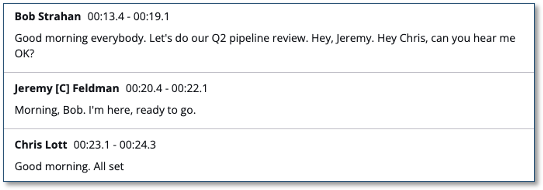
Live Transcription with Speaker Attribution
LMA uses Amazon Transcribe for low-latency, high-accuracy speech to text. You can optionally teach LMA brand names and domain-specific terminology using custom vocabulary and custom language model features.
LMA supports 50+ transcription languages, including automatic single-language and multi-language identification.
Live Translation
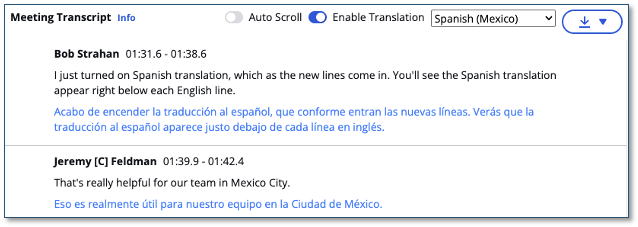
LMA uses Amazon Translate to optionally show each segment of the conversation translated into your language of choice, from a selection of 75+ languages. Translation is performed client-side in real time.
AI Meeting Assistant
LMA’s core capability is its real-time AI meeting assistant. It listens along with you so it has context of what’s being discussed and can answer questions on the spot, pulling from the live conversation, your past meetings, your company’s documents and policies, and the web. During Virtual Participant meetings, it can even open a browser and look things up visually while the meeting continues.
You can ask for things like:
- “Summarize what we’ve covered so far.”
- “What did we decide about pricing in last week’s review?”
- “Pull up the SLA section from our support policy.”
- “What’s the latest news on our competitor’s launch?”
- “Show me that page you were just looking at.”
Activate the assistant in three ways:
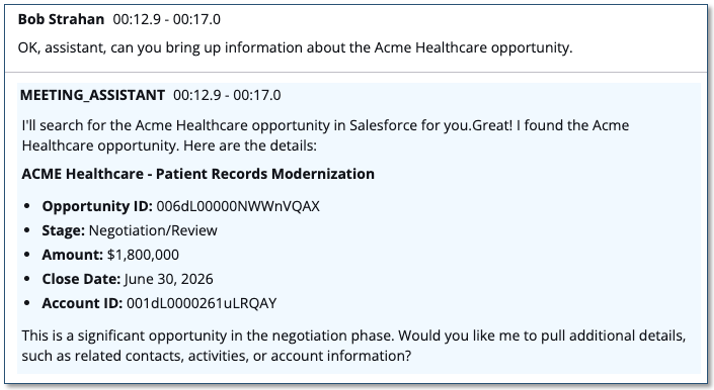
- Say the wake phrase: Say “OK, Assistant” (customizable) during the meeting, and the response appears inline with the transcript.
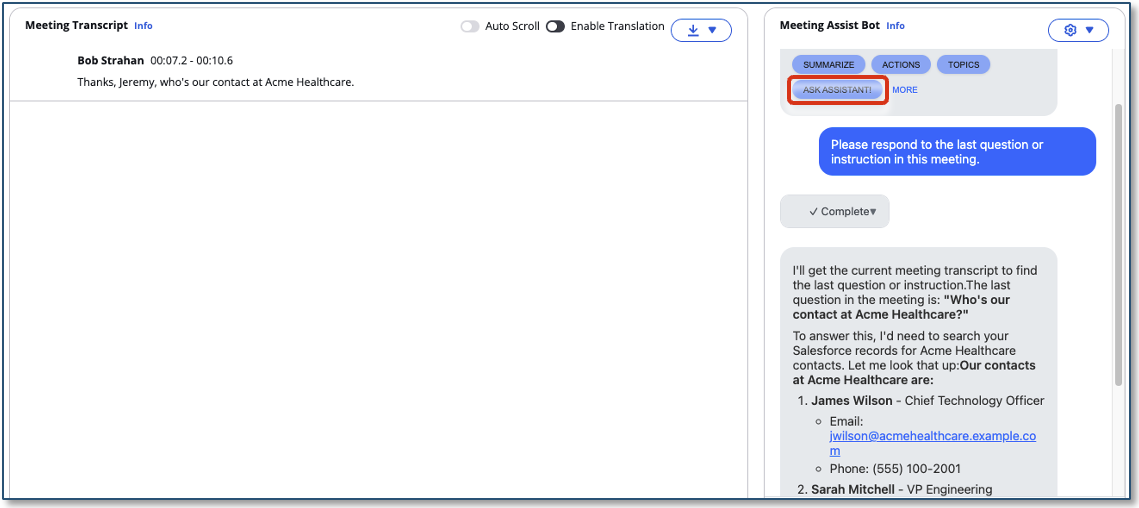
- Type in the chat panel: Type your question in the chat panel, or use a shortcut button like ‘Ask Assistant’, ‘Summarize’, or ‘Action Items’.
- Talk to it out loud: With the Virtual Participant’s voice assistant enabled, say “Hey Alex” (or your chosen wake phrase) and the assistant replies verbally, right in the meeting.
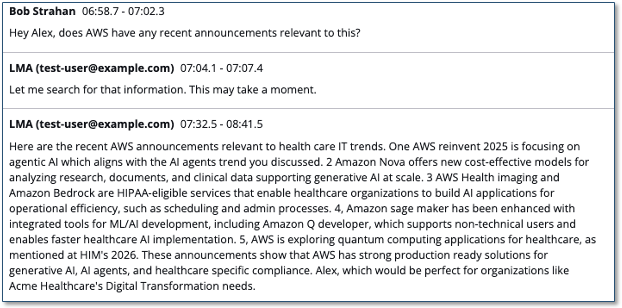
Under the hood, LMA uses the Strands Agents SDK with Amazon Bedrock. You can choose the underlying LLM from the latest Claude 4.x family (Haiku, Sonnet, or Opus) or Amazon Nova / Nova 2. Optionally apply Amazon Bedrock Guardrails to control content and topic boundaries. Extend the assistant with your own knowledge base (from an S3 bucket or public web pages) and with external tools via MCP.
MCP Server Integration
- Salesforce — full read/write on accounts, contacts, opportunities, and cases, so the assistant can create follow-up tasks or update records mid-meeting.
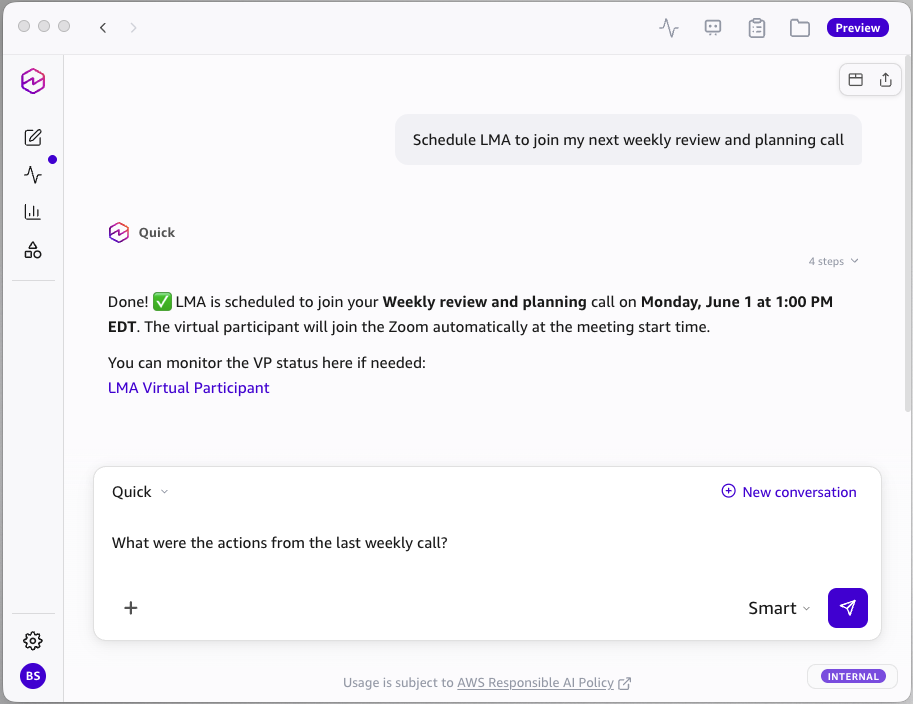
- Amazon Quick Suite — search your organization’s indexed knowledge and schedule events from inside a meeting.
- DeepWiki — search AI-generated repository documentation from public GitHub repos during technical discussions.
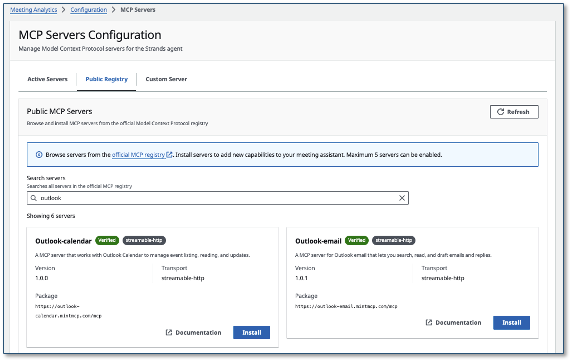
The same pattern works for any MCP-compatible tool. Add, remove, or swap integrations at any time from the admin UI — no stack redeploy needed.
Amazon Quick Desktop Skills Pack
The new Amazon Quick Desktop Skills Pack turns LMA into an always-on meeting-intelligence layer for Amazon Quick Desktop, with pre-built scheduled agents and skills that put your meeting history to work for you: AI-generated briefings before every meeting, automatic action-item tracking after every meeting, async catch-up on meetings you missed, and real-time sales coaching during live calls. Because every interaction flows through LMA’s MCP server, the Skills Pack inherits the same authentication, user-based access control, and audit trail as the LMA Web UI — and installation takes only minutes once you have an LMA API key.
On-Demand Insights and Automatic Summaries
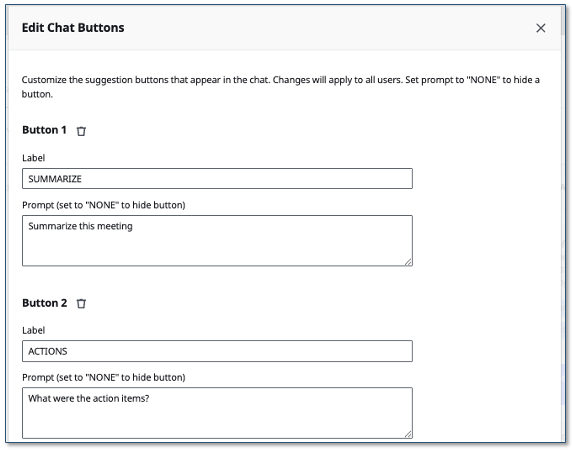
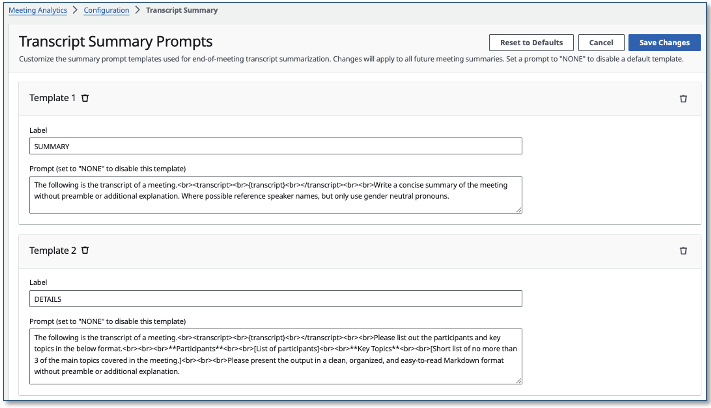
LMA’s meeting detail page provides configurable shortcut buttons that run LLM prompts against the transcript with a single click. The default buttons include summaries, current topic, and action items with owners and due dates — but you can customize them to run any prompt you need. For example, add buttons for “What’s left on our agenda?”, “What actions were assigned to me?”, “List all decisions made”, or any other question relevant to your workflow. Configure buttons through the admin UI.
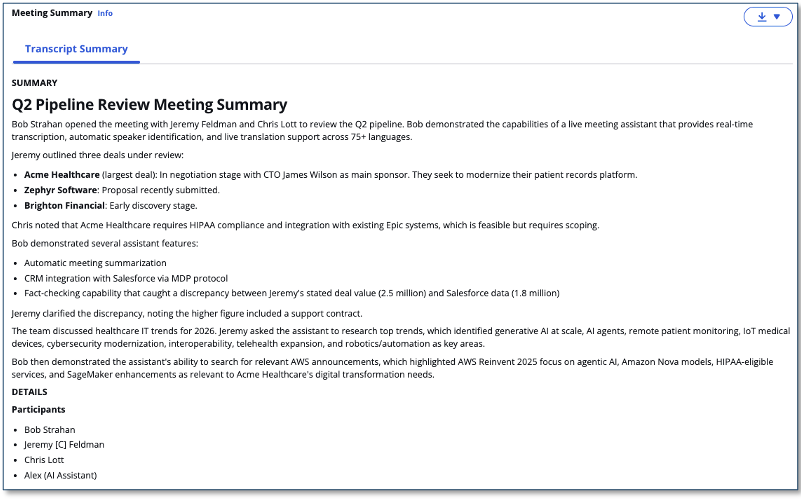
When the meeting ends, LMA automatically runs a separate set of configurable LLM prompts to generate a comprehensive post-meeting summary with insights. Customize these end-of-meeting prompts through the admin UI.
Meetings Query Tool
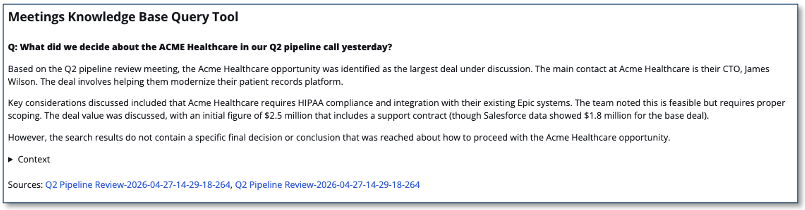
LMA stores all your meeting transcripts and summaries in a dedicated Amazon Bedrock Knowledge Base. The Meetings Query Tool in the UI provides a chat interface where you can search for answers and references across all your past meetings.
The knowledge base syncs automatically every 15 minutes. User-based access control is enforced — you only query meetings you own, unless you’re the admin.
Virtual Participant
The Virtual Participant (VP) is a Chrome browser running on Amazon ECS that joins meetings as a separate participant. It supports Zoom, Microsoft Teams, Amazon Chime, Google Meet, and WebEx.
Advantages over Stream Audio and the Browser Extension:
- You are free to use your native desktop meeting app instead of the browser
- VP can join before you, stay after you leave, or attend meetings without you
- Voice assistant and animated avatar integration
- Visual real-time browser viewing and control
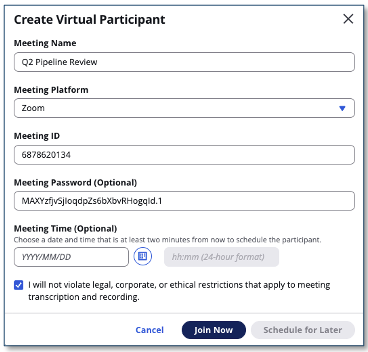
- Paste a meeting invitation and let AI parse the details automatically
- Schedule auto-join for future meetings
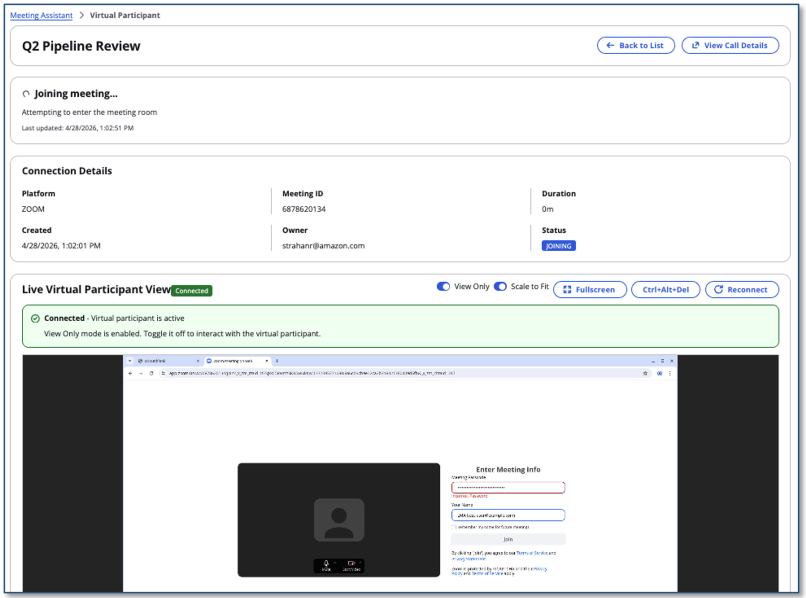
VP supports two launch types:
- EC2 (default): Warm instances with cached Docker images for faster startup (~30-60 seconds). Recommended.
- Fargate: Serverless with ~2-3 minute startup.
Voice Assistant
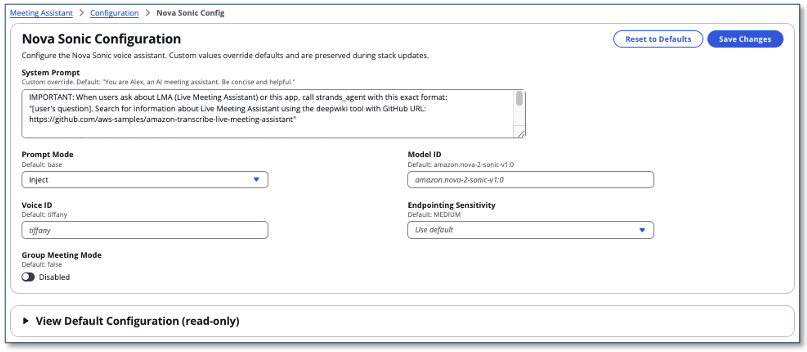
LMA can add a voice assistant to the Virtual Participant, allowing it to respond verbally during meetings. Two activation modes are available:
- always_active: Voice agent leads the conversation, always listening
- wake_phrase: Agent activates on a configurable wake phrase (such as “Hey Alex”), stays active for a configurable duration (5-300 seconds)
The voice assistant uses the same agent tools as the chat interface.
Animated Avatar
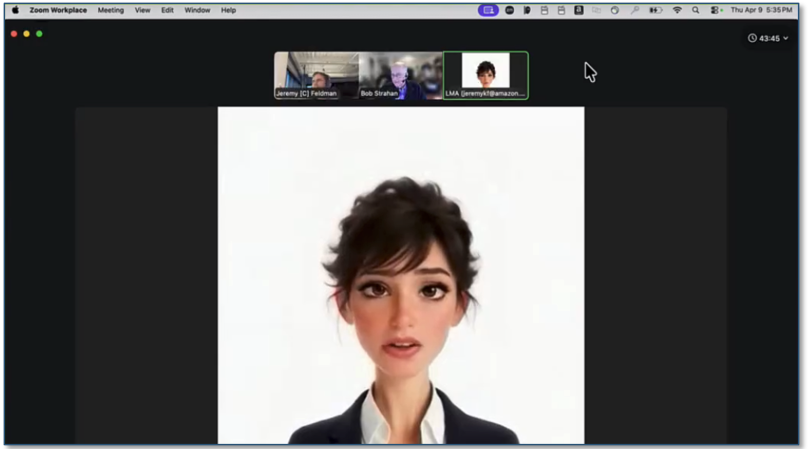
With the optional Simli avatar integration, the Virtual Participant’s camera feed displays an animated, lip-synced avatar driven by the voice assistant’s audio output. This gives the VP a visual presence in the meeting.
Configure with your Simli API key and Face ID. Choose between livekit (firewall-friendly) or p2p (lower latency) transport modes.
Note: When the avatar is enabled, LMA sends the voice assistant’s audio to the third-party Simli API for lip-sync processing. This audio is processed outside your AWS account. Evaluate whether this meets your organization’s data handling and privacy requirements before enabling this feature.
Real-time AI translator with Translator Mode
Translator Mode turns the LMA Virtual Participant into a live, bidirectional AI interpreter. After configuring a language pair on the Nova Sonic Configuration page (for example, English ↔ Spanish, or English ↔ Japanese) and deploying with VoiceAssistantActivationMode = always_active, the Virtual Participant joins your Zoom, Microsoft Teams, Amazon Chime, or Cisco Webex meeting and speaks each utterance back in the other language using a single polyglot Nova Sonic voice. Detection of which of the two configured languages an utterance is in happens automatically, on every turn.
Mid-meeting controls are built in. To pause translations during a side conversation or narration, a participant says “translator mute”; to resume, “translator unmute”. The mute is enforced as a state machine inside the voice agent so the participant remains silent across subsequent turns until explicitly unmuted. Translator Mode also keeps the assistant’s spoken translations out of the meeting transcript, so the recorded transcript stays faithful to what the human participants actually said.
Translator Mode works alongside LMA’s normal transcription, summarization, and meeting assistant pipeline — so the meeting host gets a translated live conversation and a single bilingual transcript, summary, and Q&A experience after the call. Watch the demo video to see it in action.
Embeddable Components
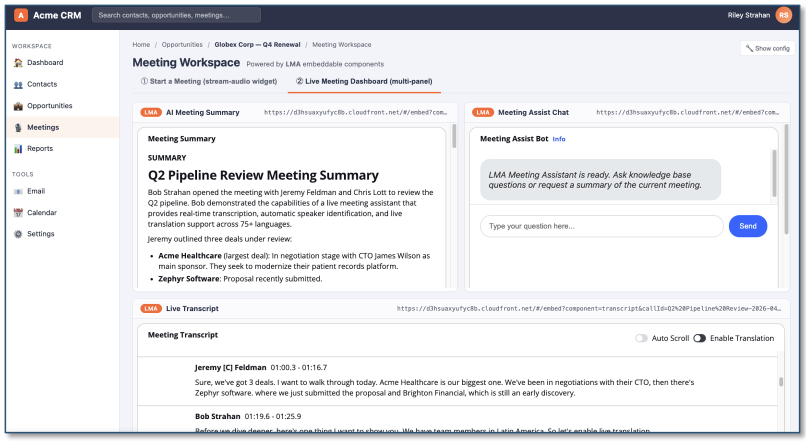
LMA components can be embedded in external applications via iframe integration. Embed individual components (stream audio, transcript, summary, chat, VNC, virtual participant details) with URL query parameters and a postMessage API for cross-origin authentication and meeting lifecycle control.
Meeting Recording
LMA optionally records audio to Amazon S3, with configurable retention. Recordings are playable directly in the meeting detail page.

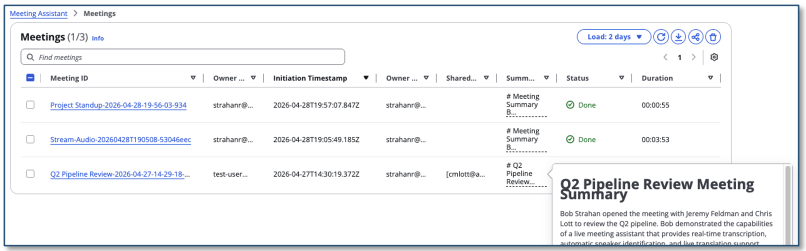
Meeting Inventory
All meetings are tracked in a searchable inventory with status, duration, sharing controls, and summary.
Getting Started
Prerequisites
You need an AWS account with IAM permissions to create the required resources.
If you want LMA to use your own documents for the meeting assistant, you can either:
- Have LMA automatically create an Amazon Bedrock Knowledge Base from documents in an S3 bucket or public web pages
- Use an existing Amazon Bedrock Knowledge Base you’ve already created
Deploy the CloudFormation Stack
Use the pre-built CloudFormation templates to deploy LMA. Choose Launch Stack for your region:
| Region | Launch Stack |
|---|---|
| US East (N. Virginia) |  |
| US West (Oregon) | |
| Asia Pacific (Tokyo) | |
| Europe (Ireland) | |
Key parameters to configure:
- Admin Email Address: Your temporary password is emailed here. We recommend the
jdoe+admin@example.comformat to separate admin and personal accounts. - Authorized Account Email Domain: Allow users in your organization to self-register by adding an allowed email domain (such as
example.com). Leave blank to prevent self-registration. - MeetingAssistService: Choose
STRANDS_BEDROCK(default, no knowledge base),STRANDS_BEDROCK_WITH_KB (Create), orSTRANDS_BEDROCK_WITH_KB (Use Existing). - Transcript Knowledge Base: Choose
BEDROCK_KNOWLEDGE_BASE (Create)(default) to enable the Meetings Query Tool, orDISABLED.
To try the voice assistant and avatar features with your first deployment:
- VoiceAssistantProvider: Set to `amazon_nova_sonic` (recommended, AWS-native) or `elevenlabs` (requires an ElevenLabs API key). Leave as `none` to skip.
- VoiceAssistantActivationMode: Choose `wake_phrase` (responds when you say “Hey Alex”) or `always_active` (always listening).
- SimliApiKey and SimliFaceId: To enable the animated avatar, enter your Simli API key and a Face ID from [Simli](https://www.simli.com/). Leave blank to skip.
For all other parameters, the defaults work well for getting started. You can customize later by updating the stack.
Check the acknowledgement boxes and choose Create stack. Deployment takes approximately 35-40 minutes.
Set Your Password
After deployment, when the CloudFormation stack is CREATE_COMPLETE:
- Open the welcome email sent to your admin email address.
- Navigate to the LMA URL as directed in the email.
- Log in with the temporary password from the email and create a new permanent password (8+ characters, with uppercase, lowercase, numbers, and special characters).
Start Your First Meeting with the Virtual Participant
The Virtual Participant (VP) is the recommended way to connect LMA to your meetings. It joins as a separate participant in Zoom, Teams, Amazon Chime, Google Meet, or WebEx — so you can use your native desktop meeting app while the VP handles transcription, the AI assistant, and optionally a voice assistant with avatar.
- In the LMA UI, open the Virtual Participant tab.
- Choose Paste Meeting Invite. Enter your meeting URL (such as a Zoom or Teams link). You can also paste a full meeting invitation — LMA uses AI to parse the meeting platform, URL, ID, and password automatically.
- Enter a meeting name and click Join Now.
- The VP starts in approximately 30-60 seconds and joins your meeting as a participant. It posts an introduction message in the meeting chat.
- Watch the VP status in the LMA UI as it progresses: INITIALIZING → JOINING → JOINED.
- Once joined, open the meeting detail page to see the live transcript, interact with the AI meeting assistant, and generate summaries.
Use the VNC preview on the meeting detail page to see exactly what the VP sees in the meeting and to interact with the VP’s browser in real time. This is useful for troubleshooting joining issues — for example, solving a CAPTCHA challenge, entering a one-time password or waiting room approval, dismissing cookie consent dialogs, or clicking through any other gate the meeting platform presents before allowing the VP to join.
If you enabled the voice assistant (Amazon Nova Sonic 2 or ElevenLabs) during deployment, the VP can respond verbally. Say the wake phrase (such as “Hey Alex”) and ask your question — the VP speaks the answer back into the meeting. With the optional Simli avatar, the VP’s camera feed shows an animated, lip-synced face driven by the voice assistant audio.
When the meeting ends (or you click End Meeting in the LMA UI), LMA automatically generates a comprehensive summary with action items, and the recording becomes available for playback.
Other Ways to Capture Meeting Audio
Stream Audio from Your Browser
If you prefer to stay in your browser or want to capture audio from any browser-based audio source, the Stream Audio tab provides a quick alternative.
- Open any audio source in a Chrome browser tab (meeting app, softphone, or a YouTube video for demo purposes).
- In the LMA UI, open the Stream Audio tab.
- Enter a meeting topic, your name, and participant names.
- Click Start Streaming, then select the browser tab with your audio and click Allow to share.
- Use the “Open in progress meeting” link to view the live transcript.
- When finished, click Stop Streaming. LMA finalizes the transcript and generates the summary automatically.
Stream Audio works with any audio playing in Chrome, but it requires you to run your meeting in the browser and does not support the voice assistant or avatar features. It differentiates between your audio (microphone/headset) and everyone else’s (incoming system audio), but it cannot identify individual remote speakers by name — all incoming audio is attributed to a single participant label.
Use the Browser Extension
For users who run meetings in Chrome, the LMA browser extension provides the most seamless experience for browser-based meetings. It automatically detects meeting metadata such as speaker names, and meeting title from supported meeting apps (Zoom, Teams, WebEx, Amazon Chime).
- Download the browser extension from the LMA UI and install it in Chrome (see the Download Chrome Extension link).
- Pin the LMA extension to your browser toolbar.
- Open the extension and log in with your LMA credentials.
- Join a meeting in Chrome (such as Zoom in the browser). The extension auto-detects the meeting app and populates your name and the meeting name.
- Click Start Listening. The extension captures two-channel audio (your microphone + meeting audio) and streams it to LMA with active speaker metadata.
- Click Open in LMA to view the live transcript.
- When done, click Stop Streaming in the extension.
The browser extension captures richer speaker metadata than Stream Audio (since it hooks into the meeting app’s DOM), but it requires running your meeting in Chrome rather than using a native desktop app. It does not support the voice assistant or avatar features — those are exclusive to the Virtual Participant.
Upload Audio
If you have an existing recording, such as a saved meeting, voicemail, interview, or any audio/video file, you can upload it directly to LMA for transcription, AI assistant analysis, and summary generation.
- In the LMA UI, open the Upload Audio tab.
- Enter a meeting topic and participant names.
- Click Choose file and select an audio or video file from your computer.
- Choose Upload & Transcribe to start processing. LMA transcribes the recording, runs it through the AI assistant, and generates a summary with action items, just as it would for a live meeting.
- Open the meeting detail page to review the transcript, interact with the AI meeting assistant, and view the generated summary.
Upload Audio is ideal for processing recordings after the fact, for example, transcribing a saved Zoom recording, analyzing a customer service call, or generating notes from a dictation. Unlike the live options (Virtual Participant, Stream Audio, and Browser Extension), it processes the file asynchronously rather than in real time, so the transcript and summary appear once processing completes rather than streaming in live. Speaker diarization is optional — LMA identifies and labels distinct speakers in the recording without requiring prior speaker metadata.
How It Works: Architecture and Processing Flow
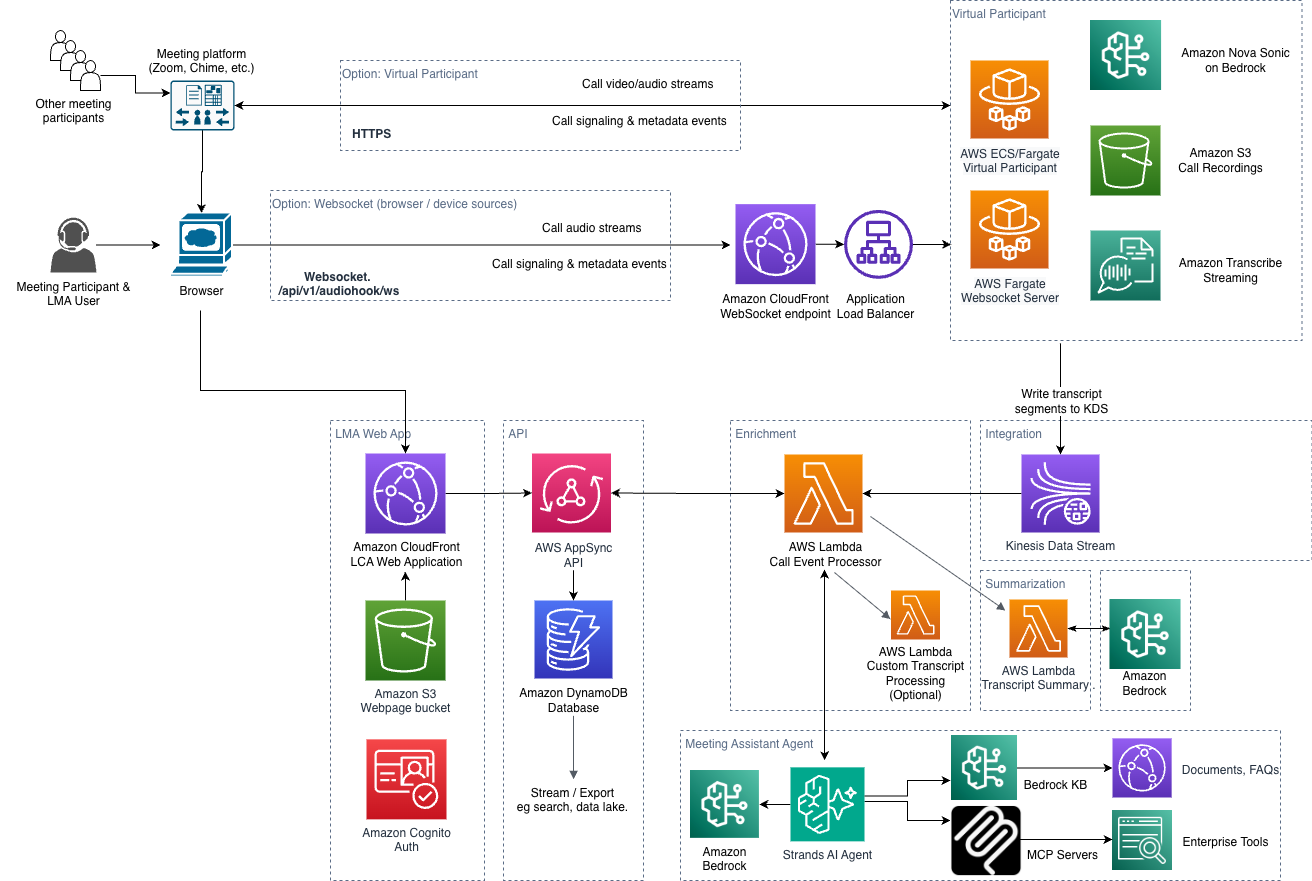
The processing flow is entirely event-driven, with end-to-end latency of 1-2 seconds:
- Audio capture: The user starts a meeting session using the Virtual Participant, Stream Audio tab, or browser extension. Stream Audio and the browser extension stream two-channel audio to the LMA stack via a secure WebSocket connection. The Virtual Participant captures audio directly from the meeting’s hosted VP browser session. Upload Audio follows the same downstream pipeline: the file uploads directly from the browser to S3 via a presigned URL, an `ObjectCreated` event triggers an Amazon Transcribe batch job, and the transcript segments are fed into Kinesis Data Streams when the job completes.
- Transcription: For Stream Audio and the browser extension, a secure WebSocket server relays the audio to Amazon Transcribe. For the Virtual Participant, the VP container streams audio to Amazon Transcribe directly. In both cases, transcription results are written in real time to Amazon Kinesis Data Streams.
- Processing: The Call Event Processor Lambda function consumes from Kinesis, processes transcription segments, and integrates with the Strands Agents SDK for meeting assistant responses.
- Storage and delivery: Results are persisted to Amazon DynamoDB via AWS AppSync mutations, and pushed to the web UI in real time via GraphQL subscriptions.
- Recording: At the end of the call, a WAV recording is stored in Amazon S3 (if enabled).
- Summarization: The transcript summarization function runs configurable LLM prompts on Amazon Bedrock to generate the post-meeting summary.
The LMA web UI is hosted on Amazon S3, served via Amazon CloudFront, with authentication by Amazon Cognito. The architecture uses nested CloudFormation stacks covering VPC networking, Cognito auth, AppSync API, Lambda functions, DynamoDB, Kinesis, ECS Fargate, and more.
Customizing LMA
LMA provides extensive customization options:
- Custom LLM prompts: Customize the summary prompt templates through the admin UI or directly in DynamoDB. Custom prompts persist across stack updates.
- Chat shortcut buttons: Customize the suggestion buttons in the chat panel through the admin UI.
- MCP servers: Add external tools and capabilities through the MCP Servers admin page. Install from the public registry or configure custom endpoints.
- Voice assistant prompts: Customize the Nova Sonic voice assistant’s system prompt via the admin UI.
- Knowledge Base documents: Populate your Knowledge Base from S3 documents or web pages. The KB syncs automatically.
- Amazon Bedrock Guardrails: Apply guardrails to control the meeting assistant’s responses.
- Transcript processing: Provide your own Lambda function for custom transcript processing (redaction, filtering, logging) via the Lambda hook mechanism.
- Content redaction: Enable PII redaction.
- Avatar configuration: Customize the Simli avatar’s Face ID, transport mode, and API settings through the CloudFormation parameters.
- Post-meeting Lambda hooks: Provide your own Lambda function to run after each meeting ends, enabling integration of transcripts and summaries into external systems (CRM, ticketing, email, Slack, etc.).
- Custom vocabulary: Improve transcription accuracy with Amazon Transcribe custom vocabularies and language models.
For the complete parameter reference, see the CloudFormation Parameters Reference.
Cost Assessment
LMA costs fall into two categories: always-on infrastructure and per-meeting usage.
Always-on infrastructure (monthly):
| Resource | Estimated Cost |
|---|---|
| VPC networking (2 NAT Gateways for HA, Elastic IPs)* | ~$66/month |
| Fargate WebSocket server (0.25 vCPU, 0.5 GB) | ~$10/month |
| EC2 for Virtual Participant (t3.medium, if warm instances enabled) | ~$30/month per instance |
| Amazon Bedrock Knowledge Base (S3 Vectors storage) | Minimal |
| Minimum total (Stream Audio only, no VP) | ~$76/month |
| With one warm VP instance | ~$106/month |
* The VPC with 2 NAT Gateways is the largest fixed cost. If you already have a VPC with NAT Gateways, you can use the UseExistingVPC parameter to deploy into your existing VPC and avoid this cost.
Per-meeting usage costs (approximate, for a 30-minute meeting):
| Service | Cost Driver | Estimated Cost |
|---|---|---|
| Amazon Transcribe | $0.024/min streaming (Tier 1) | ~$0.72 |
| Amazon Bedrock — Claude Haiku 4.5 (default LLM) | $1.10/1M input, $5.50/1M output tokens | ~$0.05–0.15 per assistant interaction |
| Amazon Bedrock — Amazon Nova Sonic 2 (voice assistant) | $0.003/1K speech input, $0.012/1K speech output | ~$0.30–0.60 per 30 min active session |
| Amazon Translate | $15/1M characters | ~$0.05 (if translation enabled) |
| End-of-meeting summarization | Amazon Bedrock LLM invocations | ~$0.05–0.10 |
Third-party services (if enabled):
- ElevenLabs (voice assistant alternative): Priced per character; see ElevenLabs pricing. Free tier available.
- Simli (animated avatar): Priced per minute of avatar rendering; see Simli pricing.
- Tavily (web search tool): Priced per search; see Tavily pricing. Free tier available.
Costs vary significantly based on meeting duration, how often you interact with the assistant, whether translation and voice assistant are active, and your volume tier. Use AWS Cost Explorer to track your actual spend.
Updating an Existing Stack
To update an existing LMA deployment to the latest version:
- Log into the AWS Console and navigate to CloudFormation.
- Select your LMA stack and choose Update → Replace current template.
- Enter the template URL for your region:
| Region | Template URL |
|---|---|
| US East (N. Virginia) | https://s3.us-east-1.amazonaws.com/aws-ml-blog-us-east-1/artifacts/lma/lma-main.yaml |
| US West (Oregon) | https://s3.us-west-2.amazonaws.com/aws-ml-blog-us-west-2/artifacts/lma/lma-main.yaml |
| Asia Pacific (Tokyo) | https://s3.ap-northeast-1.amazonaws.com/aws-bigdata-blog-replica-ap-northeast-1/artifacts/lma/lma-main.yaml |
| Europe (Ireland) | https://s3.eu-west-1.amazonaws.com/aws-bigdata-blog-replica-eu-west-1/artifacts/lma/lma-main.yaml |
- Review parameters, click Next, check IAM boxes, and choose Update stack.
Migration notes:
- If upgrading from v0.2.x, the transition to v0.3+ removes QnABot, Amazon Lex, Amazon Q Business, Amazon Bedrock Agent stack, and Claude 3.x models – all replaced by the Strands Bedrock agent.
- Custom prompt templates, user data, and installed MCP servers are preserved across updates.
Cleaning Up
To remove LMA, delete the CloudFormation stack from the AWS console. The following resources are retained to prevent data loss and must be manually deleted:
- S3 buckets (recordings and artifacts)
- DynamoDB tables (meeting data)
- CloudWatch Log groups
Conclusion
The Live Meeting Assistant sample solution offers a flexible, feature-rich approach to meeting productivity. With v0.3 and later, LMA consolidates on the Strands Agents SDK for a clean, powerful architecture — combining real-time transcription, an agentic AI assistant with MCP tool integration, voice assistant with animated avatar, and comprehensive meeting management.
Four audio capture options let you choose the right approach for your workflow: the Virtual Participant for hands-free, full-featured meeting attendance (including voice assistant and avatar); Stream Audio for quick browser-based capture; the Browser Extension for automatic meeting metadata detection in Chrome; and Upload Audio for pre-recorded files and legacy recordings.
The solution is open source under the MIT-0 license. Use it as a starting point, customize it for your needs, and contribute improvements and new features through the GitHub repository. For expert assistance, AWS Professional Services and other AWS Partners are here to help.
- Documentation: https://aws-samples.github.io/amazon-transcribe-live-meeting-assistant/
- Source code: https://github.com/aws-samples/amazon-transcribe-live-meeting-assistant
You are responsible for complying with legal, corporate, and ethical restrictions that apply to recording meetings and calls. Do not use this solution to stream, record, or transcribe calls if otherwise prohibited.
About the authors
 Bob Strahan is a Principal Solutions Architect in the AWS Generative AI Innovation Center.
 Chris Lott is a Principal Solutions Architect in the AWS AI Language Services team. He has 20 years of enterprise software development experience. Chris lives in Sacramento, California and enjoys gardening, aerospace, and traveling the world.
 Babu Srinivasan is a Sr. Specialist SA – Language AI services in the World Wide Specialist organization at AWS, with over 24 years of experience in IT and the last 6 years focused on the AWS Cloud. He is passionate about AI/ML. Outside of work, he enjoys woodworking and entertains friends and family (sometimes strangers) with sleight of hand card magic.
 Kishore Dhamodaran is a Senior Solutions Architect at AWS.
 Gillian Armstrong is a Builder Solutions Architect. She is excited about how the Cloud is opening up opportunities for more people to use technology to solve problems, and especially excited about how cognitive technologies, like conversational AI, are allowing us to interact with computers in more human ways.
 Wei Chen is a Sr. Solutions Architect at Amazon Web Services, based in Austin, TX. He has more than 20 years of experience assisting customers with the building of solutions to significantly complex challenges. At AWS, Wei helps customers achieve their strategic business objectives by rearchitecting their applications to take full advantage of the cloud. He specializes on mastering the compliance frameworks, technical compliance programs, physical security, security processes, and AWS Security services.
 Jeremy Feldman is a Software Developer in the AWS Generative AI Innovation Center.